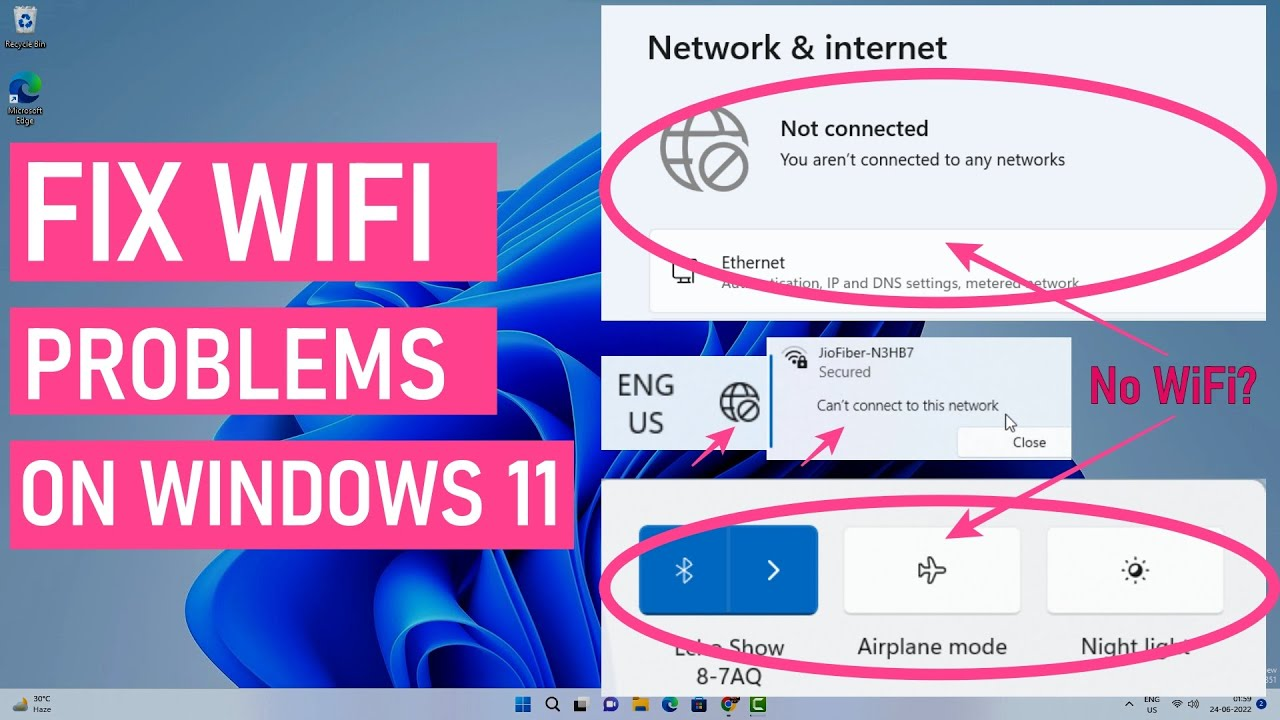
If your Windows laptop's Wi-Fi connection isn't working or the internet keeps disconnecting, there could be several reasons. Learn easy ways to troubleshoot Wi-Fi issues and important settings.
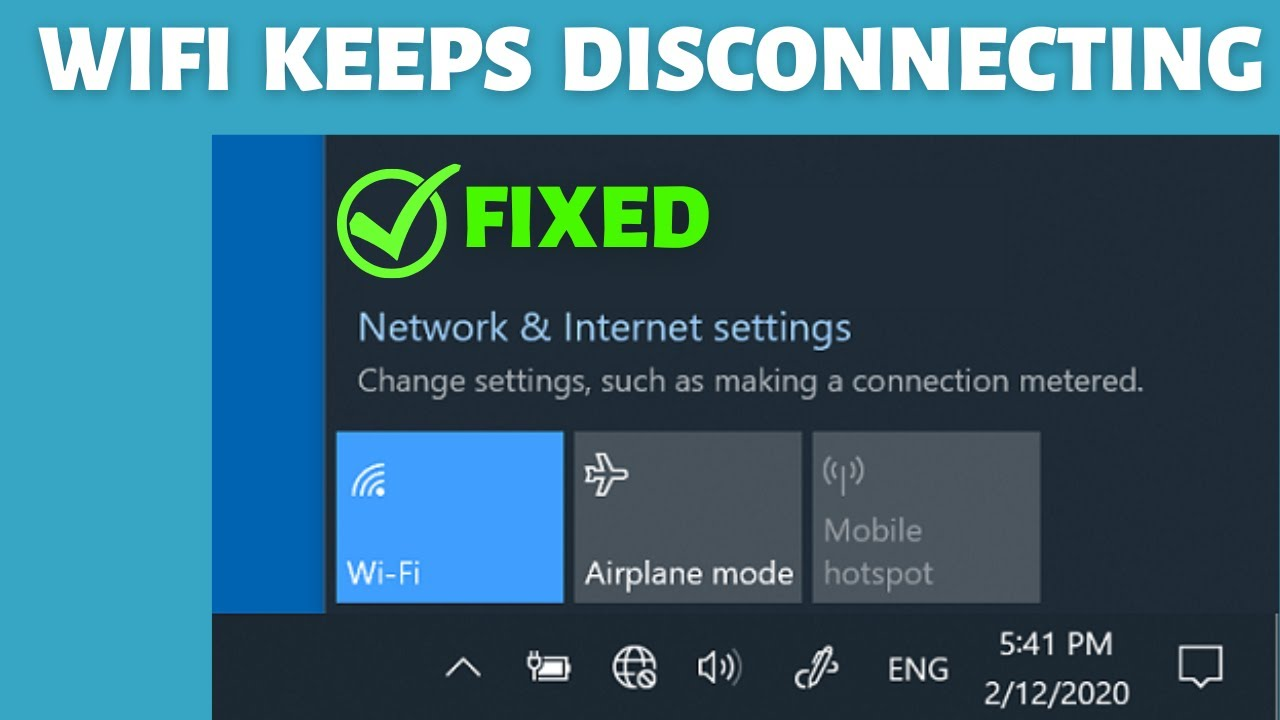
Windows Laptop Internet Problem
If the internet suddenly goes down while working on your laptop, even a small problem can waste a lot of time. Sometimes your Windows laptop won't connect to Wi-Fi, or sometimes websites won't open even if the connection is visible. In some cases, the Wi-Fi option disappears altogether, or the internet keeps disconnecting. In such situations, most people assume it's a problem with the router or laptop, but it could also be due to incorrect settings, an outdated network driver, or a weak signal. So, let's find out which settings to look for when your Windows laptop won't connect to Wi-Fi.
First, check Wi-Fi and Airplane Mode.
If your laptop's internet connection isn't working, first click the network icon in the taskbar. Check that Wi-Fi is on and that "Connected" appears under your network. Also, go to Settings and check Airplane Mode. If it's on, turn it off. Some laptops have a dedicated switch or keyboard button for wireless connections.
Reconnect to the Wi-Fi network.
Sometimes, connection problems can be caused by saved network information in Windows. To fix this, go to Settings > Network & Internet > Wi-Fi > Manage known networks. Select your network and select Forget. Then, reconnect to your Wi-Fi network and enter the password. Remember, you must know the correct password before deleting a network.
Restart the router and laptop.
If the problem persists, try restarting the modem and router, along with the laptop. Unplug the router, wait about 30 seconds, and then turn it back on. Once the internet connection is restored, connect the laptop. If the internet isn't working on other devices in the house, the problem may be with the router, modem, or internet service provider.
Update network drivers and Windows
Outdated or corrupted network drivers can also interfere with Wi-Fi connections. Open Device Manager and go to Network adapters to check your wireless adapter. Update the driver if necessary. Also, note if the problem started after an update. Also, open Windows Update in Settings and install any available updates.
What to do if the internet is still not working?
If the internet isn't working even after connecting to Wi-Fi, try using the same network on another phone or laptop. Alternatively, try connecting to a different network, either 2.4 GHz or 5 GHz. You can also use Network Reset in Windows, although this will reset the network adapters and their settings.