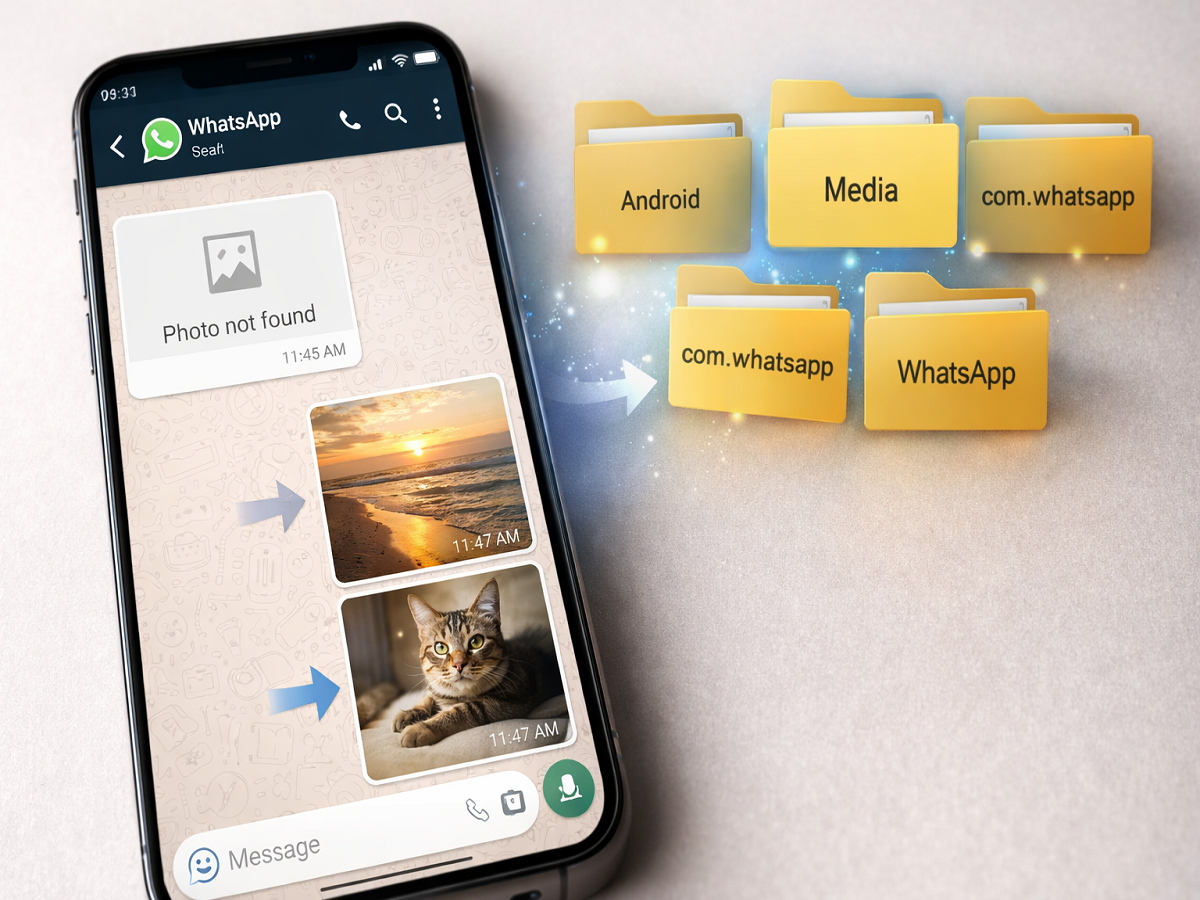
WhatsApp Android Fix Guide: If your photos, videos, or other media files have suddenly disappeared from WhatsApp on Android, you’re not alone. Many users have reported this issue after certain app updates, where media content is no longer visible inside chats—even though it still exists in the phone’s gallery.
This problem has been observed in specific versions of WhatsApp, and while there may not always be an official fix immediately, you can resolve it manually using a few simple steps.
What Is the WhatsApp Media Missing Issue?
Some Android users have noticed that:
- Media files (photos/videos) are not visible in chats
- Files cannot be found through WhatsApp search
- However, the same files are still present in the phone’s gallery
This indicates that the issue is not data loss but rather a folder or indexing problem within WhatsApp.
Why Does This Problem Occur?
The issue is often linked to:
- App updates that change media storage paths
- Cache or indexing errors
- Incorrect folder structure inside device storage
As a result, WhatsApp fails to locate media files even though they are still stored on your device.
How to Fix Missing Media on WhatsApp (Android)
Follow these steps carefully to restore your media files:
Step 1: Clear WhatsApp Cache
- Go to Settings → Apps → WhatsApp → Storage
- Tap on Clear Cache
- Ensure the app is not running in the background
👉 This helps remove temporary glitches.
Step 2: Open File Manager
- Launch your phone’s File Manager
- Navigate to:
WhatsApp → Media folder
Step 3: Move Media Files to Correct Folder
- Copy all contents inside the Media folder
- Move them to this path:
Android → Media → com.whatsapp → WhatsApp → Media
⚠️ Important:
- Move only the contents inside the Media folder
- Do not move or rename the main folder itself
Step 4: Wait and Restart WhatsApp
- Allow time for files to transfer completely
- Open WhatsApp again
👉 Your missing media should now reappear inside chats.
Important Precautions
Before applying the fix:
- Always take a backup of your chats
- Avoid deleting any unknown folders
- Follow folder paths carefully
What If the Problem Still Persists?
If the issue is not resolved:
- Update WhatsApp to the latest version
- Restart your device
- Reinstall the app (only after backup)
The missing media issue on WhatsApp Android can be frustrating, but it’s usually fixable with a simple folder adjustment. Since your files are not actually deleted, following the correct steps can help restore everything quickly.
Keep your app updated and maintain regular backups to avoid such problems in the future.