Is your inbox overflowing with promotional messages, newsletters, and random notifications? If yes, you’re not alone. Managing emails has become a daily struggle for many users, especially when important messages get buried under a pile of unwanted emails. But the good news is—Gmail offers powerful built-in features like Filters and Labels that can completely transform how you manage your inbox.
If you’re tired of endlessly scrolling to find important emails, here’s a simple and effective guide to organizing your inbox like a pro.
What Are Filters and How Do They Work?
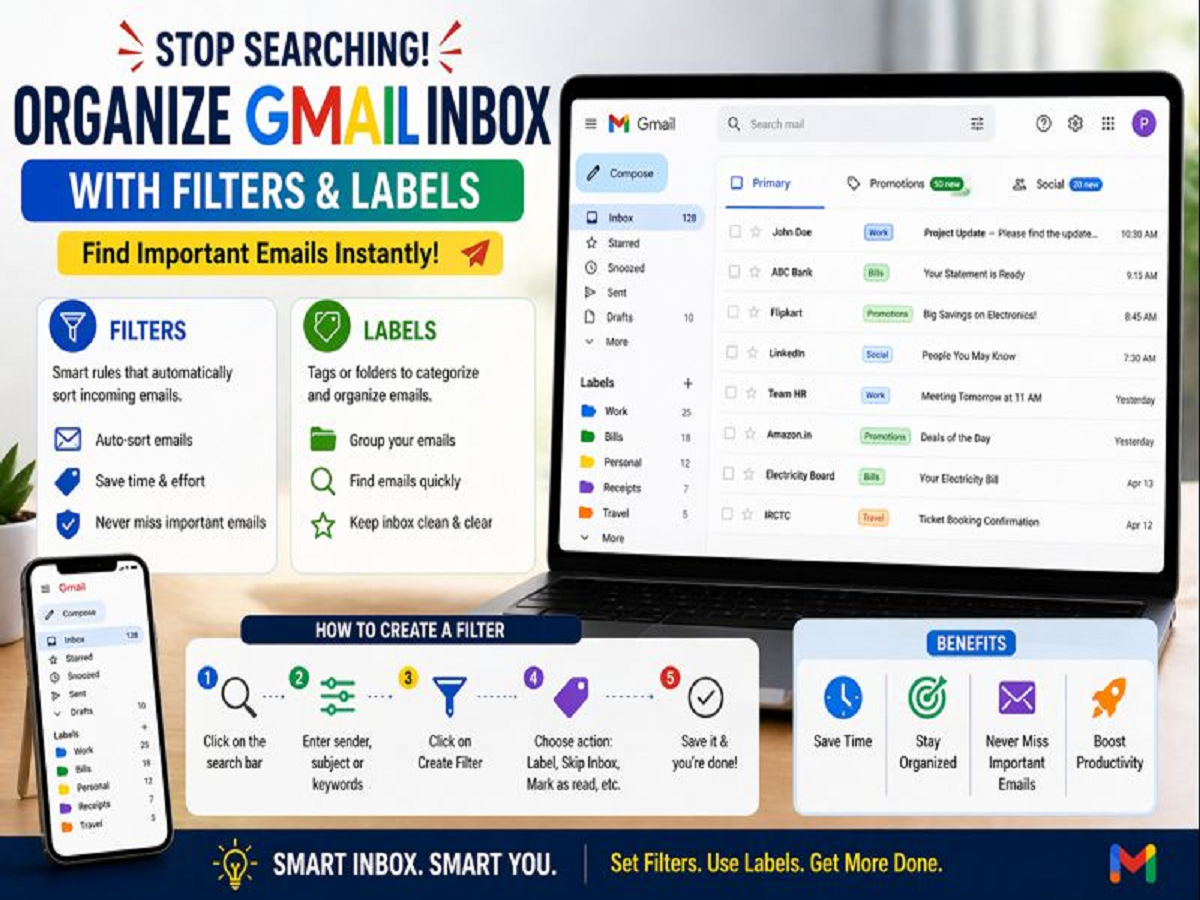
Filters in Gmail act like smart rules that automatically organize incoming emails based on your preferences. Once you set a filter, Gmail will instantly identify specific emails—based on sender, subject, or keywords—and perform actions you’ve chosen.
For example:
- Emails from your bank can go directly into a separate folder
- Work emails can be marked as important
- Promotional emails can skip the inbox
This means you don’t have to manually sort emails every time—they get organized automatically.
What Are Labels in Gmail?
Labels are like digital tags or folders that help you categorize emails. Think of them as naming your files so you can easily find them later.
With Labels, you can:
- Group emails under categories like “Work,” “Bills,” or “Personal”
- Assign multiple labels to a single email
- Access important emails quickly without searching repeatedly
Using labels makes your inbox cleaner and more structured.
How to Create a Filter in Gmail
Setting up a filter is easier than you might think. Just follow these steps:
- Open Gmail and click on the search bar at the top
- Tap the filter icon (or advanced search options)
- Enter details like sender email, subject, or keywords
- Click on “Create Filter”
- Choose what action you want (apply label, skip inbox, mark as read, etc.)
- Save your filter
Once created, the filter will automatically apply to future emails.
Create Filters Directly from Emails
If you frequently receive emails from a particular sender, you can create a filter directly from that message.
Here’s how:
- Open the email
- Click on the options menu
- Select “Filter messages like this”
- Set your preferences and save
This ensures that similar emails are always sorted into the right category.
Can You Use Filters on Mobile?
The Gmail mobile app has limited options for creating filters directly. However, you can still set them up easily by opening Gmail in your phone’s browser and switching to desktop mode.
Once configured, the filters will work seamlessly across all devices, including your smartphone.
Key Benefits of Using Filters and Labels
Using these features can make a huge difference in your daily workflow:
- Never miss important emails
- Keep your inbox clean and clutter-free
- Save time by avoiding manual sorting
- Improve productivity and efficiency
You can also combine these features with Gmail’s auto-suggestions and smart reply tools to further streamline your email experience.
Final Thoughts
A messy inbox can slow down your work and create unnecessary stress. But with simple tools like Filters and Labels in Gmail, you can take full control of your emails.
Once you set them up, your inbox will automatically organize itself—saving you time and effort every single day. If you haven’t tried these features yet, now is the perfect time to start and make your email management smarter and faster.