NEWS
Want to Store Documents Digitally? Here’s How to Upload Files to DigiLocker Using Website or App
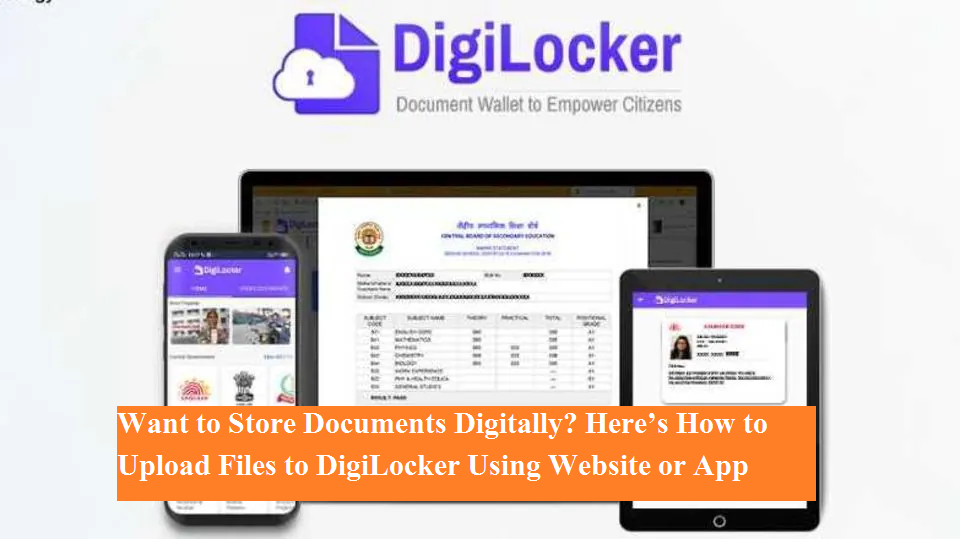
Managing physical documents can be inconvenient and risky, especially when important papers are needed urgently. To solve this problem, the Government of India introduced DigiLocker, a secure digital platform that allows citizens to store, access, and share official documents online.
DigiLocker is available both as a website and a mobile app, making it easy for users to upload and retrieve documents anytime, anywhere. From Aadhaar and PAN cards to driving licenses, ration cards, and vaccination certificates, DigiLocker simplifies access to government-issued documents while reducing paperwork.
What Is DigiLocker and Why Is It Useful?
DigiLocker is a government-backed digital document storage service that enables users to keep their important records in electronic form. To create a DigiLocker account, users must register using their Aadhaar number or a mobile number linked with Aadhaar.
Once registered, users get up to 1GB of secure cloud storage, which can be used to upload personal documents. These documents can also be shared digitally with government departments, banks, and other authorized agencies, eliminating the need for physical copies.
Types of Documents You Can Store in DigiLocker
- Aadhaar card
- PAN card
- Driving license
- Vehicle registration certificate
- COVID-19 vaccination certificate
- Educational certificates
- Ration card and other government-issued documents
Method 1: How to Upload Documents to DigiLocker Using the Website
If you are using a laptop or desktop, uploading documents through the DigiLocker website is quick and simple.
Step-by-step process:
- Open a web browser and visit the official DigiLocker website
- Sign in using your registered mobile number or Aadhaar credentials
- Once logged in, locate the “Drive” option on the left-hand menu
- Click on “Upload File”
- Select the document from your computer and upload it
After uploading, the file will be saved securely in your DigiLocker drive and can be accessed anytime.
Method 2: How to Upload Documents Using the DigiLocker Mobile App
For smartphone users, the DigiLocker app offers an easy way to upload documents directly from your device.
Step-by-step process:
- Open the DigiLocker app on your smartphone
- Log in to your account
- Tap on the menu icon located at the bottom-right corner of the screen
- Select the “DigiLocker Drive” option
- Tap on “Upload File”
- Choose documents from your phone and upload them
This method is especially useful for uploading scanned documents or images stored on your phone.
Benefits of Uploading Documents to DigiLocker
- Reduces the need to carry physical documents
- Secure and government-approved digital storage
- Easy access anytime, anywhere
- Accepted by multiple government and private institutions
- Saves time during verification and application processes
Final Thoughts
DigiLocker is a reliable and efficient solution for managing important documents digitally. Whether you prefer using a website or a mobile app, both methods make document uploads quick and hassle-free. With secure storage and easy access, DigiLocker helps citizens stay organized and prepared for official requirements.