Buying a new smartphone is exciting, but moving your important data from your old device can often seem like a complicated task. Photos, contacts, messages, apps, documents, and settings are all valuable, and losing any of them during the switch can be frustrating.
Fortunately, modern Android smartphones and iPhones come with built-in migration tools that make transferring data faster and easier than ever. Whether you're moving from Android to Android, Android to iPhone, or iPhone to Android, the process can be completed in just a few simple steps.
Here's a complete guide to transferring your data safely to your new smartphone.
How to Transfer Data From One Android Phone to Another
Most Android smartphones include a built-in setup tool that allows users to copy data directly from an existing device during the initial setup.
Follow These Steps:
- Turn on your new Android smartphone.
- Begin the setup process.
- When prompted, select "Copy Apps & Data."
- Sign in using your Google account.
- A QR code or pairing option will appear on both devices.
- Scan the QR code or follow the on-screen instructions to connect the phones.
- Select the data you want to transfer.
You can typically copy:
- Contacts
- Photos and videos
- Text messages
- Installed apps
- Device settings
- Call history (on supported devices)
- Wi-Fi settings
Once you've selected the content, start the transfer process.
Depending on the amount of data being moved, the transfer may take anywhere from 30 minutes to several hours. Keep both devices close together and avoid interrupting the process until it is complete.
How to Transfer Data From Android to iPhone
If you're switching from Android to an iPhone, Apple offers a dedicated application that simplifies the migration process.
Use the Move to iOS App
- Download the Move to iOS app from the Google Play Store on your Android phone.
- Turn on your new iPhone and begin the setup.
- On the Apps & Data screen, choose "Move Data from Android."
- A unique code will appear on your iPhone.
- Enter this code into the Android device.
- Both phones will connect through a temporary Wi-Fi network.
- Choose the content you wish to transfer.
Supported data generally includes:
- Contacts
- Photos
- Videos
- Messages
- Calendars
- Google account information
- Other compatible files
The selected content will be copied automatically to your new iPhone.
How to Transfer Data From iPhone to Android
Moving from an iPhone to an Android device has also become much easier with modern migration tools.
Here's How:
- Turn on your new Android smartphone.
- Start the initial setup process.
- Select "Copy From iPhone."
- Connect both devices using a compatible USB cable or a wireless connection, depending on the phone manufacturer.
- Follow the on-screen instructions to authorize the transfer.
- Choose the files you want to move.
Most Android devices support transferring contacts, photos, videos, messages, calendars, and several other types of data directly from an iPhone.
Don't Forget to Transfer WhatsApp Chats
One of the most common misconceptions is that WhatsApp conversations automatically move to a new phone.
In reality, WhatsApp chats often require a separate migration process.
Depending on the devices you're switching between, you may need to:
- Use WhatsApp's built-in chat transfer feature.
- Scan a QR code.
- Restore chats from Google Drive or iCloud backup.
Before resetting your old phone, confirm that all WhatsApp conversations have been successfully restored on your new device.
Some Files May Need Manual Transfer
Although built-in migration tools copy most personal data, certain files may not transfer automatically.
These can include:
- Downloaded music files
- PDF documents
- Local folders
- Notes stored inside third-party apps
- App-specific files that are not cloud-synced
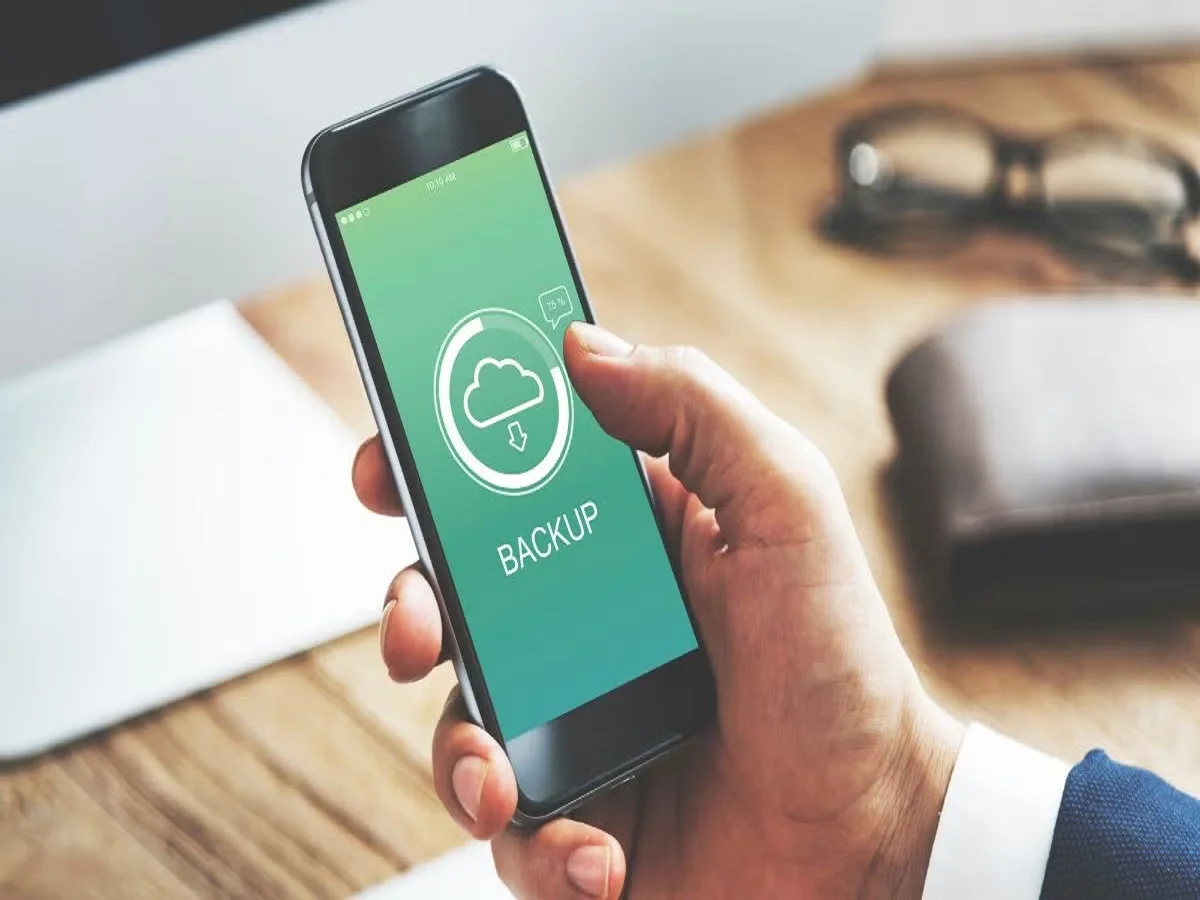
To avoid losing these files, upload them to cloud storage services such as Google Drive, Dropbox, or OneDrive, or manually copy them to your computer before switching devices.
Keep Both Phones Charged
Battery level is often overlooked during data migration.
If either device shuts down while transferring files, the process may stop unexpectedly, leading to incomplete transfers or data corruption.
Before starting, ensure both smartphones have sufficient battery power or keep them connected to their chargers throughout the transfer.
Additional Tips for a Smooth Data Transfer
To ensure everything goes smoothly:
- Connect both phones to a stable Wi-Fi network.
- Keep your Google or Apple account credentials ready.
- Install the latest software updates before beginning the transfer.
- Avoid using either phone while data is being copied.
- Verify that all important files have been transferred before resetting or selling your old smartphone.
Final Thoughts
Transferring data to a new smartphone no longer requires complicated software or technical expertise. Thanks to built-in migration tools from Android and Apple, most users can move their contacts, photos, apps, messages, and settings with minimal effort.
By following the correct steps, keeping both devices charged, and backing up important files beforehand, you can complete the transition safely without losing valuable data. Taking a few extra minutes to verify everything has transferred correctly will ensure your new smartphone is ready to use from day one.