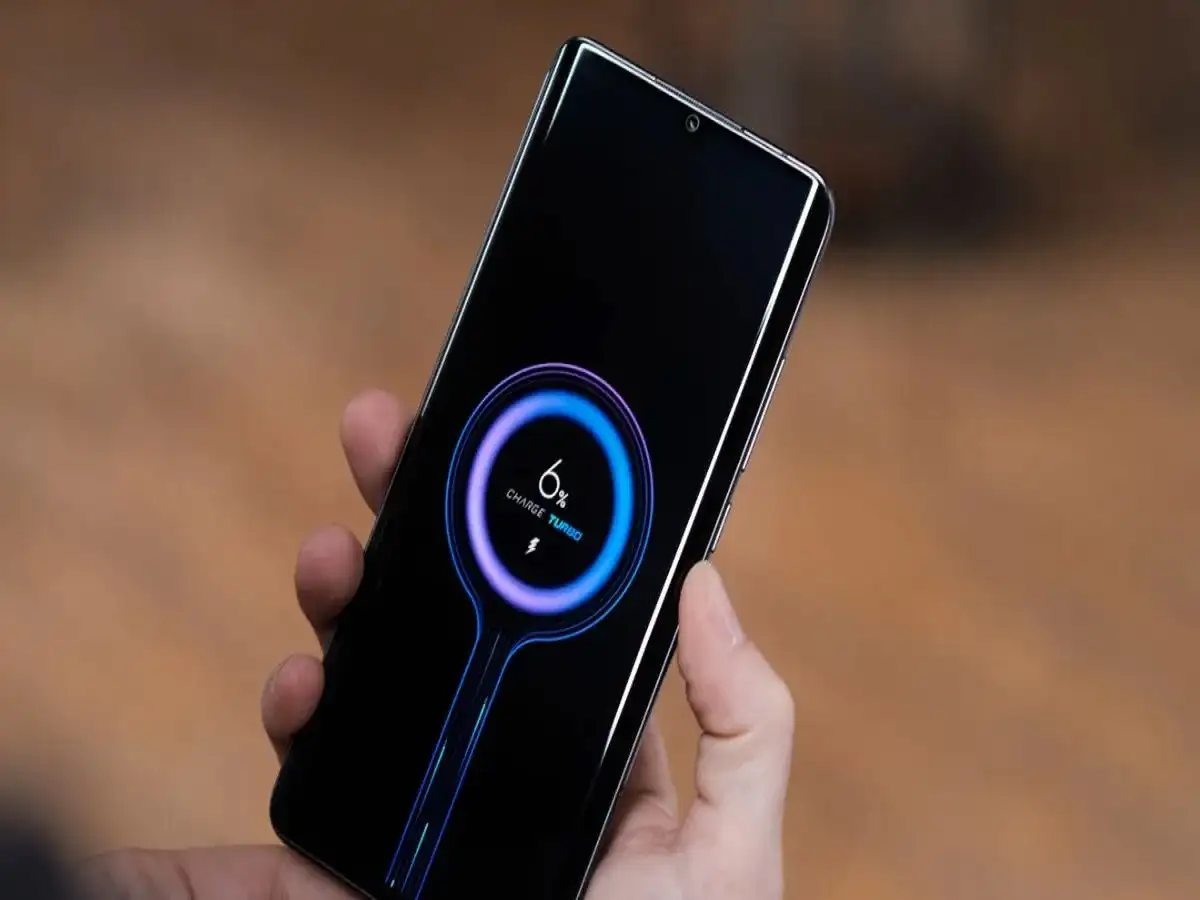
Smartphones have become an essential part of daily life. From calls and messaging to online payments, social media, navigation, entertainment and office work, many people depend on their phones throughout the day. That makes it particularly frustrating when the battery starts running out much faster than expected.
Rapid battery drain does not always mean that the phone or battery is faulty. In many cases, display settings, background apps, constant notifications, connectivity features and everyday charging habits can contribute to higher power consumption.
Making a few changes to the way you use your smartphone may help extend the time between charges and, in some cases, reduce unnecessary stress on the battery.
Here are some practical battery-saving tips Android and iPhone users can consider.
1. Avoid Frequently Draining the Battery to 0%
Modern smartphones generally use lithium-ion batteries, and regularly allowing the battery to completely discharge is not necessary.
Rather than waiting until the phone switches itself off, consider charging it before the battery becomes extremely low. Similarly, there is usually no need to deliberately keep charging it to 100% every time if your daily routine does not require maximum capacity.
Many newer smartphones also offer features such as Optimised Charging, Adaptive Charging or Charging Limits. These are designed to manage charging patterns and can help reduce long-term battery ageing.
Check your phone's battery settings to see which charging-management features are available.
2. Turn Off Unnecessary App Notifications
Notifications may appear harmless, but receiving dozens or even hundreds of alerts throughout the day can contribute to unnecessary battery consumption.
Depending on your settings, an incoming notification may wake the screen, play a sound, trigger vibration and cause an app to perform background activity.
Review notification permissions and disable alerts from applications that do not need your immediate attention.
Shopping apps, games and promotional services are common examples where frequent notifications may not always be necessary.
Keep important alerts from banking, messaging, security and other essential apps enabled according to your needs.
3. Check Which Apps Are Consuming the Most Battery
If your battery suddenly starts draining faster than usual, check the phone's battery usage section.
Both Android phones and iPhones provide information showing which apps and system features have consumed the most battery over a particular period.
An application using an unusually large amount of power may be running excessively in the background, using location services or continuously syncing data.
Once you identify the problem app, you can adjust its permissions, limit its background activity, update it or uninstall it if you no longer need it.
4. Limit Unnecessary Background Activity
Some applications continue performing tasks even when you are not actively using them.
Background activity may include refreshing content, syncing information, checking your location, downloading updates or communicating with online servers.
Your phone's settings may allow you to restrict background activity for selected applications. This can be particularly useful for apps you rarely use.
However, be careful when restricting messaging, email, navigation, health or other important applications, as limiting background activity could delay notifications or prevent some features from working as expected.
5. Reduce Screen Brightness
The display is one of the biggest power-consuming components of a smartphone.
Keeping the screen at maximum brightness throughout the day can significantly increase battery usage, especially if you spend hours watching videos, browsing social media or reading online.
Reduce the brightness to a comfortable level whenever possible.
You can also enable Adaptive Brightness or Auto-Brightness, which automatically adjusts the display according to surrounding lighting conditions.
This means the phone does not have to remain unnecessarily bright when you are indoors or in a darker environment.
6. Shorten the Screen Timeout
Sometimes the screen remains switched on simply because the user forgets to lock the phone after finishing a task.
If your screen timeout is set to several minutes, this can waste battery multiple times throughout the day.
Go to your display settings and choose a shorter auto-lock or screen timeout period that still feels comfortable.
For many users, setting the display to switch off automatically after around 30 seconds or one minute of inactivity can reduce unnecessary screen-on time.
7. Review Location, Bluetooth and Other Connectivity Features
GPS and other connectivity services can also contribute to battery consumption, particularly when apps are constantly accessing them.
Review which applications have permission to use your location. If an app does not need continuous location access, consider changing the permission to options such as "While Using the App" where available.
Similarly, features such as Bluetooth, personal hotspot and other wireless services should be managed according to your usage.
There is no need to obsessively switch every feature off, but checking for apps or services that are unnecessarily active can help when you are trying to extend battery life.
8. Use Battery Saver When You Need Extra Runtime
Most modern smartphones include a built-in battery-saving mode.
On Android devices, this may be called Battery Saver or Power Saving Mode, while iPhones provide Low Power Mode.
These features reduce or limit certain background processes and visual effects to help the remaining battery last longer.
Battery-saving mode can be particularly useful while travelling, during a power outage or whenever you know you will not have access to a charger for several hours.
What If the Battery Is Still Draining Too Quickly?
If your battery life remains unusually poor even after adjusting settings, there may be another reason.
Check whether the problem began after installing a particular app or software update. Restarting the phone and installing available system and application updates may resolve certain software-related issues.
You should also check the phone's battery health information if the manufacturer provides it. Smartphone batteries naturally lose some of their maximum capacity as they chemically age, so an older device may simply not last as long on a full charge as it did when new.
Excessive heat can also negatively affect batteries. Avoid leaving your phone in direct sunlight, inside an extremely hot vehicle or in other high-temperature environments.
Small Changes Can Make a Noticeable Difference
There is no single trick that will suddenly double every smartphone's battery life. The most effective approach is to identify where your phone is consuming power and make adjustments based on your actual usage.
Reducing unnecessary brightness, limiting unwanted notifications, controlling background activity, shortening screen timeout and using built-in power-saving features can collectively make a meaningful difference.
If battery performance deteriorates dramatically despite normal usage and appropriate settings, consider having the device inspected by an authorised service provider, particularly if the phone becomes unusually hot, shuts down unexpectedly or shows signs of a swollen battery.