NEWS
Move Apple Music Playlists to YouTube Music in Minutes: Step-by-Step Guide Without Losing Your Tracks
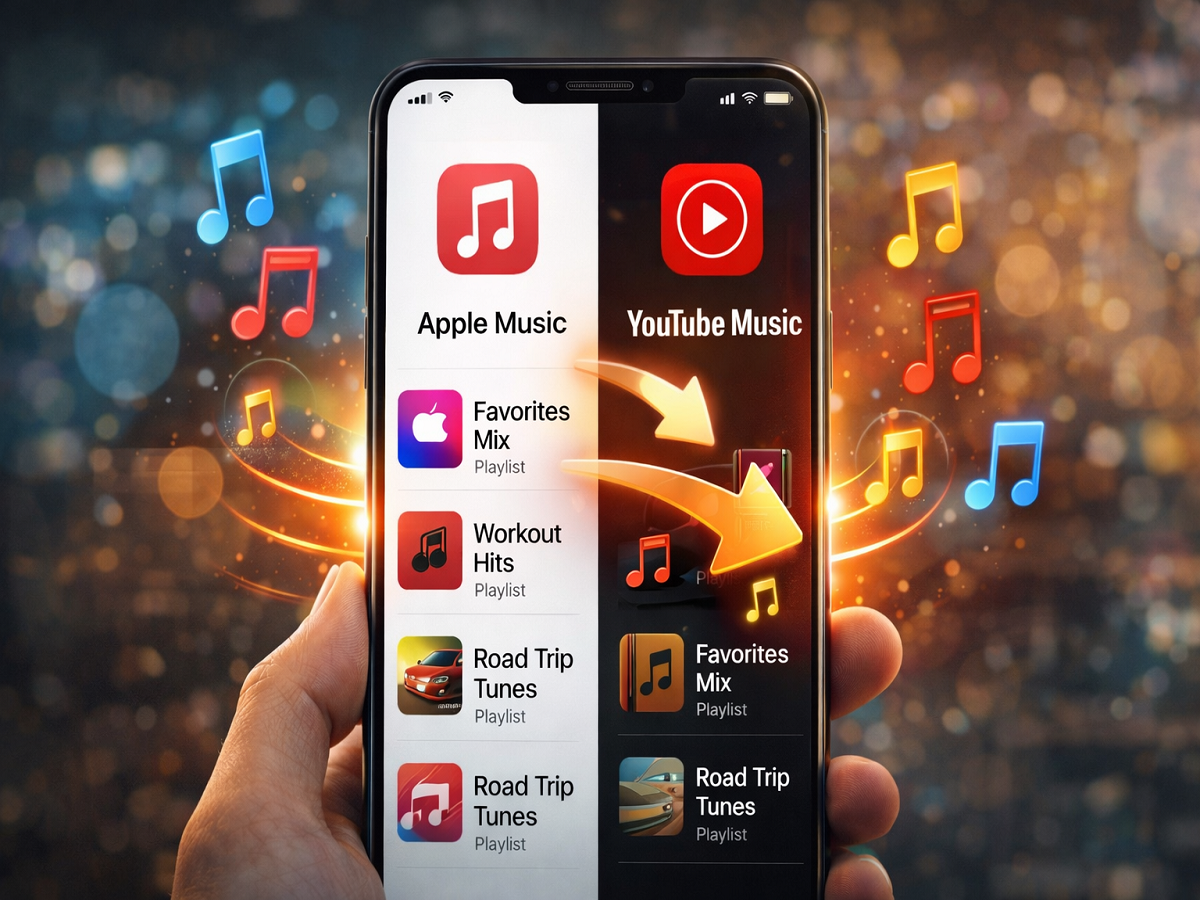
Switching music platforms can feel overwhelming—especially if you’ve spent years curating playlists. But if you’re moving from Apple Music to YouTube Music, there’s good news: you don’t need to rebuild everything from scratch.
Apple now offers a built-in way to transfer playlists directly, making the transition faster and smoother. Here’s a complete, easy-to-follow guide on how it works, what gets transferred, and what to watch out for.
Why Switching Music Apps Is Easier Now
Earlier, switching platforms meant manually searching and adding songs again. Now, with Apple’s data transfer feature, your playlists can be moved automatically to YouTube Music—saving time and effort.
However, the process comes with a few limitations, so understanding the details is important before you begin.
What You Need Before Starting
Before initiating the transfer, make sure:
- You have an active Apple Music subscription
- You’re signed into a valid Google account for YouTube Music
- You are using a standard Apple account (not a child or managed account)
Without these, the transfer option may not appear.
What Gets Transferred (And What Doesn’t)
Understanding this part can help avoid confusion later.
What Transfers Successfully
- Your created playlists
- Collaborative playlists (if you own them)
What Does NOT Transfer
- Actual music files (only playlist structure is recreated)
- Podcasts and audiobooks
- Songs unavailable on YouTube Music
- Playlist folders or categories
Instead of moving files, the system matches songs available on YouTube Music and rebuilds your playlists accordingly.
Step-by-Step: How to Transfer Playlists
Follow these simple steps to move your playlists:
- Sign in to your Apple account
- Go to Apple’s Data and Privacy page
- Select “Transfer a copy of your data”
- Choose Apple Music playlists
- Sign in to your Google account
- Confirm the transfer request
Once confirmed, the process begins automatically in the background.
How Long Does It Take?
- Usually completed within a few minutes
- Large libraries may take a few hours
- You’ll receive an email notification once done
After completion, your playlists will appear in the Library section of YouTube Music.
Important Things to Keep in Mind
- Your playlists will remain unchanged on Apple Music
- There is no sync between platforms after transfer
- Any edits made later will not reflect on both apps
- Missing songs usually mean they’re not available on YouTube Music
Real-World Benefit
This feature is especially useful for:
- Users switching ecosystems (Apple to Google)
- People trying out a new music platform
- Anyone who wants a backup of their playlists
It eliminates the biggest pain point—starting from zero.
Final Thoughts
Moving from Apple Music to YouTube Music is now far simpler than before. While it’s not a perfect one-to-one transfer, it gets you most of the way there with minimal effort.
If you’ve been thinking about switching platforms, this feature makes the process quick, convenient, and hassle-free.