NEWS
Mobile Phone Dashcam 2026: Turn Your Old Android Smartphone Into a Car Dashcam With These Easy Steps
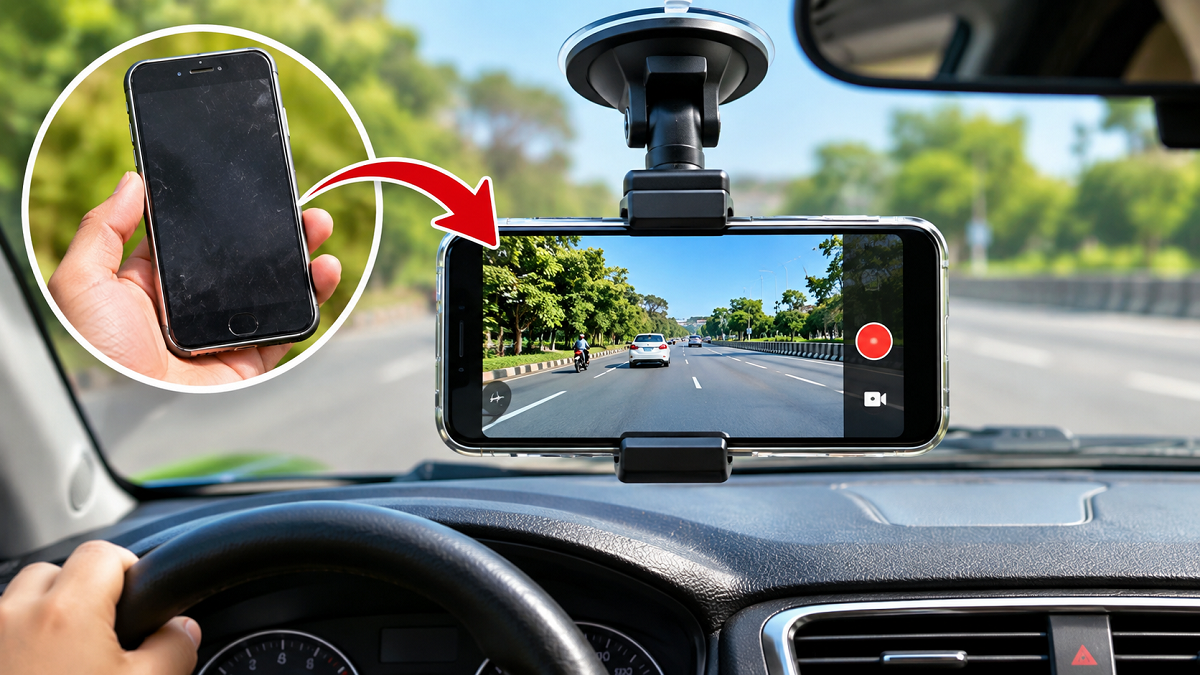
Mobile Phone Dashcam Tips 2026: Have an old Android smartphone lying unused at home? Instead of keeping it in a drawer or spending thousands of rupees on a new car dashcam, you can turn that smartphone into a useful road-recording device with a few simple adjustments.
A dashcam records the road ahead while you drive and can help document accidents, traffic disputes, unexpected incidents and cases of road rage. Video recordings may also provide useful supporting evidence when questions arise about what happened on the road.
Although dedicated dashcams are designed specifically for continuous vehicle recording, an old smartphone can provide a budget-friendly alternative for occasional or regular journeys.
With a suitable recording application, a secure phone mount and a reliable power connection, drivers can use an existing Android device to capture road footage.
Here is a step-by-step guide to converting an old smartphone into a car dashcam.
1. Prepare Your Old Smartphone for Dashcam Recording
Before using an old phone as a dashcam, make sure the device is functioning properly.
Check its camera quality, battery condition, charging port and available storage.
A smartphone with a damaged or swollen battery should not be used inside a vehicle.
Since continuous video recording requires considerable storage and processing power, preparing the phone in advance can help improve performance.
Start by backing up important photographs, videos, contacts and documents.
Once the backup is complete, remove unnecessary files and applications to create additional space.
You should also update the phone's operating system and applications where supported.
An older phone does not necessarily need the latest specifications, but it should be capable of recording clear video without frequently crashing or overheating.
2. Change These Smartphone Settings Before Recording
After preparing the device, adjust a few settings to reduce interruptions during your journey.
Uninstall applications that are no longer required, especially games and social media apps that consume storage or run background processes.
Disable unnecessary notifications that could appear while recording.
You can also enable Do Not Disturb mode to minimise interruptions from calls, messages and application alerts.
However, remember that this setting may also silence important communications, depending on the device configuration.
Keep enough free storage available for video recordings.
If the phone supports expandable storage and the chosen recording application can use it, a suitable memory card may provide additional capacity.
Avoid running unnecessary applications in the background because they may increase battery consumption and device temperature.
3. Install a Reliable Dashcam Application
The next step is to install an application that can turn your smartphone into a road-recording camera.
Open the Google Play Store and search for a reputable dashcam application.
One example mentioned in the source report is Droid Dashcam, which offers features intended for vehicle video recording.
Before installing any application, review its developer information, recent user feedback, permissions and privacy policy.
After installation, configure the permissions required for the features you intend to use.
Camera access is essential for video recording, while microphone access is needed only if you want audio.
Location permission may be required for GPS-based features.
Some applications may also need access to device storage or media files.
Grant only the permissions necessary for the selected features.
4. Choose 1080p Video Quality Instead of 4K
Video resolution is an important setting when using a smartphone as a dashcam.
Although many modern smartphones support 4K recording, higher resolution generally produces larger files and places greater demands on the device.
For many users, 1080p Full HD recording offers a practical balance between image quality and storage requirements.
It can capture useful road details while consuming less storage than 4K footage at comparable settings.
Lower recording demands may also help reduce device heating, although the actual temperature depends on the phone, ambient conditions and recording application.
Select an appropriate frame rate, such as 30 frames per second, if supported.
Before relying on the setup, record a short test journey and review the footage.
Check whether vehicles, road markings and other important details are visible under your typical driving conditions.
5. Enable Loop Recording for Continuous Video Capture
One of the most useful dashcam features is loop recording.
This feature allows the application to divide continuous video footage into smaller files.
For example, you may configure the app to save recordings in five-minute segments.
When the designated recording storage becomes full, the application can automatically overwrite older footage with newer recordings.
This helps prevent recording from stopping simply because the storage space is exhausted.
How to Enable Loop Recording
- Open the dashcam application.
- Navigate to its recording settings.
- Find the Loop Recording option.
- Enable the feature.
- Select a suitable recording segment duration, such as five minutes.
- Test whether the application correctly saves and replaces recordings.
The available settings depend on the application.
Important: Loop recording may permanently overwrite old videos. If an accident or other significant incident occurs, save the relevant footage separately as soon as it is safe to do so.
6. Enable GPS, Timestamp and Other Useful Features
Some smartphone dashcam applications offer additional features that can make recordings more informative.
GPS Location Recording
If supported, GPS can associate location information with recorded footage.
This may help identify where a particular incident occurred.
Date and Time Stamps
A timestamp can display or store the date and time associated with a recording.
Make sure the phone's clock is accurate before starting your journey.
Vehicle Speed Information
Some applications can estimate vehicle speed using GPS data.
However, GPS-derived speed readings may not always be accurate, especially in areas with poor satellite reception.
They should not be treated as a substitute for the vehicle's speedometer.
G-Sensor or Impact Detection
Certain applications may use a smartphone's motion sensors to detect sudden movement or impacts.
If supported, the application may automatically protect relevant footage from being overwritten.
However, impact detection depends on the app and phone hardware. Not every smartphone application offers reliable collision detection.
Drivers should test these functions before depending on them.
7. Mount Your Smartphone Correctly Inside the Car
Proper positioning is essential when converting a smartphone into a dashcam.
Use a strong, good-quality phone holder that can keep the device securely in place.
The phone should be positioned so that its rear camera has a clear view of the road ahead.
A location near the rearview mirror may be suitable in some vehicles, provided the installation does not obstruct the driver's vision.
Avoid placing the phone where it could interfere with airbags, driving controls or other safety equipment.
The mount must also comply with applicable road-safety requirements.
Adjust the camera angle so that it captures the road rather than focusing excessively on the dashboard or sky.
Before driving, confirm that the phone cannot fall or move unexpectedly during braking or cornering.
8. Keep the Phone Charged During Long Journeys
Continuous video recording can drain a smartphone battery quickly.
GPS tracking, screen activity and background processing may increase power consumption further.
For longer journeys, a suitable car charger can help maintain battery power.
Use a reliable charging cable and an adapter compatible with the device.
However, continuous charging and recording can generate additional heat.
This is particularly important in hot weather, when temperatures inside a parked vehicle can rise significantly.
Avoid leaving the smartphone exposed to direct sunlight for extended periods.
If the phone becomes unusually hot, stops recording or displays a temperature warning, discontinue use and allow it to cool safely.
Never leave an old smartphone charging unattended inside a parked car.
9. Smartphone Dashcam vs Dedicated Dashcam: Key Differences
| Feature | Old Smartphone Dashcam | Dedicated Car Dashcam |
|---|---|---|
| Initial cost | Low if an unused phone is available | Requires purchasing a device |
| Video recording | Depends on phone camera and app | Designed for vehicle recording |
| Loop recording | Available through supported apps | Commonly built in |
| GPS tracking | Depends on phone and application | Available on selected models |
| Impact detection | Depends on sensors and software | Available on many models |
| Heat resistance | Generally limited | Vehicle-specific models may offer better heat tolerance |
| Power supply | Phone battery and car charger | Usually vehicle power |
| Installation | Requires a secure phone mount | Usually includes a dedicated mount |
| Parking surveillance | Often limited | Available on supported models with suitable power arrangements |
An old smartphone can be useful for recording journeys, but it may not provide the same reliability as a purpose-built dashcam.
Dedicated devices are often designed for automatic recording, extended operation and specific vehicle conditions.
10. Important Precautions Before Using Your Phone as a Dashcam
A smartphone-based dashcam should be used responsibly.
Do not operate the recording application or adjust the phone while driving.
Configure the device before starting the vehicle.
Check local rules concerning windshield-mounted devices and audio recording.
Keep recordings secure, particularly when they contain identifiable people, conversations or vehicle registration numbers.
Avoid sharing footage publicly without considering privacy and legal implications.
If an incident occurs, preserve the original video file wherever possible.
It may be helpful to retain an additional backup, since edited or incomplete footage may be less useful when establishing what happened.
Finally, inspect the phone regularly for battery problems, overheating and recording failures.
Final Takeaway
Turning an old Android smartphone into a car dashcam can be an economical way to record road journeys without immediately purchasing a separate device.
By installing a reliable dashcam application, enabling loop recording, selecting 1080p video quality and mounting the phone securely, drivers can create a practical recording setup.
GPS information, timestamps and impact-detection features may provide additional functionality when supported.
However, smartphone dashcams have limitations, particularly regarding overheating, battery safety, automatic operation and long-term reliability.
For occasional use, an old phone may be sufficient. For frequent driving or continuous recording, a dedicated automotive dashcam may be a more dependable choice.
Disclaimer: Application features vary by device and software version. Drivers should follow applicable traffic laws and ensure that any mounted device does not obstruct visibility or interfere with safe vehicle operation.