NEWS
Android Live Captions Guide: How to Turn On, Turn Off, and Translate Real-Time Subtitles on Your Phone
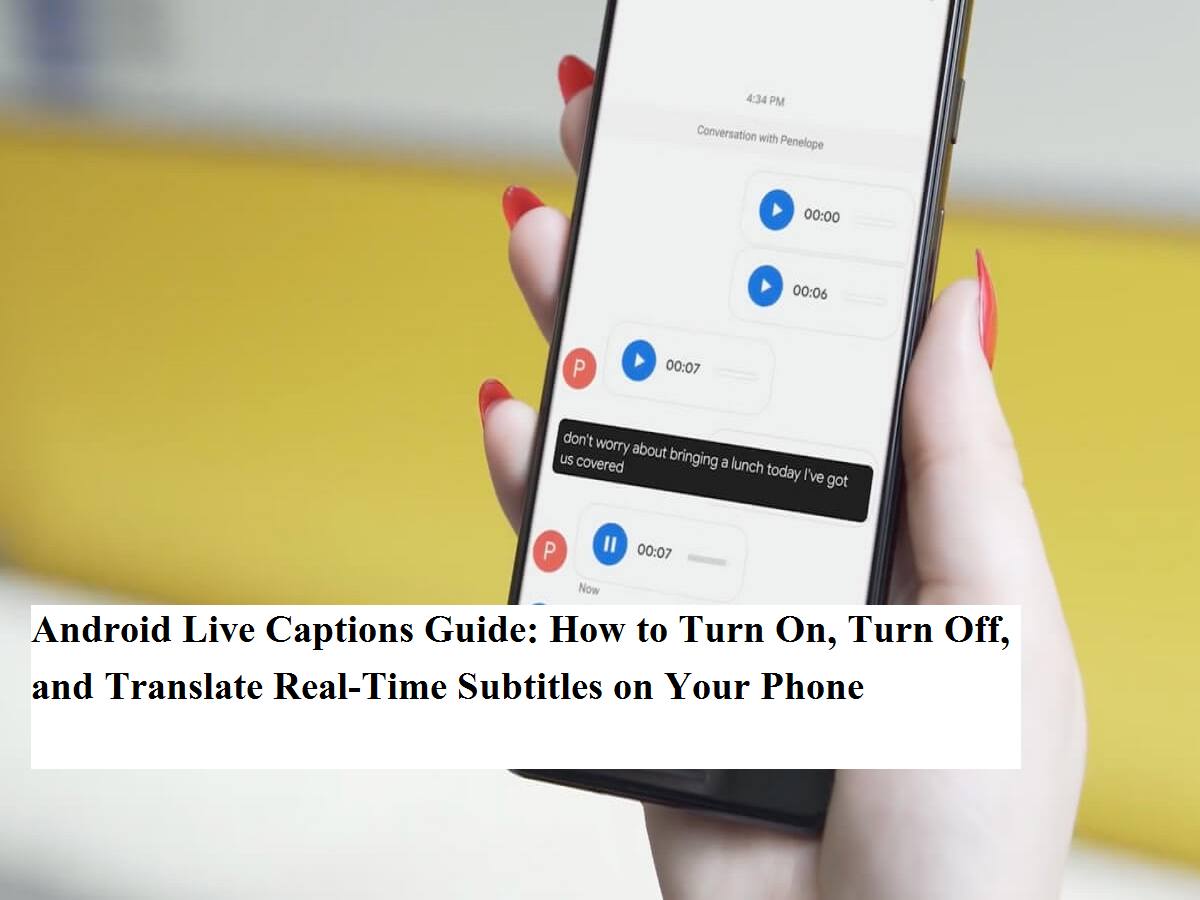
Accessibility tools on smartphones have evolved rapidly, and one of the most practical features available today is Live Captions. Introduced by Google for devices running Android 10 or later, this built-in function automatically generates on-screen subtitles for any audio playing on your phone. Whether you’re watching videos, listening to voice notes, or playing recorded media, Live Captions converts speech into text instantly — even when your device is muted.
Originally inspired by captioning systems used on platforms like YouTube, the feature has since become a powerful accessibility and convenience tool across Android devices. Here’s a complete step-by-step guide on how to enable, disable, and translate Live Captions, along with important details you should know.
What Is Android Live Captions?
Live Captions is a real-time speech-to-text feature that automatically displays captions for audio content playing on your phone. It works for:
- Videos stored on your device
- Streaming media
- Podcasts and voice messages
- Screen recordings
- Social media clips
One of its biggest advantages is that it does not require an internet connection. The captioning process runs directly on the device, meaning no audio data is sent to external servers. This makes it both private and efficient.
However, there are a few limitations. The feature does not work during phone calls or video calls, and it’s only supported on Android 10 or newer versions.
Supported Languages
Currently, Live Captions supports a limited set of languages:
- English
- French
- German
- Italian
- Japanese (Beta)
More language options may be added in future updates as speech recognition technology improves.
How to Enable or Disable Live Captions
Turning Live Captions on or off is quick and simple. You can use either the volume button shortcut or the Quick Settings panel.
Method 1: Using Volume Buttons
- Press either the volume up or volume down button.
- Look below the volume slider for a caption icon.
- Tap it to toggle Live Captions on or off.
- A small message will appear at the bottom of the screen confirming the change.
Method 2: Using Quick Settings
- Swipe down from the top of your screen to open Quick Settings.
- Find the Live Caption tile.
- Tap it to activate or deactivate captions.
How to Translate Live Captions
If you want captions in another supported language, you can change the language settings easily:
- Open your phone’s Live Caption Settings.
- Tap More Options.
- Select Language.
- Choose your preferred language from the list.
The captions will now appear in the selected language whenever audio plays.
Why Live Captions Are Useful
Live Captions are more than just an accessibility feature. They are helpful for many everyday situations, such as:
- Watching videos in noisy environments
- Understanding content when wearing headphones isn’t possible
- Following dialogue in a different accent
- Learning new languages through subtitles
- Watching content quietly in public spaces
Because the feature works offline, it’s especially useful for travelers or users with limited data access.
Privacy and Performance Benefits
Unlike some speech recognition tools that rely on cloud processing, Live Captions operates entirely on the device. This offers two major advantages:
- Privacy: Audio never leaves your phone.
- Speed: Captions appear instantly without network delays.
Final Thoughts
Android’s Live Captions feature is a simple yet powerful tool that improves accessibility, convenience, and usability for millions of users. Once enabled, it becomes one of those features you may not realize you needed — until you start using it daily.
If your device supports it, enabling Live Captions can transform how you interact with audio content, making media more inclusive, flexible, and easier to understand anytime, anywhere.