
NEWS
Some of the keyboard buttons are not working; do I know when the entire unit needs to be replaced?
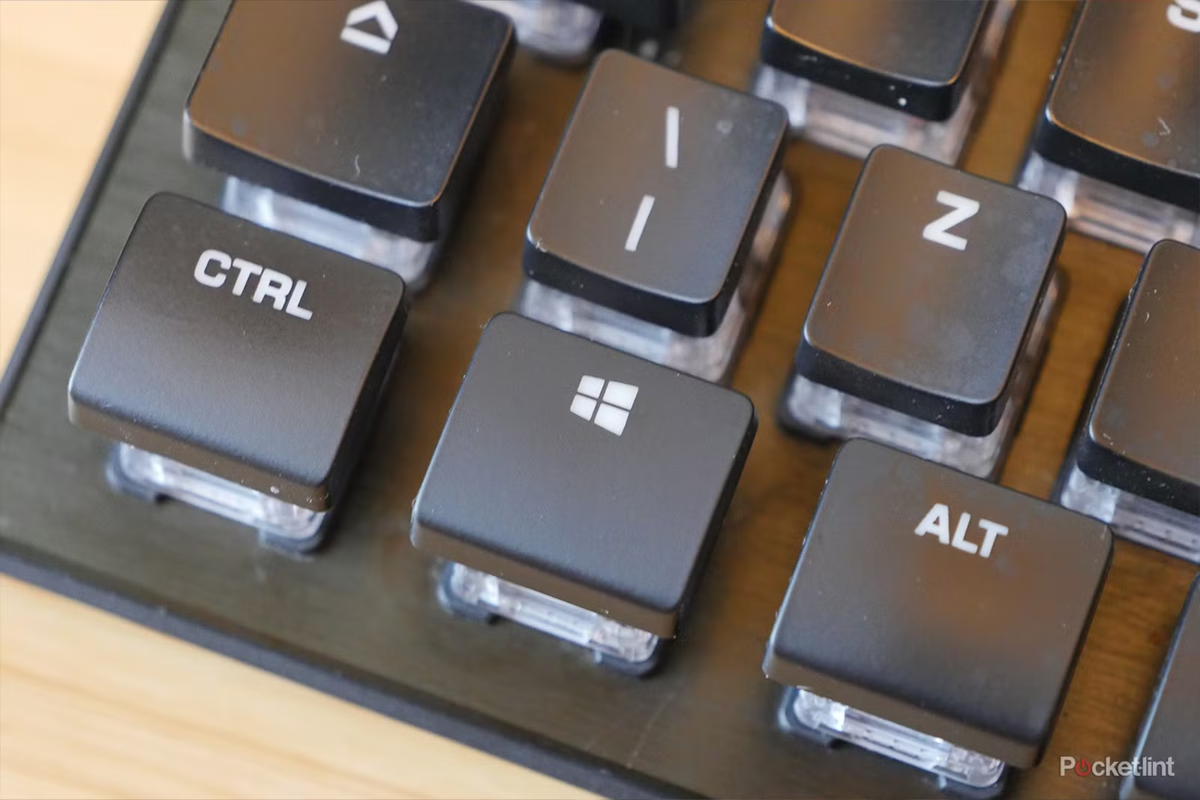
If some of the keyboard keys on your laptop suddenly stop working, there's no need to immediately buy a new keyboard. Learn the reasons behind this, easy ways to fix the problem, and when you might need to replace the entire unit.
Keyboard button problem
While working on a laptop or computer, if a keyboard button suddenly stops responding, even a minor problem can bring work to a halt. Sometimes typing a character becomes difficult, or even pressing the spacebar or other important keys doesn't work. In such situations, many people assume the keyboard is defective and consider buying a new one. However, it's not always due to a hardware problem. Before purchasing a new keyboard, it's important to understand the problem and what can be done to fix it.
Why do keyboard buttons stop working?
There are many reasons why a keyboard may malfunction. If only a few keys aren't working, dust or small food particles may be accumulating around them. Outdated or corrupted drivers can also cause the keyboard to malfunction. Sometimes, this issue can occur even after a system update. Furthermore, typing can be affected by a low battery on a wireless keyboard, a lost Bluetooth connection, or a problem with the USB port.
Clean the keyboard first
If certain keys don't work, try cleaning away any dust and debris around the keyboard. After turning off the computer, carefully clean the keyboard. Gently shaking an external keyboard upside down and cleaning with a soft brush can dislodge small particles. Compressed air can also be used to remove dust, keeping it at least 6 inches away from the keyboard.
Also check the drivers and settings.
If you're experiencing keyboard issues in Windows, try updating or reinstalling the driver. Go to Device Manager and open the Keyboards section. Uninstall the keyboard device and then restart your laptop. Windows usually reinstalls the driver. If keyboard issues persist after updating, try using the old driver again. Additionally, check for features like Filter Keys and Sticky Keys in Windows Settings. Inadvertently enabling these can impact keyboard usage.
When does the entire unit need to be replaced?
If the problem persists after cleaning, resetting, and changing drivers, try plugging in an external USB keyboard. If the external keyboard works fine but the laptop's internal keyboard doesn't, a hardware check may be necessary. For wireless keyboards, check the battery and connection. If the problem persists, contact support or a technician.