Got an app hanging on your Windows PC? No need to worry. A secret trick can help you quickly close a stuck app. Learn the easy way.
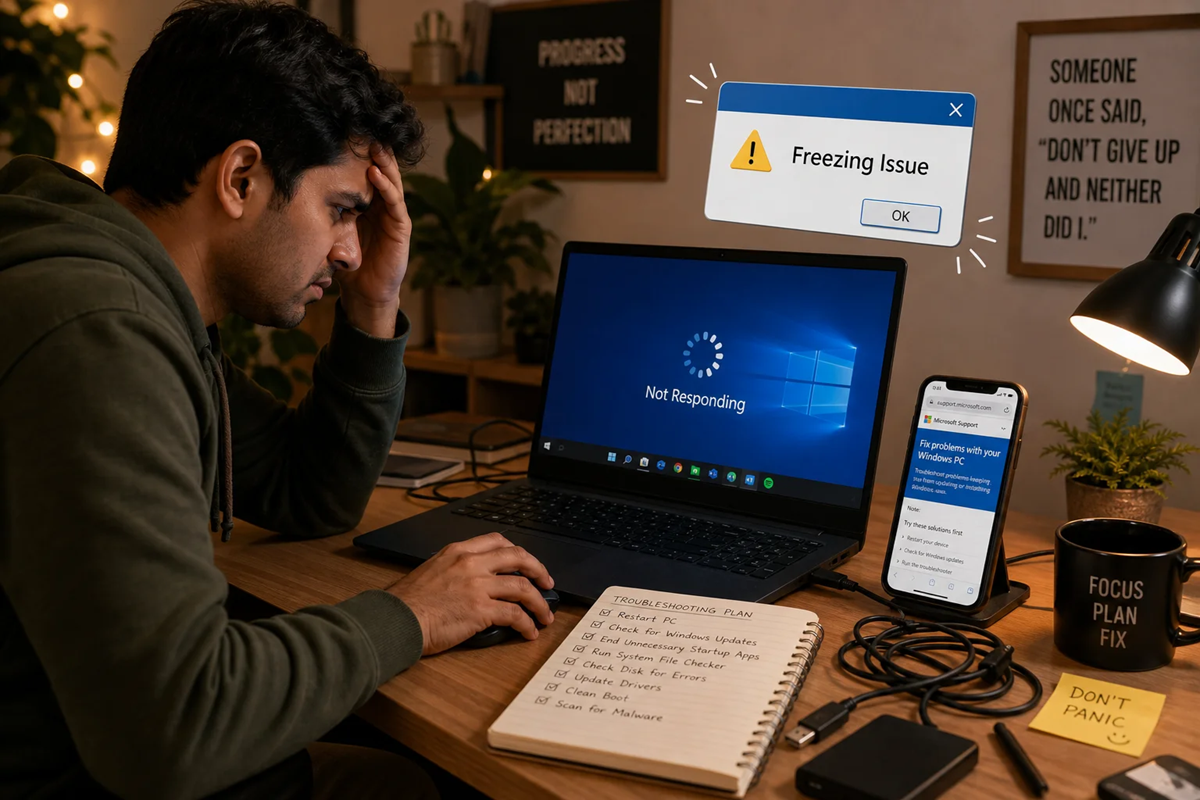
What to do if a Windows PC hangs?
Sometimes, while working on a Windows PC or laptop, an app suddenly freezes. Clicking the mouse doesn't respond, the app remains stuck on the screen, and it becomes difficult to close it normally. In such a situation, most people resort to restarting the entire computer. But there's no need to restart the PC every time. With a few simple methods available in Windows, you can force quit just that stuck app.
The easiest way is to use Task Manager.
If an app isn't responding, the Windows Task Manager can be a reliable option for closing it. To do this, press Ctrl + Shift + Esc simultaneously on your keyboard. This will open the Task Manager directly.
You'll now see a list of running apps and background processes on your computer. Find the app that's hanging. Click on the app's name and then select End Task.
Doing so will close Windows process. You can then reopen the app. Keep in mind that if your work in that app wasn't saved, Force Quitting may result in losing that data.
Another shortcut will be very useful.
If you're having trouble accessing the Task Manager, you can also try Alt + F4. This shortcut is used to close the current window. However, this shortcut may not always work if the app is completely frozen. In such a situation, it's better to open the Task Manager by pressing Ctrl + Shift + Esc again.
Another method hidden in Windows
In some cases, you can also close a stuck app from the Start Menu. Click the Start button, find the app, and then select End Task if it appears among the available options. This can also close the app's process.
However, this option isn't necessarily visible on every Windows PC or for every app. Therefore, the Task Manager method may be the most effective.
When do you need to restart your PC?
If only one app is frozen and the rest of Windows is working normally, it's best to close just that app instead of restarting the entire PC. This can prevent other open apps and your work from being affected.
But if the entire Windows system is not responding, both the mouse and keyboard are not working or even the Task Manager is not opening, then the system may need to be restarted.
Remember this trick the next time your PC hangs.
The next time an app suddenly freezes on your Windows PC, there's no need to panic. First, open Task Manager by pressing Ctrl + Shift + Esc, select the stuck app, and click End Task. This simple shortcut can save you a lot of time and eliminate the need to restart your entire computer for every minor issue.