WhatsApp is widely used across the world for messaging, voice calls, and file sharing. Apart from smartphones, the platform also allows users to access their chats on computers through WhatsApp Web, making it easier to continue conversations while working on a desktop or laptop.
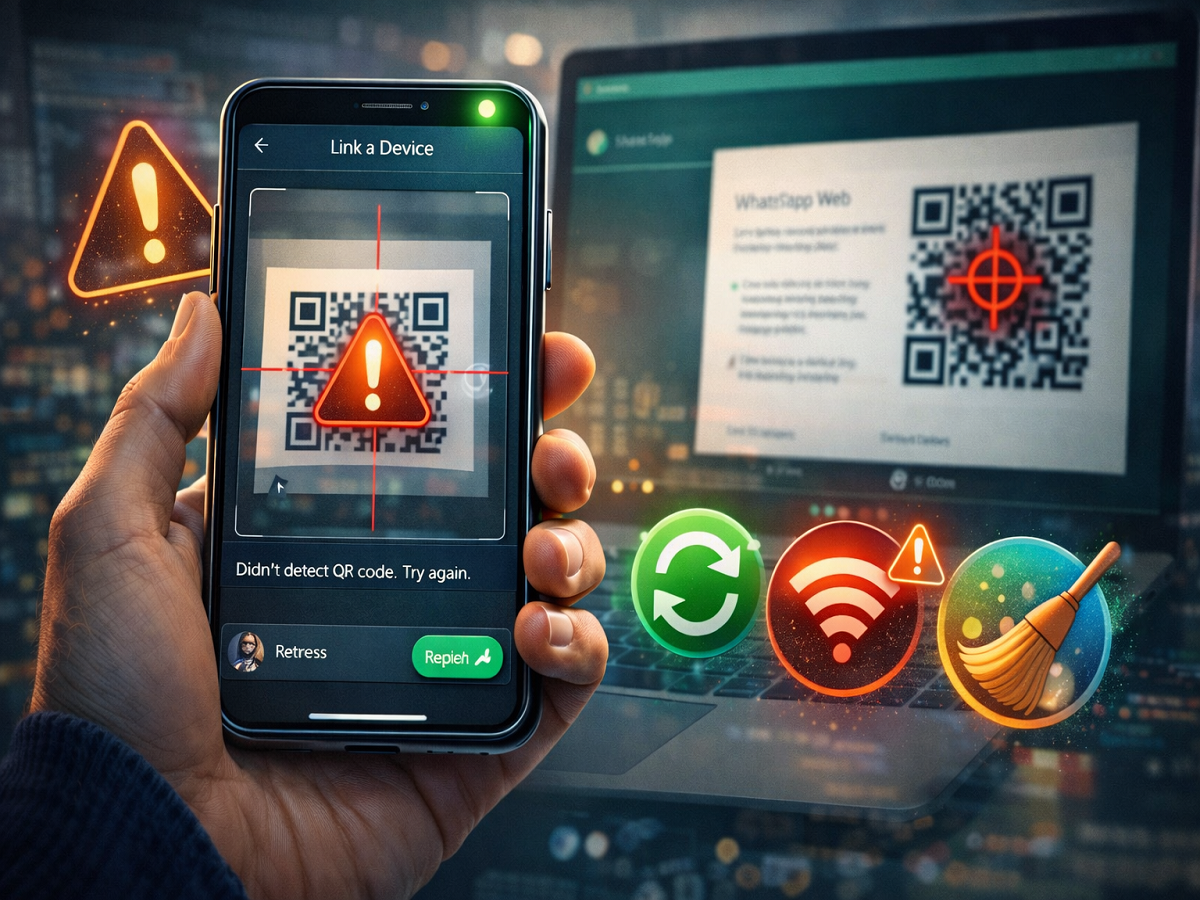
To use WhatsApp Web, users simply need to open the web version on their computer and scan the QR code displayed on the screen using their smartphone. Once linked, messages, photos, videos, and documents automatically sync across devices.
However, some users occasionally encounter a problem where the smartphone camera fails to detect the QR code on the computer screen. If you are facing the same issue, there are several simple troubleshooting steps you can try to resolve the problem.
Why WhatsApp Web QR Code May Not Scan
There are several reasons why your phone might not detect the QR code displayed on your computer. In most cases, the issue occurs due to outdated apps, slow internet connections, camera issues, or device linking limits.
Fortunately, most of these problems can be solved with quick adjustments.
1. Update WhatsApp to the Latest Version
One of the most common reasons for QR scanning issues is using an outdated version of WhatsApp.
Make sure your app is updated through:
- Google Play Store for Android users
- Apple App Store for iPhone users
Updating the app ensures compatibility with WhatsApp Web and improves performance.
2. Use WhatsApp’s Built-In QR Code Scanner
Some users try to scan the WhatsApp Web QR code using their phone’s default camera or a third-party QR scanner. However, this will not link your account.
To properly connect your device:
- Open WhatsApp on your phone.
- Tap the three-dot menu (Android) or Settings (iPhone).
- Select Linked Devices.
- Tap Link a Device.
- Use the built-in scanner to scan the QR code shown on your computer.
Using the official scanner ensures the account linking process works correctly.
3. Check Your Internet Connection
A stable internet connection is necessary for linking your phone with WhatsApp Web.
If the QR code is not scanning:
- Ensure your phone has an active internet connection.
- Try switching between Wi-Fi and mobile data.
- Refresh the WhatsApp Web page on your computer.
A weak network can interrupt the linking process.
4. Clear WhatsApp Cache (Android Users)
Sometimes cached files can cause temporary glitches in apps.
Android users can try clearing WhatsApp’s cache by following these steps:
- Open Settings on your phone.
- Tap Apps or App Management.
- Select WhatsApp.
- Tap Storage.
- Select Clear Cache.
After clearing the cache, reopen WhatsApp and try scanning the QR code again.
5. Remove Unused Linked Devices
WhatsApp allows users to connect up to four devices simultaneously using the Linked Devices feature.
If the device limit is reached, the app may prevent new devices from connecting.
To resolve this:
- Open WhatsApp on your phone.
- Go to Linked Devices.
- Review the list of connected devices.
- Remove devices you no longer use.
Once space is freed, try linking your computer again.
What to Do If the Problem Still Continues
If none of the above solutions work, the issue may be related to the app or device itself. In that case, you can:
- Restart your phone and computer
- Refresh the WhatsApp Web page
- Contact WhatsApp support through the mobile app or email
Most QR scanning problems are temporary and can be fixed with basic troubleshooting.
Final Thoughts
WhatsApp Web is a convenient feature that allows users to continue messaging directly from their computers. While QR code scanning issues can be frustrating, they are usually easy to fix.
Updating the app, using the correct QR scanner, checking internet connectivity, and managing linked devices are some of the most effective ways to solve the problem quickly.
By following these steps, you should be able to reconnect your phone to WhatsApp Web and continue using the service without interruptions.