WhatsApp is one of the most widely used messaging platforms, and it has become much more than a tool for sending text messages. People regularly use it to exchange photos, videos, voice recordings, documents and other files with friends, family members, colleagues and groups.
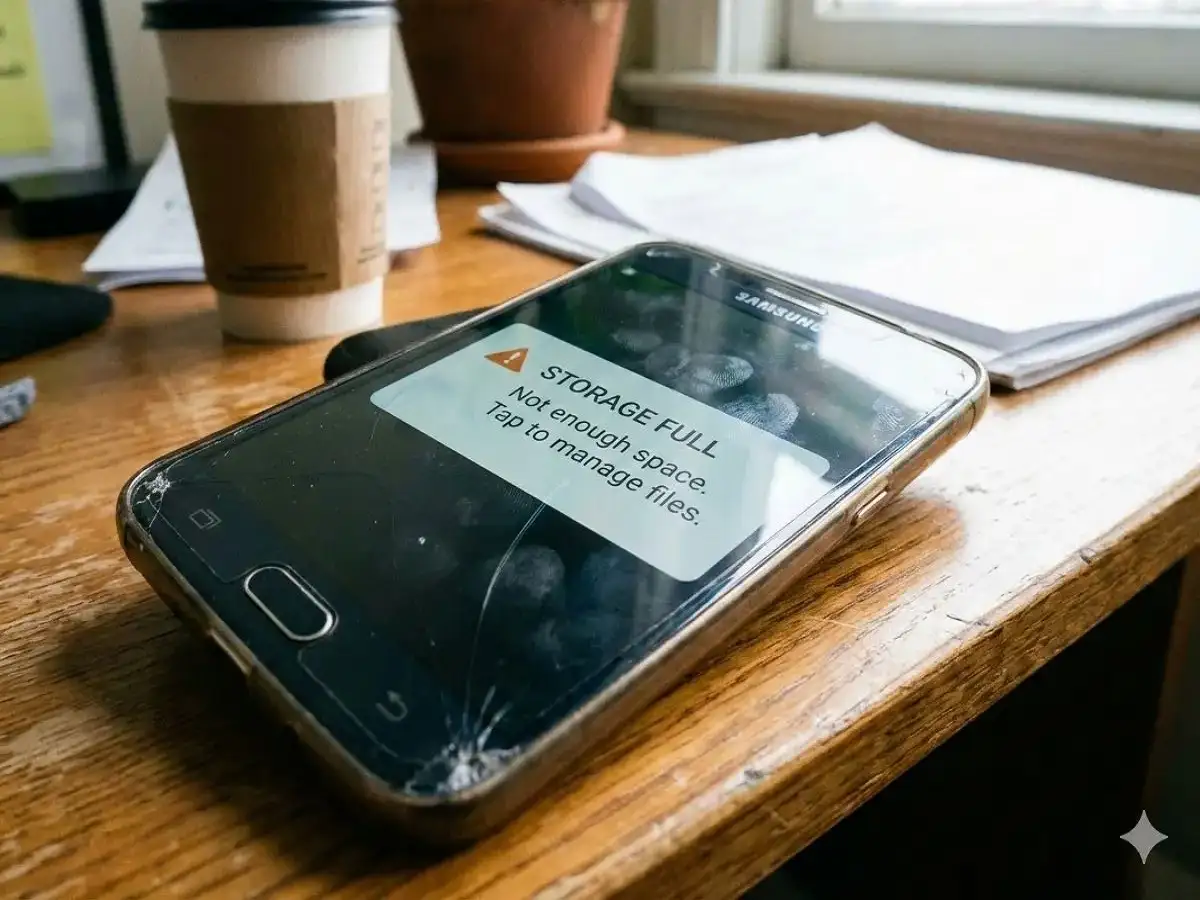
The problem is that all this media can gradually consume a significant amount of storage on a smartphone. After months or years of receiving files, users may eventually see a low-storage or “Storage is Full” warning on their device.
But running out of space does not mean you have to delete entire WhatsApp conversations. Instead, you can identify and remove unnecessary media while keeping important chats intact.
WhatsApp's Manage Storage tool can help users find large files, frequently forwarded media and other items that are taking up valuable space. Here's how you can use it more effectively.
What Is WhatsApp's Manage Storage Tool?
WhatsApp provides a storage-management section that lets users see how much space the application and its media are consuming.
Rather than manually checking hundreds of conversations, users can use this feature to identify files that may be responsible for a large portion of WhatsApp's storage usage.
Depending on the device and app version, the storage-management screen can provide access to categories such as:
- WhatsApp's overall storage usage
- Available storage on the phone
- Large media files
- Frequently forwarded items
- Photos and videos
- Documents
- Audio files
- Options for selecting and deleting unwanted media
This makes it possible to clean up WhatsApp without removing an entire conversation.
How to Remove Large WhatsApp Files
Large videos and other media files can quickly consume smartphone storage. If WhatsApp is taking up too much space, checking large files is a good place to start.
Open WhatsApp on your phone and follow the storage-management options available in your version of the app.
On Android, tap the three-dot menu in the upper-right corner and open Settings.
On iPhone, go to the app's settings area using the relevant profile/settings option.
Next, open Storage and Data and select Manage Storage.
Look for the section showing larger files, such as Larger than 5 MB, where available. You can then review the listed photos, videos, documents and other media.
Select the files you no longer need and delete them. Multiple items can generally be selected together, making it easier to remove several large files in one go.
The important point is that deleting selected media does not necessarily mean deleting the entire WhatsApp conversation.
Remove Frequently Forwarded Media
WhatsApp groups can become a major source of duplicate or unnecessary media. The same image, video or document may be forwarded repeatedly across different conversations.
WhatsApp's storage-management tools can help identify frequently forwarded content, where the feature is available.
Open the relevant section and review the files carefully. Select media that you no longer need and remove it.
This can be particularly useful for clearing old memes, repeated videos, promotional content and other files that have accumulated over time.
Before deleting anything, however, make sure the file is not something you may need later.
Clean Up a Specific WhatsApp Chat
If you still need additional storage after reviewing the main storage-management section, you can inspect individual conversations.
Start with chats or groups that regularly receive large numbers of photos and videos. Review the media shared in those conversations and identify files that are no longer useful.
You do not necessarily have to delete the conversation itself.
There is an important difference between removing media and deleting a chat. You can preserve your written conversation while getting rid of unnecessary photographs, videos, documents or audio files, depending on the options provided by WhatsApp and your device.
Stop Unnecessary Media From Downloading Automatically
Cleaning up existing files can free storage, but preventing unnecessary media from accumulating in the future can be even more useful.
WhatsApp allows users to control its Media Auto-Download settings. By limiting automatic downloads, you can reduce the number of photos, videos and other files that are automatically saved to your device.
You can then choose to download media when you actually want to view or keep it.
This approach can offer several benefits:
- Helps preserve phone storage
- Reduces the accumulation of unwanted media
- Can lower mobile-data consumption
- Makes it easier to control WhatsApp's storage usage
- Reduces the amount of media that needs to be cleaned up later
The exact settings and options can vary between Android and iPhone.
Can Disappearing Messages Help?
For certain conversations, particularly groups where messages are not needed permanently, WhatsApp's Disappearing Messages feature may also be useful.
When enabled for a supported chat, messages can automatically disappear after the selected period.
However, users should be careful when using this option. Important messages, documents, addresses, receipts or other information that may be required later should not be placed in a disappearing-message setup without keeping another copy where necessary.
Why Should You Regularly Clean WhatsApp Storage?
A periodic WhatsApp cleanup can help keep your smartphone organized and prevent storage from becoming unnecessarily crowded.
Removing unwanted media may:
- Create additional free space on the phone
- Reduce WhatsApp's overall storage footprint
- Help keep media collections under control
- Potentially reduce the size of backups, depending on your backup configuration
- Make moving or restoring WhatsApp data more manageable
- Prevent repeated and unwanted media from accumulating
You Don't Need to Delete Every Chat
The biggest takeaway is that deleting complete WhatsApp conversations is not the only way to reclaim storage.
Before removing important chats, first check Manage Storage and look for large or unnecessary media. Review frequently forwarded content, clean up media-heavy conversations and adjust automatic-download settings to prevent the problem from returning.
At the same time, always review files before deleting them. A large video or document may still be important even if it is consuming considerable storage.
With a little regular maintenance, you can keep your important WhatsApp conversations while removing the media that is actually responsible for filling up your phone's storage.