WhatsApp has introduced a long-awaited feature that allows users to edit messages even after sending them. The new functionality is designed to help users quickly fix typos, correct information, or add additional context to a message without having to delete and resend it.
For years, messaging apps like Telegram and Signal have offered editing options, and Apple also added a similar feature to iMessage. Now, WhatsApp users on both Android and iOS can take advantage of this capability to improve conversations and avoid confusion caused by typing mistakes.
However, the feature comes with certain limitations and conditions that users should understand before using it.
Below is a detailed guide explaining how the WhatsApp edit message feature works and how you can use it effectively.
What Is WhatsApp’s Edit Message Feature?
The Edit Message feature allows users to modify a message that has already been sent within a limited timeframe.
Instead of deleting the message and sending a new one, users can simply edit the original text and update it in the chat. This is particularly helpful for correcting spelling errors, fixing wrong information, or clarifying a message that may have been misunderstood.
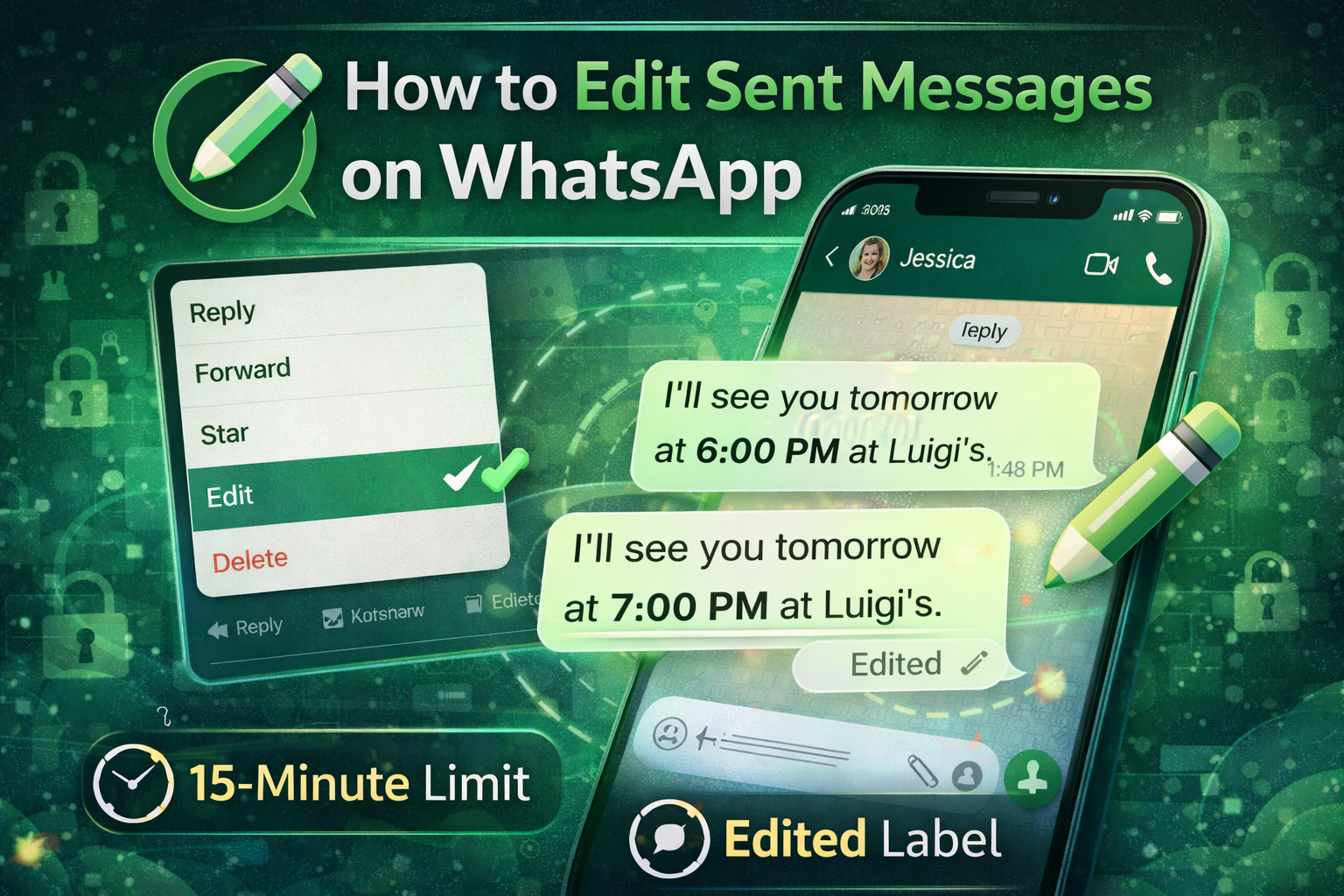
After a message is edited, WhatsApp displays an “Edited” label next to the timestamp so that recipients know the message was modified.
Key Things to Know About Editing Messages on WhatsApp
Before using the feature, there are several important points to keep in mind:
1. Editing Time Limit
WhatsApp allows users to edit a message within 15 minutes of sending it. Once the 15-minute window expires, the message can no longer be edited.
2. Edited Label
When a message is edited, WhatsApp automatically adds an “Edited” tag next to the timestamp. This ensures transparency so recipients know that changes were made.
3. Works in Individual and Group Chats
The edit option works in both personal chats and group conversations, making it useful for correcting messages in any type of discussion.
4. Difference From Delete for Everyone
The Delete for Everyone feature still works separately and allows users to remove a message entirely within a longer timeframe (up to about two days). Editing, however, is limited to 15 minutes.
Steps to Edit a Sent Message on WhatsApp
Follow these simple steps to edit a message you have already sent:
- Open the WhatsApp app on your smartphone.
- Go to the chat where you recently sent the message (within the last 15 minutes).
- Press and hold the message you want to edit.
- Tap the three-dot menu at the top-right corner (on Android) or select the edit option directly if available.
- Choose the Edit option.
- Make the necessary changes or corrections to the message.
- Tap Send to update the message.
Once updated, the edited message will appear in the chat with the Edited label next to it.
When the Edit Feature Is Useful
The message editing feature can be helpful in many situations, including:
- Correcting spelling or grammar mistakes
- Fixing incorrect information
- Adding missing context to a message
- Clarifying a statement in group discussions
This feature helps prevent misunderstandings and keeps conversations clear without cluttering the chat with repeated messages.
Availability of the Feature
WhatsApp has confirmed that the Edit Message feature is being rolled out gradually to users worldwide. This means some users may receive the update earlier than others.
If you do not see the edit option yet, updating WhatsApp to the latest version may help. Otherwise, the feature should appear once the rollout reaches your device.
The ability to edit messages is one of the most requested features on WhatsApp, and its arrival makes conversations smoother and more flexible. By allowing users to correct messages quickly within a 15-minute window, WhatsApp reduces the need for deleting and resending texts.
If you frequently send messages quickly and notice mistakes afterward, this feature can be extremely useful. Simply long-press the message, select edit, make your changes, and continue the conversation seamlessly.