Smartphones today come packed with multiple security options like PINs, patterns, fingerprints, and face recognition. While these features are essential, entering a password repeatedly can sometimes feel inconvenient. That’s where Smart Lock comes in—a clever feature that balances security with ease of access.
If you’re using an Android device powered by Google, here’s everything you need to know about enabling and using Smart Lock effectively.
What Is Smart Lock and Why Should You Use It?
Smart Lock is a built-in Android feature that allows your phone to stay unlocked in trusted situations. Instead of unlocking your device again and again, Smart Lock intelligently recognizes when it’s safe to keep your phone accessible.
Key Advantages:
- Reduces the need to repeatedly unlock your phone
- Works automatically in safe environments
- Maintains a balance between convenience and security
How Smart Lock Works on Android
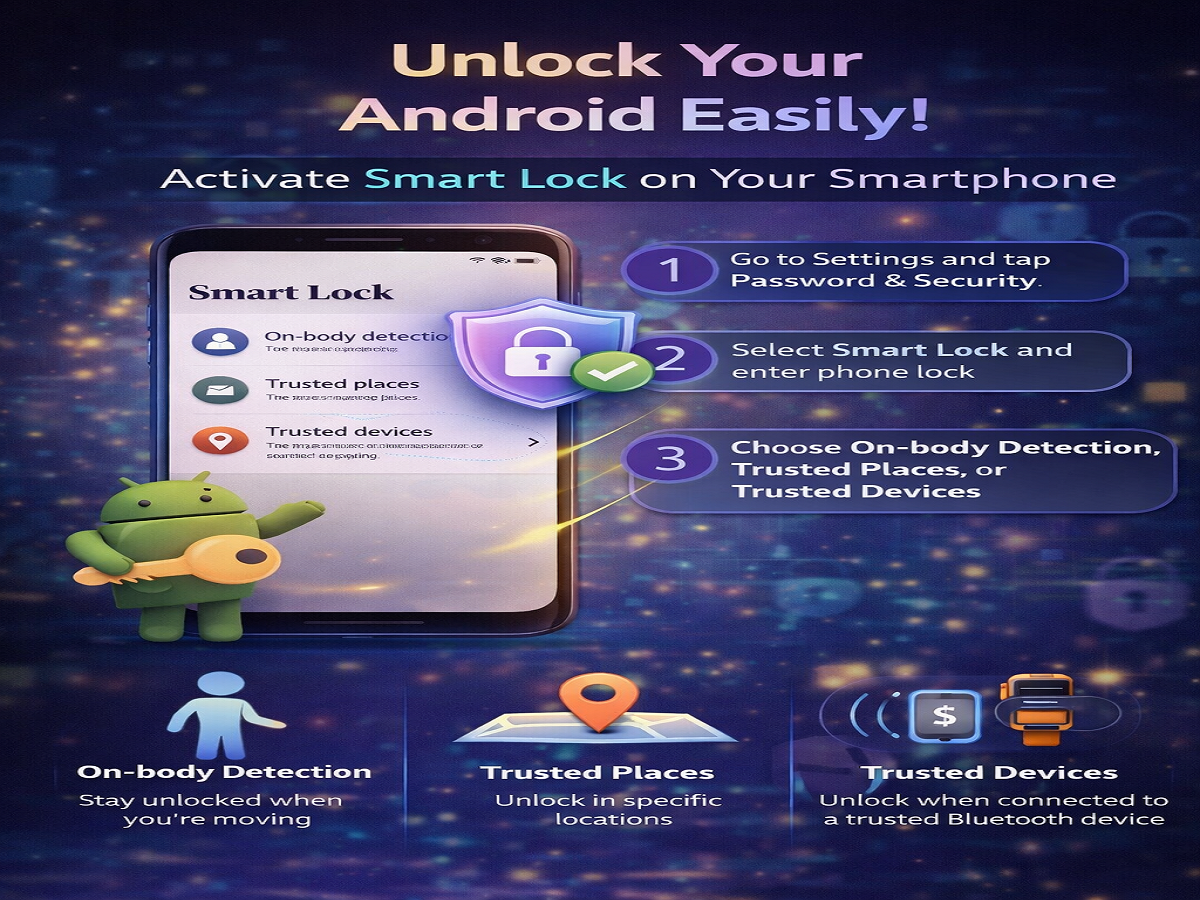
Smart Lock uses different conditions to determine when your phone should remain unlocked. It offers three main options:
1. On-Body Detection
Your phone stays unlocked as long as it detects that you are carrying it—whether in your hand or pocket. Once you put it down, the lock reactivates.
2. Trusted Places
You can set specific locations (like your home) where your phone won’t require unlocking. This uses GPS to identify safe zones.
3. Trusted Devices
When your phone is connected to a trusted Bluetooth device—like a smartwatch or wireless earbuds—it stays unlocked.
Step-by-Step: Enable Smart Lock on Android Smartphones
Follow these simple steps to activate Smart Lock:
- Open the Settings app on your Android smartphone
- Navigate to Password & Security (or similar option depending on device)
- Tap on System Security
- Under Device Security, select Smart Lock
- Enter your current screen lock password or PIN
- Choose any of the following options:
- Turn on On-body detection
- Add Trusted places using location
- Connect Trusted devices via Bluetooth
Once configured, Smart Lock will automatically manage your lock screen based on your preferences.
How to Enable Smart Lock on Samsung Galaxy Devices
If you’re using a Samsung Galaxy smartphone, the steps are slightly different:
- Open Settings
- Tap on Lock Screen
- Select Smart Lock
- Enter your lock screen credentials
- Enable features like On-body detection, Trusted places, and Trusted devices
Important Things to Keep in Mind
- Smart Lock reduces security in trusted situations—use it wisely
- Trusted locations rely on GPS accuracy
- Bluetooth connections must remain active for trusted devices
- Always keep a secure backup lock (PIN/password) enabled
Final Thoughts
Smart Lock is a powerful feature that makes your Android experience smoother without compromising too much on security. Whether you’re at home, on the move, or using connected devices, it ensures your phone is ready when you need it—without constant unlocking.
If convenience matters to you just as much as security, enabling Smart Lock is definitely worth it.