Email communication plays a vital role in both personal and professional life. Whether you are sending a casual message or a formal business email, the way you sign off can leave a lasting impression. This is where an email signature becomes important. Gmail, Google’s widely used email service, allows users to create customized signatures that automatically appear at the end of outgoing emails.
A Gmail signature is more than just your name—it can include your designation, company name, contact details, website links, or even a brand logo. It helps recipients quickly understand who you are and how to reach you, making your emails look polished and professional.
What Is an Email Signature and Why Is It Important?
An email signature is a block of text or formatted content that appears at the bottom of every email you send. It serves as your digital identity and can be tailored for different purposes.
A well-designed Gmail signature can:
- Enhance your professional image
- Save time by automatically adding contact details
- Promote your brand or organization
- Maintain consistency across emails
- Improve credibility in business communication
Gmail also offers flexibility by allowing users to create multiple signatures for different scenarios, such as personal emails, office communication, or client interactions.
How to Create an Email Signature in Gmail
Creating a signature in Gmail is simple and takes only a few minutes. However, it can significantly improve the way your emails are perceived.
Follow these steps to add a signature in Gmail:
- Open Gmail on your computer using a web browser.
- Click on the Settings icon located at the top-right corner of the screen.
- Select See all settings to access the full settings menu.
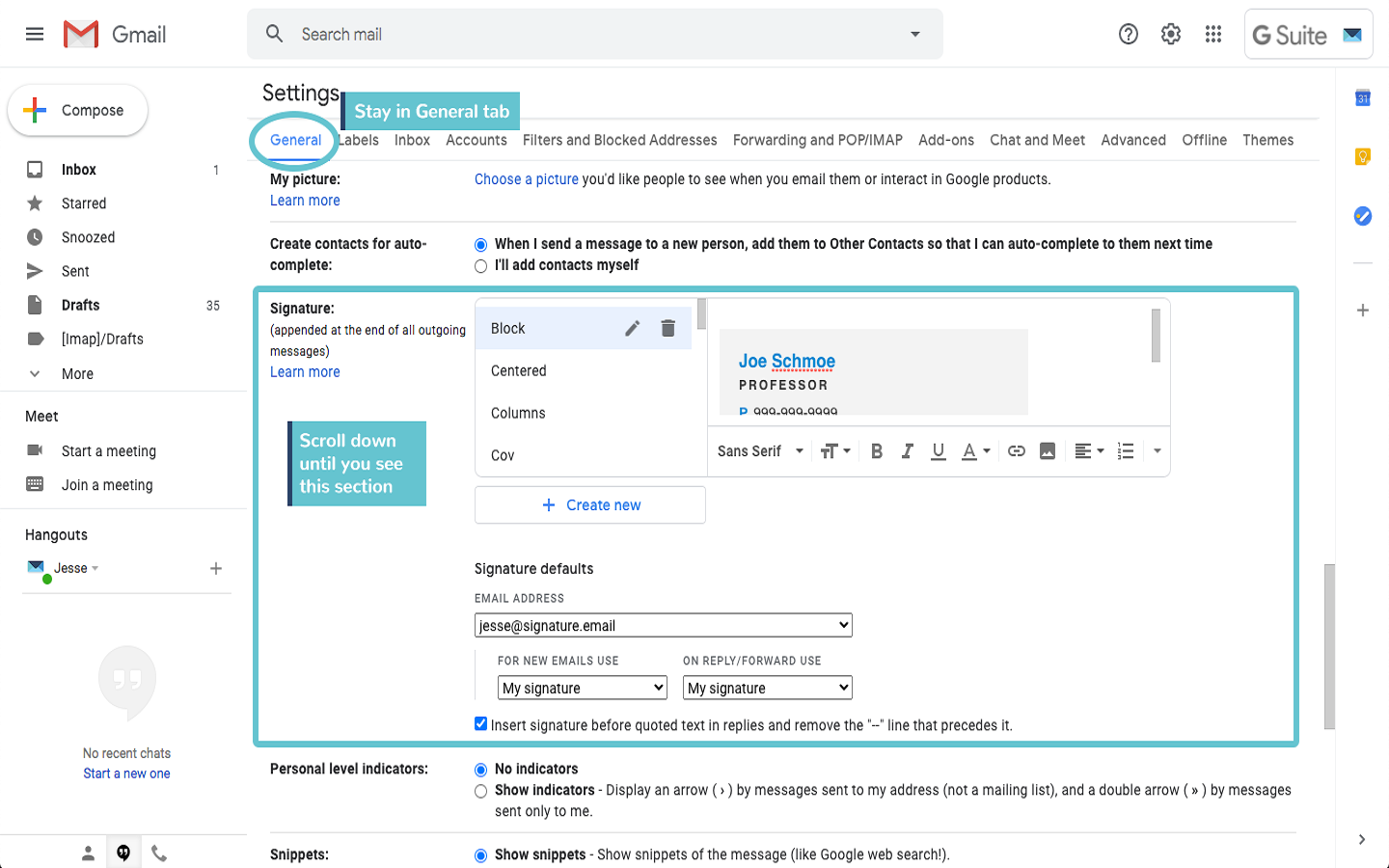
- In the General tab, scroll down until you find the Signature section.
- Click on the option to create a new signature.
- Enter your signature text in the provided box. You can include your name, job title, phone number, or company details.
- Use formatting tools to change font style, size, color, or add images and links if required.
- Scroll to the bottom of the page and click Save Changes.
Once saved, your signature will automatically appear in new emails and replies, depending on your selected settings.
How to Create Multiple Signatures in Gmail
Gmail allows users to design more than one signature, which is especially useful for professionals handling different types of communication.
For example, you may want:
- A formal signature for office emails
- A simplified version for internal communication
- A personalized signature for personal messages
To create multiple signatures:
- Go to the Signature section in Gmail settings.
- Select the option to add a new signature.
- Create and name each signature separately.
- Choose default signatures for new emails and replies.
- Manually switch signatures while composing an email, if needed.
This flexibility ensures that your emails always match the context and audience.
Tips for a Clean and Effective Gmail Signature
- Keep it short and readable
- Avoid excessive colors or fonts
- Use a professional image or logo
- Ensure links and contact details are accurate
- Avoid motivational quotes in formal signatures
Final Thoughts
A Gmail signature may seem like a small feature, but it plays a powerful role in shaping your digital communication. Whether you are a student, freelancer, or corporate professional, setting up a well-structured email signature can enhance your credibility and save time.
With Gmail’s easy customization options and support for multiple signatures, managing email identities has never been simpler. A few minutes spent setting up your signature today can make every email you send look more professional tomorrow.