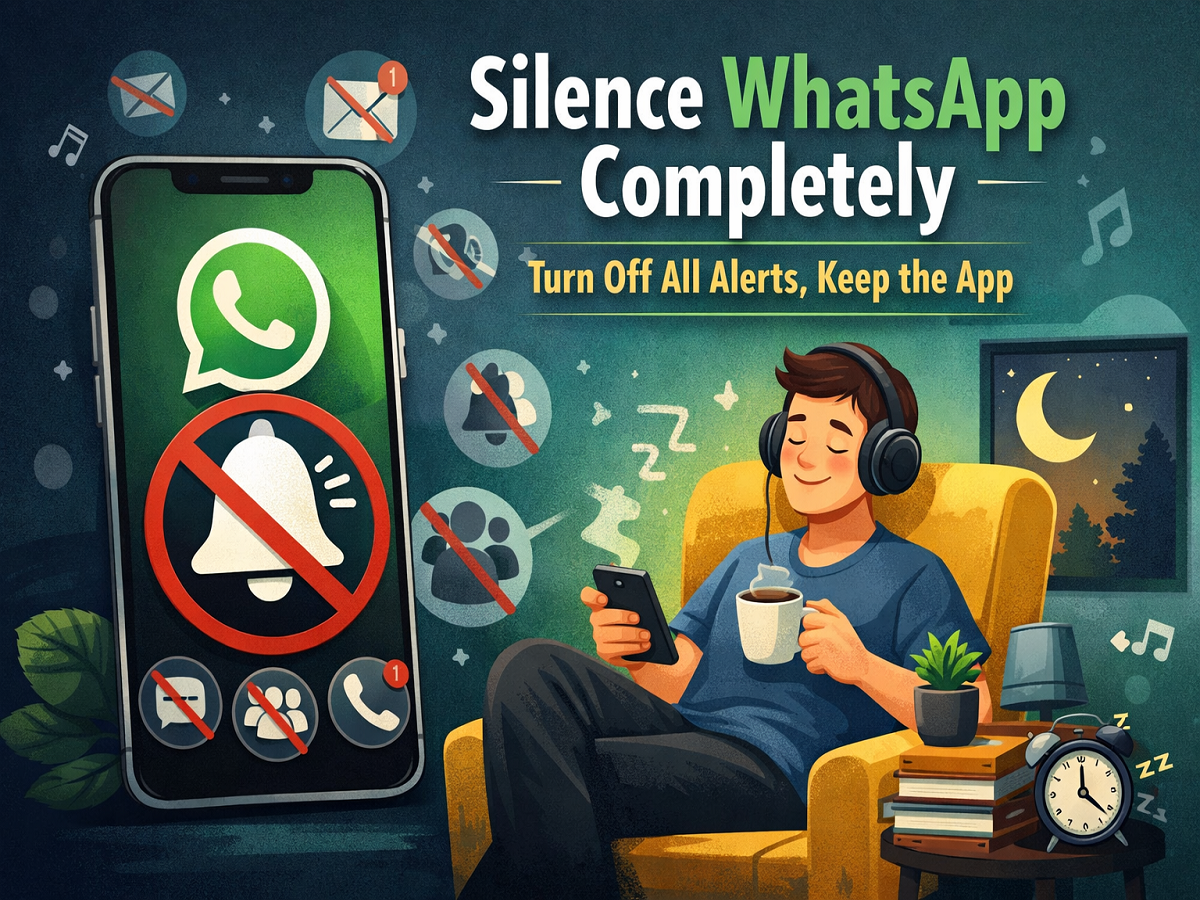
WhatsApp is one of the most popular messaging platforms in the world, used by billions of people for daily communication. What started as a simple chat application has grown into a powerful tool for voice calls, video calls, group discussions, file sharing, business communication, and even access to certain public services in countries like India. With such wide usage, it’s no surprise that notifications from the app can quickly pile up throughout the day.
For many users, constant pings from personal chats, work groups, promotional messages, and community updates can become overwhelming. These interruptions can be especially frustrating during meetings, study hours, travel, sleep, or moments when you simply want uninterrupted personal time. The good news is that you don’t need to uninstall WhatsApp or disconnect from your contacts to stop the noise. The app provides simple settings to mute notifications either completely or selectively.
Below is a comprehensive guide to turning off WhatsApp alerts while keeping the app installed and ready to use whenever you choose.
Why Muting WhatsApp Notifications Can Be Helpful
As WhatsApp continues to expand its features, the number of alerts it generates has increased significantly. Users may receive notifications for:
- One-to-one conversations
- Active group chats
- Voice and video calls
- Media downloads such as photos and videos
- Business messages and updates
- Status posts from contacts
While these features enhance connectivity, they can also reduce productivity and increase digital fatigue. Disabling notifications helps you stay focused without missing important messages permanently.
Method 1: Turn Off All WhatsApp Notifications
If you want a complete break from alerts, you can disable notifications for the entire app in just a few steps:
- Launch WhatsApp on your smartphone.
- Open the Settings section from the app menu.
- Tap on Notifications.
- Find the option labeled Show Notifications or similar.
- Switch this setting off.
After completing these steps, WhatsApp will no longer send sound alerts, pop-ups, or vibration notifications for any activity, including messages and calls. The app will continue to function normally in the background, and you can still open it anytime to check updates manually.
Method 2: Mute Only Selected Chats or Groups
If you prefer to receive notifications from important contacts but silence less urgent conversations, WhatsApp allows chat-specific control.
Follow these steps to mute individual chats or groups:
- Open the conversation you want to silence.
- Tap the name of the contact or group at the top of the screen.
- Go to the Notifications or Mute Notifications option.
- Disable alerts or choose a mute duration such as 8 hours, 1 week, or Always.
This approach is ideal for large group chats that generate frequent messages but rarely require immediate attention.
Key Points to Keep in Mind
- Turning off notifications does not remove the app or delete your data.
- Messages and calls will still arrive — you just won’t be alerted.
- Notifications can be restored anytime using the same settings.
- Selective muting may take longer if you have many chats to manage individually.
WhatsApp plays a central role in modern communication, but nonstop alerts can disrupt daily life. Whether you need quiet time for work, relaxation, or sleep, disabling notifications offers a practical way to reduce distractions without losing access to the app.
By using the built-in settings to mute all alerts or only specific conversations, you can control how and when WhatsApp reaches you. This simple adjustment allows you to stay connected on your own schedule while enjoying a calmer, more focused digital experience.