Sharing videos on messaging apps has become a common part of everyday communication. From family memories and travel clips to work presentations and event recordings, videos are frequently shared through messaging platforms. However, many users notice that when they send videos through WhatsApp, the file quality often gets compressed.
The popular messaging platform WhatsApp automatically compresses media files to reduce file size and speed up transfers. While this helps users send files quickly, it also reduces the quality of the video.
Recently, the company’s CEO Mark Zuckerberg confirmed that WhatsApp introduced an HD photo sharing feature, with HD video support expected to arrive later. Until native HD video sharing becomes widely available, users can still send videos in high quality using a simple workaround.
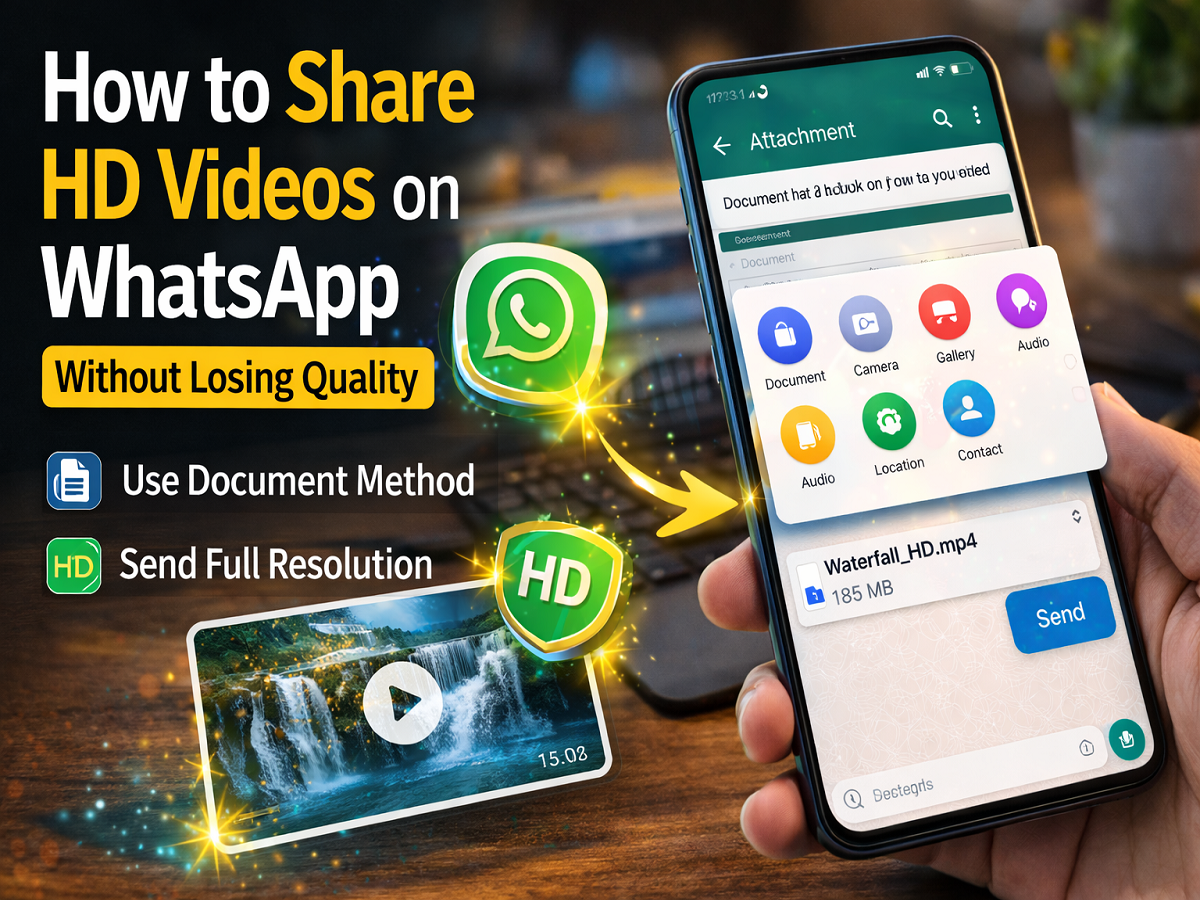
The trick involves sending the video as a document instead of a media file. When shared as a document, WhatsApp does not compress the file, allowing the recipient to receive the original video quality.
Below is a detailed guide explaining how to share HD videos on WhatsApp without quality loss.
Why Videos Lose Quality on WhatsApp
Normally, when you send a video directly through the gallery option in WhatsApp, the app compresses the file to reduce its size. This compression helps in faster uploading and downloading but results in reduced video resolution and clarity.
Sending the file as a document bypasses this automatic compression and preserves the original quality of the video.
Step-by-Step Guide to Send HD Videos on WhatsApp
Follow these simple steps to share videos without losing quality.
1. Open WhatsApp
Launch the WhatsApp application on your smartphone and open the chat where you want to send the video.
2. Tap the Attachment Icon
Inside the chat window, tap the attachment (paperclip) icon.
3. Select the Document Option
From the menu that appears, choose the Documents option instead of Gallery.
4. Choose the Video File
Your phone’s file manager will open. Browse and select the video you want to send.
Tip:
If you cannot easily find the video file, switch to the Videos tab in the file picker. This will display all video files stored on your device.
5. Tap Send
After selecting the video, tap the Send button. The video will be sent as a document.
Once sent, the recipient will receive the video file as a downloadable document. After downloading it, they can open and watch the video in its original quality.
Things to Keep in Mind
Before sending HD videos using this method, remember the following points:
This is a workaround
The document method is not the native HD video feature but a temporary solution.
File size limit
WhatsApp allows document sharing of files up to 2GB in size.
Download required
Recipients must download the document before viewing the video.
Advantages of Sending Videos as Documents
- Preserves original HD video quality
- Allows sharing large files up to 2GB
- Prevents automatic compression
- Useful for sharing professional or high-resolution videos
While WhatsApp currently compresses videos sent through the normal media option, the document method offers a practical way to share videos without losing quality. By sending the file as a document, users can ensure that the recipient receives the original HD version of the video.
Until the platform fully rolls out native HD video sharing, this simple trick remains one of the best ways to share high-quality videos through WhatsApp.