Smartphones have become essential for communication, payments, navigation, entertainment and everyday work. But even a feature-packed phone can become frustrating when its battery struggles to last through the day.
Many users experience a familiar situation: the phone is charged to 100% in the morning, but after a few hours of social media, calls, videos, navigation and background activity, the battery percentage drops much faster than expected. The problem becomes particularly inconvenient while travelling, during a power cut or when the phone is needed for an important call or payment.
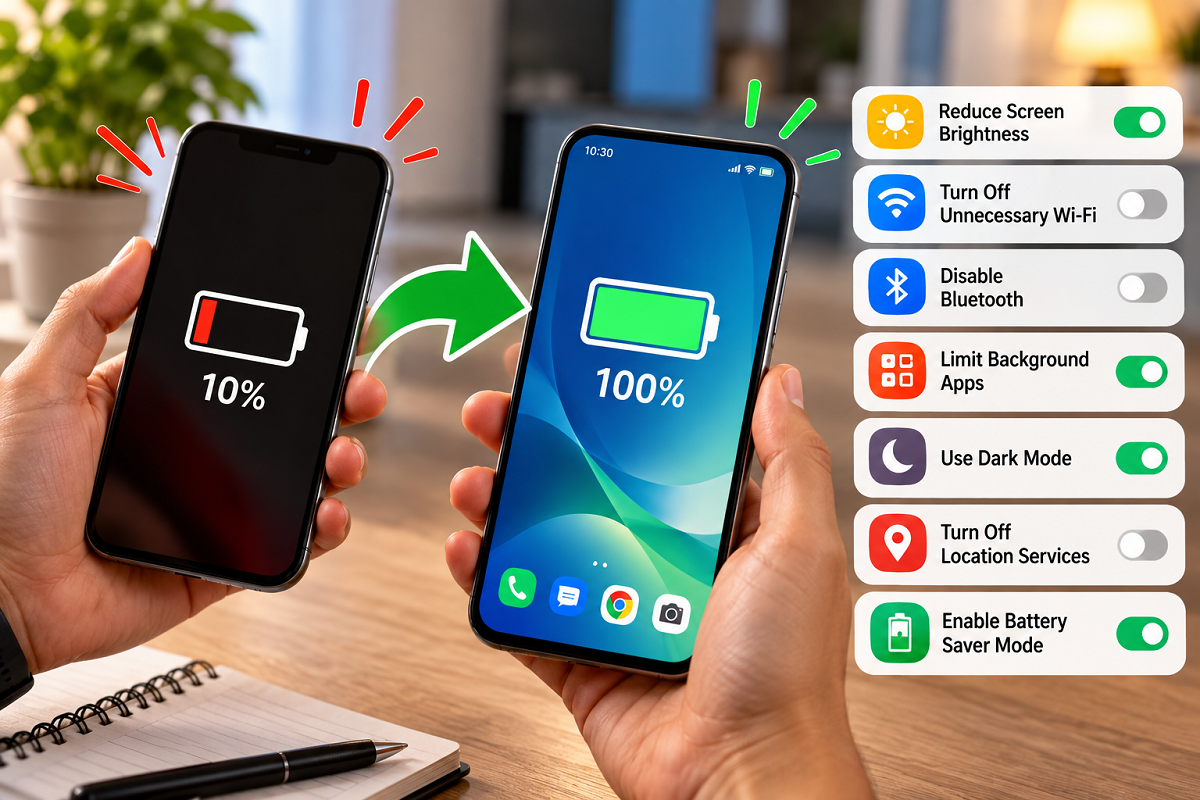
A rapidly draining battery does not always mean that the battery needs immediate replacement. Screen settings, background apps, connectivity features and notifications can all affect battery life. Changing a few settings may help your smartphone last longer between charges.
1. Check Screen Brightness and Auto Brightness
The display is one of the major power-consuming components of a smartphone. Keeping it unnecessarily bright for long periods can reduce battery life.
Auto or adaptive brightness automatically adjusts the display according to surrounding light. While this feature can be convenient, users who find their screen consistently brighter than necessary can try adjusting brightness manually and compare battery performance.
Keep the screen at a comfortable low or medium brightness indoors and increase it when extra visibility is required outdoors.
If your phone has an Always-On Display, disabling it when you do not need constant clock or notification information can provide additional battery savings on some devices.
2. Find Apps Consuming Too Much Battery
Closing an app's visible screen does not necessarily mean all of its processes immediately stop. Some apps can continue syncing information, checking location, downloading updates or performing other tasks in the background.
Both Android phones and iPhones provide battery-usage information that can help identify which apps are consuming the most power.
Open your phone's battery settings and check usage by app. If an application you rarely use appears unusually high on the list, review its background permissions.
You can restrict unnecessary background activity or uninstall applications you no longer require. However, repeatedly force-closing every app is generally unnecessary and may not improve battery life.
3. Review Bluetooth, Location and Wi-Fi Usage
Connectivity services can also contribute to power consumption, particularly when apps frequently use location services or the phone is continuously searching for connections.
Bluetooth can be turned off when you do not need to connect wireless earbuds, a smartwatch, a car or another accessory.
Location permissions deserve particular attention. Instead of allowing every app permanent access to your location, check whether some apps can be set to access it only while they are being used.
Wi-Fi is usually efficient when connected to a stable network, so users do not necessarily need to switch it off constantly. The more useful approach is to review connectivity features and permissions that are genuinely unnecessary.
4. Reduce Unnecessary Vibration and Haptic Feedback
Every vibration requires the phone's haptic or vibration hardware to operate. The power used by an individual vibration may be small, but frequent notifications, calls and keyboard feedback can add to overall consumption.
If extending battery life is your priority, consider turning off vibration for non-essential notifications.
Keyboard haptic feedback can also be disabled if you do not need a vibration every time you type. Users who receive hundreds of notifications each day may benefit more from these adjustments.
5. Control Battery-Hungry Apps
Games, video-streaming platforms, navigation services and some social-media applications can consume substantial amounts of power.
The impact can be even greater when these applications use mobile data, GPS, the camera, high screen brightness or background syncing simultaneously.
Review the battery usage section periodically. Apps that are rarely used but continue consuming significant power can be restricted or removed.
Where appropriate, users can also consider browser-based versions or lighter alternatives to resource-heavy applications, provided those alternatives meet their needs and come from trusted sources.
6. Turn Off Notifications You Don't Need
Notifications can affect battery consumption in several ways. An alert may wake the display, trigger a sound or vibration and involve background app activity.
Individually, these events consume relatively little power, but a phone receiving a constant stream of unnecessary notifications throughout the day may use additional energy.
Open notification settings and disable alerts from apps that do not require your immediate attention. Keep important notifications—such as communication, banking or security alerts—enabled according to your needs.
Reducing unnecessary notifications has another advantage: fewer interruptions while working, studying or resting.
7. Adjust Screen Timeout and Other Battery Settings
A phone that keeps its display active long after you have stopped using it wastes power.
Reducing the screen timeout to a practical duration can prevent unnecessary display usage. Built-in Battery Saver or Low Power Mode can also help when you need the remaining charge to last longer.
Poor mobile-network coverage can sometimes increase battery consumption because the phone has to work harder to maintain or find a connection. This is particularly noticeable while travelling or staying in an area with weak reception.
Keeping the operating system and apps updated can also help when updates contain efficiency improvements or fixes for excessive background activity.
Keep Your Smartphone Away From Excessive Heat
Temperature also matters for smartphone batteries.
Excessive heat can affect battery performance and accelerate long-term battery ageing. Avoid leaving a phone in direct sunlight, inside a very hot vehicle or under conditions where it becomes unusually warm for extended periods.
If the device becomes excessively hot while charging or performing demanding tasks, allowing it to cool down can be sensible.
What If These Settings Don't Fix the Problem?
Settings cannot solve every battery issue.
If an older phone suddenly loses charge very quickly, shuts down unexpectedly or shows significantly reduced battery health, the battery itself may have deteriorated.
Check the battery-health information available on your device, where supported. If there are signs of physical battery damage, such as swelling, stop using the device and seek professional service rather than attempting to repair the battery yourself.
For most users, however, reviewing brightness, background activity, location permissions, notifications, connectivity and screen timeout is a good place to start.
Small adjustments across several settings can collectively improve battery endurance and help your smartphone stay powered when you need it most.