LIFESTYLE
Laptop Cleaning Mistakes to Avoid: These Simple Errors Can Damage Your Keyboard and Device
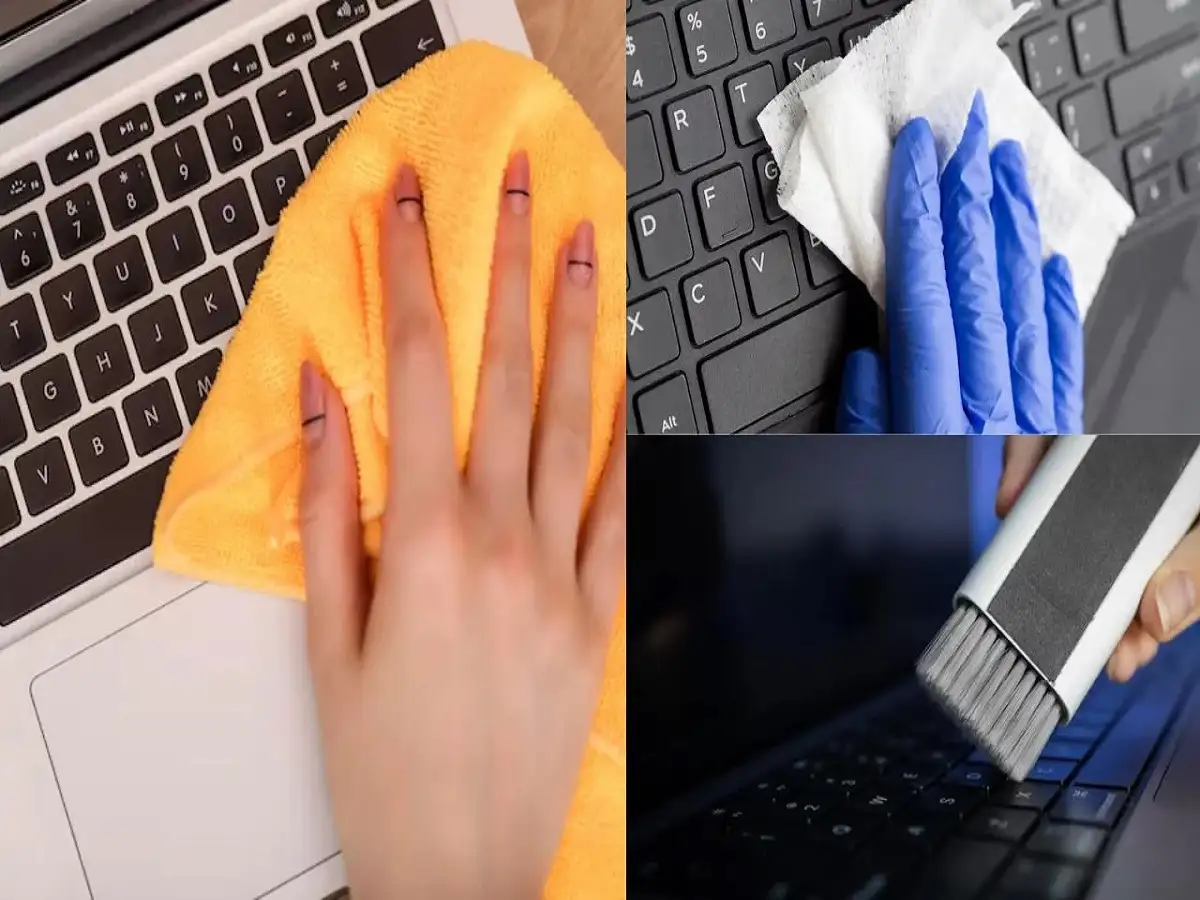
Laptops have become an essential part of everyday life, whether they are used for office work, online classes, banking, entertainment, shopping or other daily tasks. But frequent use also means that dust, fingerprints, crumbs and other particles gradually accumulate on the keyboard and other surfaces.
Regular cleaning can keep a laptop looking neat and may also prevent dirt from building up between the keys. However, cleaning a laptop is not the same as wiping a table or other household item. Electronic components can be sensitive to moisture, excessive pressure and certain cleaning products.
A small mistake, such as spraying liquid directly onto the keyboard, could potentially cause damage that is much more expensive than the cleaning itself. Therefore, it is important to know both what to do and what to avoid.
Here are some simple laptop and keyboard cleaning tips that can help you clean your device more safely.
1. Never Clean the Laptop While It Is Running
One of the first precautions is to completely shut down the laptop before starting the cleaning process.
Do not simply put the device into sleep mode. Save your work, close applications and shut it down properly. Disconnect the charger as well as accessories such as USB drives, external keyboards, headphones and other connected devices.
Cleaning a keyboard while the computer is switched on can result in accidental key presses. You could unintentionally activate commands, change settings or interfere with open files.
Turning the device off also reduces electrical risks when cleaning around the keyboard and ports.
2. Don't Spray Water Directly Onto the Keyboard
Directly spraying water or cleaning liquid onto a laptop keyboard is one of the biggest mistakes users can make.
A laptop keyboard has small gaps around and underneath its keys. Liquid can enter through these spaces and reach sensitive internal components. Even a small amount of moisture in the wrong place could cause malfunction or permanent damage.
If moisture is required for cleaning, apply a small amount to a suitable microfiber cloth rather than directly to the laptop.
The cloth should be only slightly damp—not wet enough for liquid to drip from it.
3. Avoid Pouring Sanitizer or Cleaning Solution on the Laptop
Household cleaning products should not automatically be considered safe for electronic devices.
Strong chemicals can affect coatings and finishes on the keyboard, screen, touchpad or laptop body. Over time, unsuitable cleaning products could also fade the printed letters and symbols on the keys.
Do not pour sanitizer, glass cleaner, surface disinfectant or any other liquid directly onto the keyboard.
If you need more than a dry cloth, check the laptop manufacturer's cleaning recommendations first, particularly when dealing with the display.
4. Don't Shake or Hit the Laptop to Remove Dust
When crumbs become trapped between keys, some users turn the laptop upside down and shake it aggressively. Others may tap or hit the device to force particles out.
This is not a good cleaning method.
A laptop contains several delicate components, and unnecessary force could damage the keyboard, hinges or other parts. Keys could also become loose if they are repeatedly subjected to rough handling.
Instead, position the laptop carefully at a slight angle and use gentle cleaning methods to remove loose particles.
5. Stay Away From Hard Brushes and Sharp Objects
Using a hard brush, pin, knife, screwdriver or another sharp object to remove dirt from between keys can create additional problems.
Hard objects may scratch the keyboard surface or damage individual keys. Trying to force an object underneath a keycap could also affect the mechanism below it.
A soft-bristle brush is a much safer option for removing loose dust from small gaps. A clean microfiber cloth can then be used for the keyboard's surface.
6. Be Careful When Using Compressed Air
Compressed air can help remove dust and crumbs from areas that are difficult to reach, but it should be used carefully.
Follow the product and laptop manufacturer's instructions. Avoid placing the nozzle too close to the keyboard or using excessive force.
The goal is to dislodge loose debris rather than force dust deeper into the device.
Short, controlled bursts are generally preferable to continuously blasting air at the keyboard.
The Safer Way to Clean a Laptop Keyboard
Start by shutting down the laptop completely and disconnecting its charger and accessories.
Use a clean, soft brush to gently loosen dust and debris from between the keys. If appropriate for your particular laptop, carefully use compressed air to remove loose particles.
Next, wipe the keyboard surface with a clean microfiber cloth. For stubborn marks, the cloth may be lightly dampened with a cleaning solution recommended by the device manufacturer.
Never allow liquid to drip from the cloth or collect around the keys, ports or openings.
Once cleaning is complete, allow the laptop to dry fully before reconnecting the charger or switching it back on.
Don't Forget the Screen and Ports
The keyboard may collect the most visible dirt, but other parts of the laptop also require attention.
Laptop screens are particularly sensitive. Avoid pressing hard on the display or using ordinary household glass cleaners unless the manufacturer specifically says they are suitable.
Ports and ventilation openings should also be handled carefully. Never push wet cloths, metal objects or other tools into charging ports, USB ports or ventilation slots.
Keeping ventilation areas free from excessive dust can also help maintain proper airflow.
Check Your Manufacturer's Instructions Before Deep Cleaning
Not every laptop uses the same materials, screen coatings or keyboard design. A cleaning method that is suitable for one model may not necessarily be recommended for another.
Before using alcohol-based products, compressed air or any specialised cleaner, check the cleaning instructions provided by your laptop manufacturer.
For everyday maintenance, the safest approach is usually simple: switch the laptop off, avoid excessive moisture, use soft cleaning materials and never apply unnecessary force.
Regular gentle cleaning is better than waiting until a thick layer of dirt builds up and then attempting aggressive cleaning. A few minutes of careful maintenance can keep your laptop looking cleaner without putting an expensive electronic device at unnecessary risk.