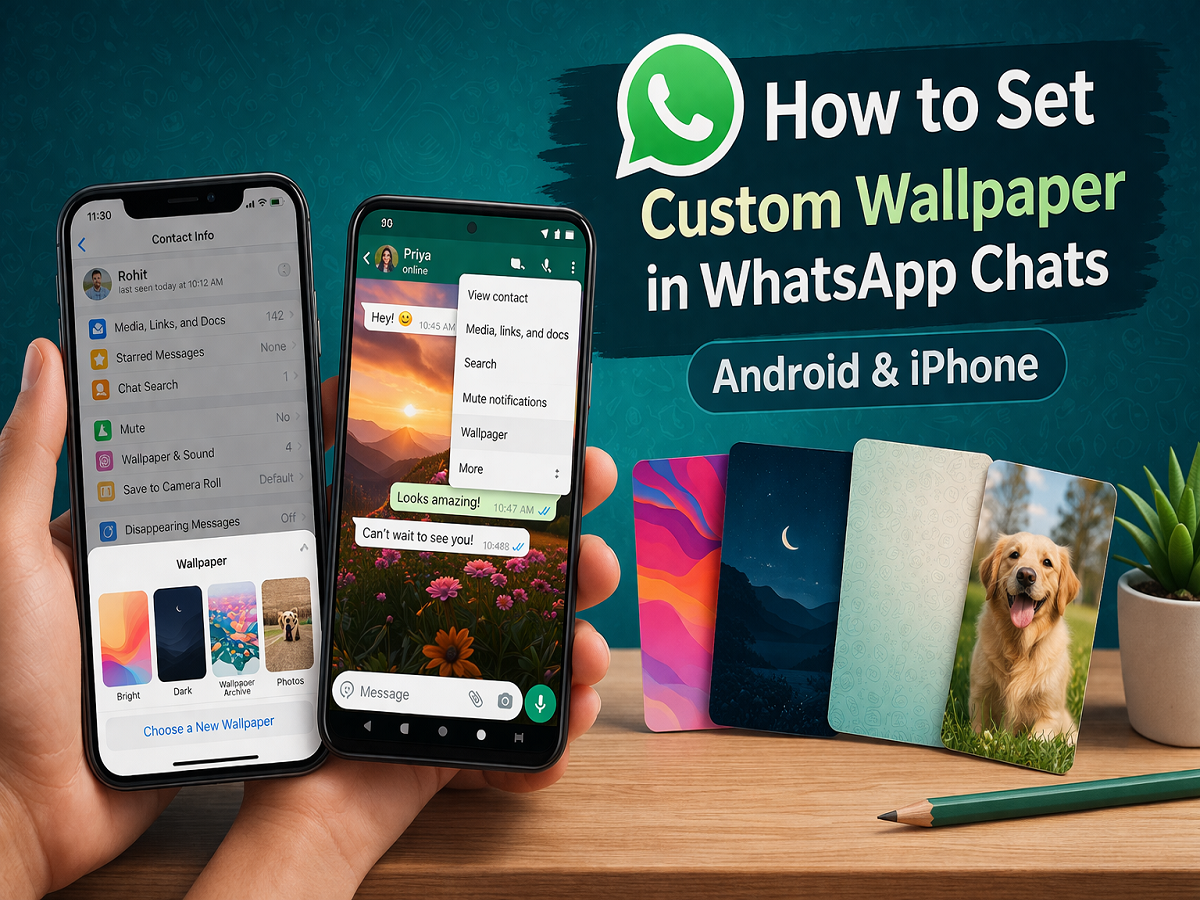
WhatsApp continues to roll out new features to enhance user experience, and one of the most visually appealing updates is the ability to set custom wallpapers for individual chats. Earlier, users had to stick with a single background across all conversations, but now you can personalize each chat with different wallpapers.
This feature not only adds a fresh look to your chats but also helps you visually distinguish between conversations. Whether you prefer bright colors, dark themes, or your own photos, WhatsApp now offers greater flexibility in customizing chat backgrounds.
What’s New in WhatsApp Wallpaper Feature?
With the latest update, WhatsApp allows users to:
- Set different wallpapers for different chats
- Choose from new bright and dark wallpaper collections
- Use personal images from your phone gallery
- Adjust wallpaper brightness for better readability
This feature is gradually being rolled out, so make sure your app is updated to the latest version to access it.
How to Set Custom Wallpaper on WhatsApp (iPhone)
If you are an iPhone user, follow these steps to personalize your chat background:
Step 1: Open WhatsApp and select the chat where you want to change the wallpaper
Step 2: Tap on the contact name at the top to open Contact Info
Step 3: Select Wallpaper & Sound and then tap on Choose a New Wallpaper
Now you will see multiple options:
- Default Wallpapers: Explore the latest bright and dark themes offered by WhatsApp
- Wallpaper Library: Access older wallpaper collections
- Photos: Choose any image from your phone gallery
Step 4: Preview the wallpaper by swiping left or right
Step 5: Tap Set, adjust brightness if needed, and confirm your selection
Your selected wallpaper will now appear only in that specific chat.
How to Set Custom Wallpaper on WhatsApp (Android)
Android users can also easily customize their chat backgrounds by following these steps:
Step 1: Open WhatsApp and go to the chat you want to customize
Step 2: Tap on the three-dot menu in the top-right corner
Step 3: Select Wallpaper
Step 4: Choose your preferred wallpaper from available options or select an image from your gallery
Step 5: Preview the wallpaper by swiping and adjust dimming settings
Step 6: Tap Set Wallpaper to apply the changes
That’s it—your chat now has a personalized background.
Why Use Custom Wallpapers?
Custom wallpapers can make your WhatsApp experience more engaging and organized. Here’s why you should try this feature:
- Personalization: Make chats visually unique
- Better Identification: Quickly recognize important chats
- Improved Readability: Adjust brightness for comfortable viewing
- Creative Expression: Use your favorite photos or themes
Important Things to Note
- This feature is part of recent updates, so it may not be available to all users immediately
- Always keep your WhatsApp updated to access the latest features
- Wallpaper settings apply individually to chats, not globally (unless selected)
Final Thoughts
WhatsApp’s custom wallpaper feature is a simple yet powerful way to enhance your messaging experience. By allowing users to set different backgrounds for each chat, the platform adds a new level of personalization and convenience.
If you haven’t tried this feature yet, update your app and explore the new wallpaper options to give your chats a fresh and unique look.