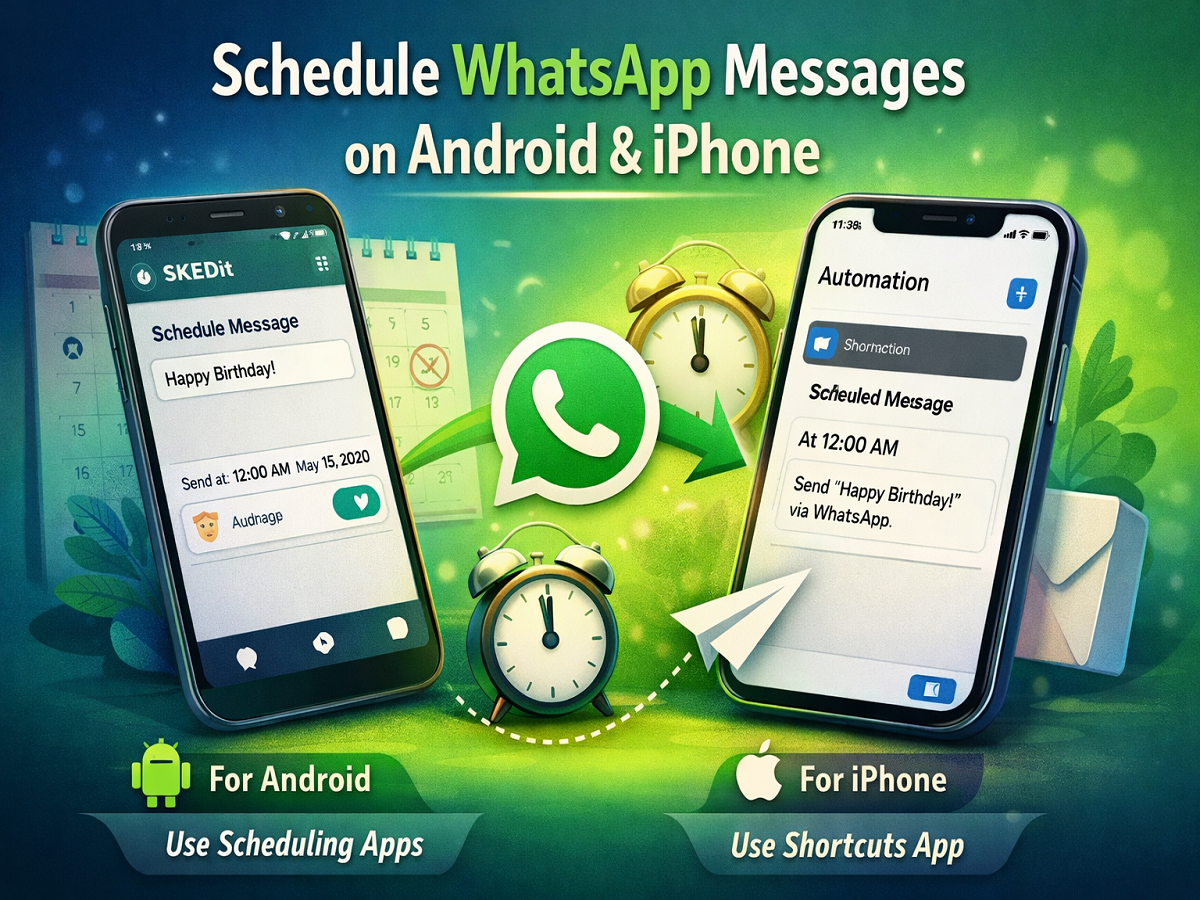
WhatsApp offers a wide range of useful features, from instant messaging to voice and video calls. However, one feature that users still miss is the ability to schedule messages directly within the app. Whether it’s sending a birthday wish exactly at midnight or reminding someone at a specific time, the lack of an official scheduling option can be inconvenient.
The good news is that even though WhatsApp does not provide a built-in message scheduling feature, there are effective workarounds for both Android and iPhone users. In this guide, we explain simple and practical methods to schedule WhatsApp messages on your device.
Why Message Scheduling Matters
Scheduling messages can be incredibly helpful in daily life. It allows users to:
- Send timely greetings without staying awake late
- Set reminders for important tasks
- Automate routine messages for business or personal use
Despite its usefulness, WhatsApp has not yet introduced this feature officially. However, third-party apps and system tools can help bridge this gap.
How to Schedule WhatsApp Messages on Android
Android users have the advantage of using third-party apps to automate message scheduling. One popular option is SKEDit, which allows you to schedule messages easily.
Step-by-Step Guide for Android
Step 1: Install a Scheduling App
Download a reliable scheduling app like SKEDit from the Google Play Store.
Step 2: Sign In and Select WhatsApp
After installation, open the app and create an account. From the main dashboard, select WhatsApp.
Step 3: Grant Required Permissions
The app will request necessary permissions, including accessibility access. Enable these permissions to allow the app to function properly.
Step 4: Compose Your Message
Choose the contact you want to send the message to and type your message.
Step 5: Set Date and Time
Select the exact date and time when you want the message to be sent. You may also get an option to repeat messages if needed.
Step 6: Choose Sending Preference
- Turn on “Ask Me Before Sending” if you want confirmation before the message is sent
- Turn it off if you want the message to be sent automatically without any prompt
This method is ideal for sending birthday wishes or reminders without manual effort.
How to Schedule WhatsApp Messages on iPhone
Unlike Android, iPhones do not support third-party apps for WhatsApp automation in the same way. However, Apple’s built-in Shortcuts app offers a clever alternative.
Step-by-Step Guide for iPhone
Step 1: Install the Shortcuts App
Download the Shortcuts app from the App Store if it’s not already installed.
Step 2: Go to Automation Tab
Open the app and tap on the “Automation” tab at the bottom.
Step 3: Create Personal Automation
Tap the “+” icon and select “Create Personal Automation.”
Step 4: Set Time Trigger
Choose “Time of Day” and set when you want the message to be sent.
Step 5: Add Action
Tap “Add Action,” search for “Text,” and enter your message.
Step 6: Link WhatsApp
Tap the “+” icon again, search for WhatsApp, and select “Send Message via WhatsApp.” Then choose the recipient.
Step 7: Finalize Setup
Tap “Next” and then “Done” to complete the setup.
At the scheduled time, you will receive a notification. Once you tap it, WhatsApp will open with your message ready to send.
Important Limitations to Keep in Mind
- WhatsApp does not officially support message scheduling
- Android solutions depend on third-party apps and permissions
- iPhone automation requires manual confirmation before sending
- On iPhone, scheduling is typically limited to shorter durations (like within a week)
Final Thoughts
While WhatsApp still lacks an official scheduling feature, these alternative methods make it possible to send messages at the right time without hassle. Android users can rely on automation apps for a more seamless experience, while iPhone users can use the Shortcuts app for basic scheduling needs.
Until WhatsApp introduces native scheduling, these workarounds remain the best way to stay organized and never miss an important message.