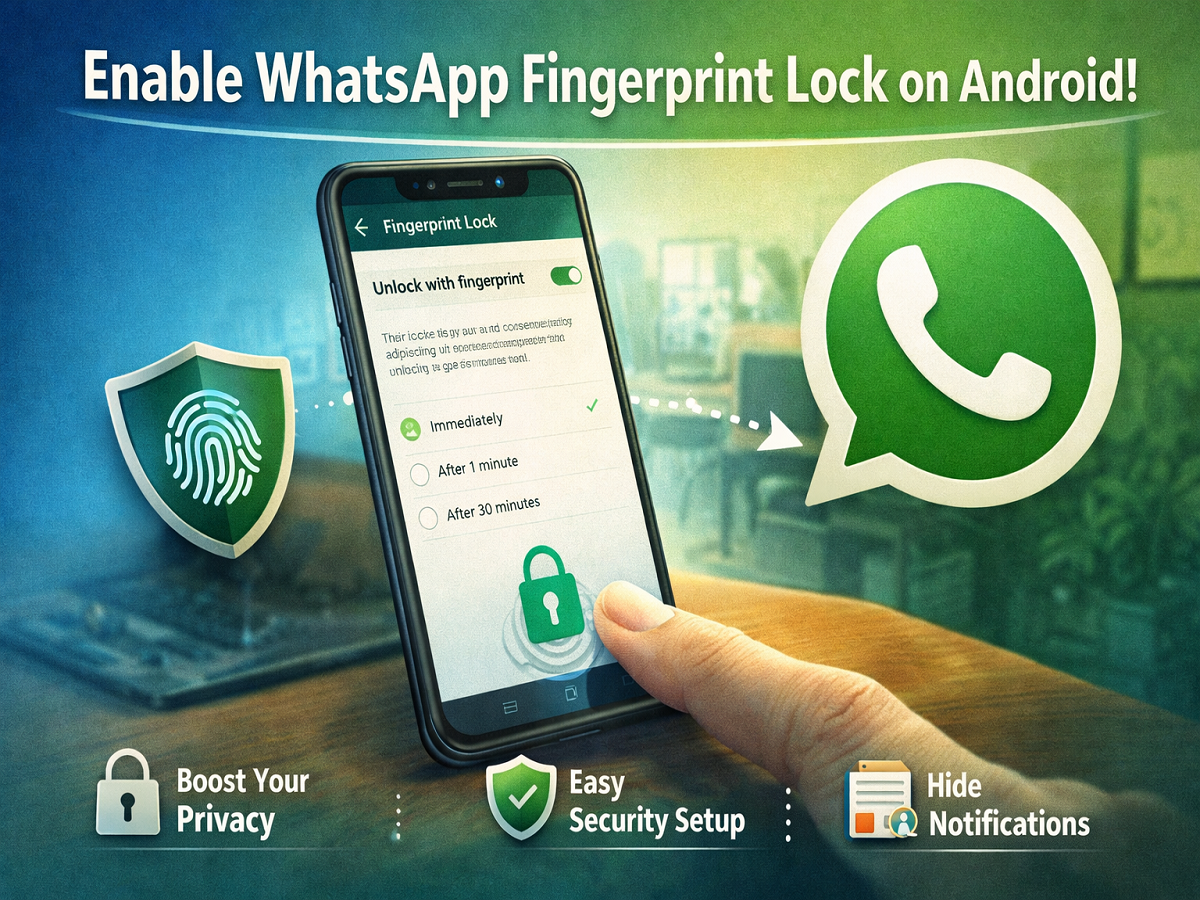
With rising concerns around digital privacy, securing personal chats has become more important than ever. WhatsApp, one of the world’s most widely used messaging platforms, has introduced a fingerprint lock feature that adds an extra layer of protection to your conversations. This feature ensures that only you can access your chats, even if someone else has access to your phone.
If you are an Android user and want to enhance your WhatsApp security, enabling the fingerprint lock feature is a smart and simple step. Here’s everything you need to know about this feature and how to set it up بسهولة.
What is WhatsApp Fingerprint Lock?
The fingerprint lock feature allows users to secure their WhatsApp chats using biometric authentication. Once activated, the app will require your fingerprint to open, preventing unauthorized access.
This feature works on Android devices equipped with a fingerprint sensor, including both capacitive sensors and in-display fingerprint scanners. It adds a convenient yet powerful security layer without affecting the overall user experience.
Availability and Requirements
Before you proceed, make sure your device meets the following requirements:
- Your smartphone must have a working fingerprint sensor
- WhatsApp version should be 2.19.221 or higher
- Fingerprint authentication must already be set up on your device
It’s worth noting that this feature was first introduced for iPhone users earlier, and later rolled out for Android users, including beta testers before becoming widely available.
Step-by-Step Guide to Enable Fingerprint Lock
Follow these simple steps to activate the fingerprint lock feature on your Android device:
Step 1: Open WhatsApp Settings
Launch WhatsApp on your smartphone. Tap on the three-dot menu located at the top-right corner and go to “Settings.”
Step 2: Navigate to Privacy Settings
Inside Settings, tap on “Account,” then select “Privacy.”
Step 3: Find Fingerprint Lock Option
Scroll down and tap on “Fingerprint Lock.”
Step 4: Turn On Fingerprint Unlock
Enable the “Unlock with Fingerprint” option. You will be prompted to confirm your fingerprint.
Step 5: Choose Auto-Lock Duration
After enabling the feature, you can decide when WhatsApp should automatically lock itself. You’ll typically see three options:
- Immediately after closing the app
- After 1 minute
- After 30 minutes
Choose the option that best suits your usage and security preference.
Step 6: Manage Notification Privacy
You can also control whether message content appears in notifications. If privacy is your priority, you may choose to hide message previews.
What Happens After Activation?
Once the fingerprint lock is enabled, WhatsApp will require biometric authentication every time you try to open the app after the selected time interval. This means your chats remain protected even if your phone is unlocked.
Why You Should Use This Feature
Enabling fingerprint lock on WhatsApp is a simple yet effective way to safeguard your personal and professional conversations. Whether you share sensitive information or just value your privacy, this feature ensures that your chats remain secure.
In an age where smartphones carry a significant amount of personal data, features like fingerprint authentication help users stay in control of their digital security. By taking a few minutes to enable this setting, you can significantly reduce the risk of unauthorized access to your WhatsApp account.