Google Pixel smartphones come with a built-in feature called App Suggestions, designed to make everyday navigation faster and more intuitive. Available on Pixel devices running Android 11 and later, including the latest Pixel 8 series, this feature automatically recommends apps based on your usage patterns.
While many users appreciate the convenience of quick app access, others may find the suggestions unnecessary or distracting. The good news is that Google allows full control over this feature. You can easily enable or disable app suggestions in just a few taps.
Here’s everything you need to know about managing app suggestions on your Google Pixel phone.
What Are App Suggestions on Google Pixel?
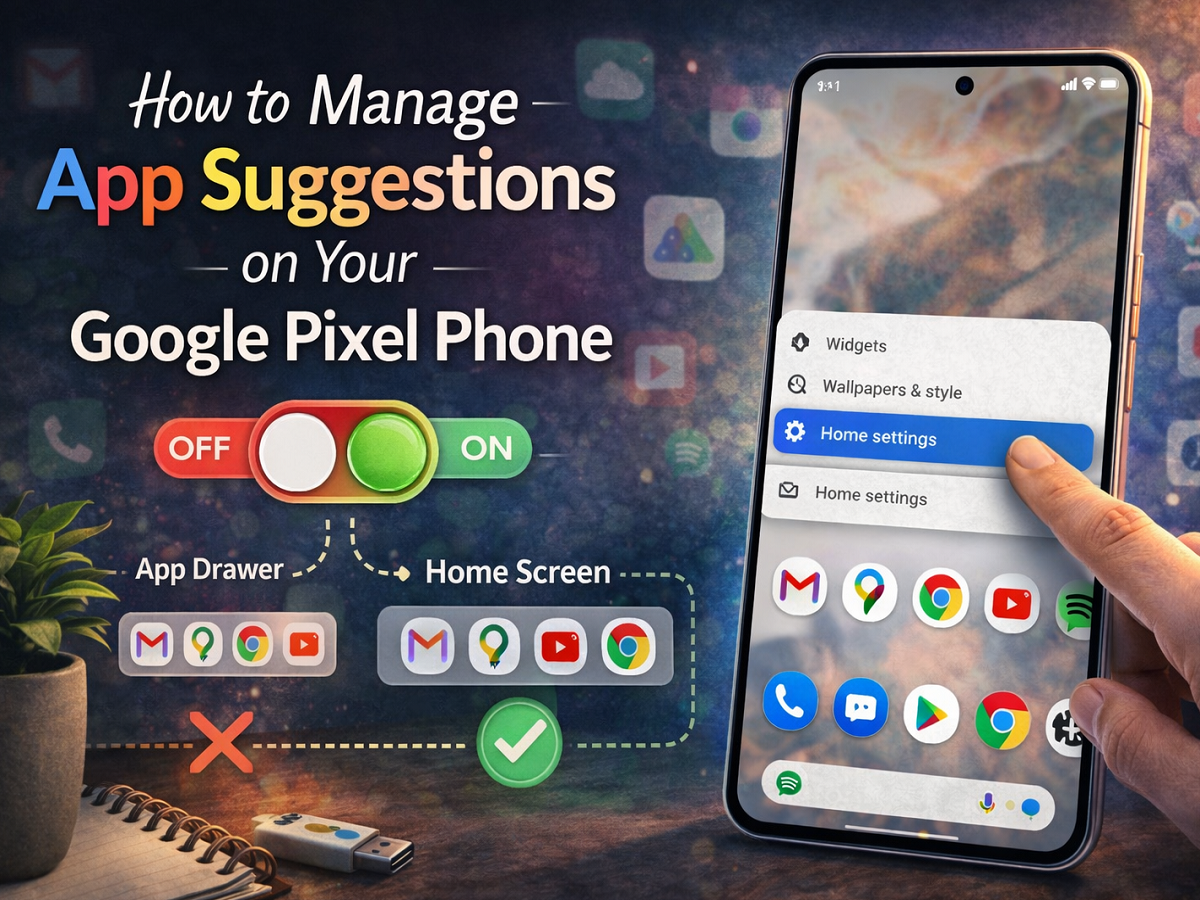
App Suggestions use on-device intelligence to predict which apps you are likely to use next. These recommendations typically appear in two places:
- At the bottom of the app drawer (All Apps list)
- On the home screen
The suggestions change dynamically depending on factors such as time of day, location, and recent app usage. For example, your Pixel may suggest a music app during your commute or a messaging app in the evening.
The feature is powered by Android’s adaptive system, which learns from your habits over time.
Why You Might Want to Disable App Suggestions
Although the feature is helpful for many users, some prefer a cleaner, more static home screen layout. Here are a few common reasons users turn it off:
- To maintain a consistent app arrangement
- To reduce visual clutter
- To avoid automatic changes in the app drawer
- For greater control over home screen customization
If you prefer manually selecting your apps without system recommendations, disabling the feature is straightforward.
How to Turn Off App Suggestions on Google Pixel
Follow these steps to disable app suggestions:
Step 1: Long-Press on the Home Screen
On your Pixel device, press and hold any empty space on the home screen.
Step 2: Open Home Settings
A menu will pop up. Tap on Home settings.
Step 3: Select “Suggestions”
Scroll through the settings menu and tap on Suggestions.
Step 4: Toggle Off Suggestions
Inside the Suggestions menu, you will see:
- Suggestions in all apps list
- Suggestions on Home screen
Turn off both toggles to completely disable app suggestions.
Once switched off, your Pixel will stop displaying recommended apps in these areas.
How to Enable App Suggestions Again
If you decide you want the feature back, you can re-enable it using the same steps.
Step 1: Long-Press on the Home Screen
Press and hold an empty space on the home screen.
Step 2: Tap on Home Settings
Select Home settings from the pop-up menu.
Step 3: Go to Suggestions
Scroll and tap Suggestions.
Step 4: Toggle On the Options
Turn on:
- Suggestions in all apps list
- Suggestions on Home screen
Your device will immediately resume showing app recommendations based on your usage patterns.
Which Pixel Devices Support App Suggestions?
App Suggestions are available on:
- Pixel phones running Android 11 or newer
- Older Pixel models that received Android 11 updates
- Latest models, including the Pixel 8 series
If you do not see the option, make sure your device is updated to the latest version of Android.
The App Suggestions feature on Google Pixel devices is designed to improve efficiency by predicting the apps you’re likely to use next. However, Android’s flexibility ensures that you remain in control.
Whether you prefer a dynamic, AI-powered experience or a manually organized layout, adjusting app suggestions takes only a few seconds. By customizing this feature, you can tailor your Pixel phone to match your personal usage style and preferences.