NEWS
DigiLocker Guide 2026: How to Add Driving Licence, Class 10 and 12 Marksheet Online in Simple Steps
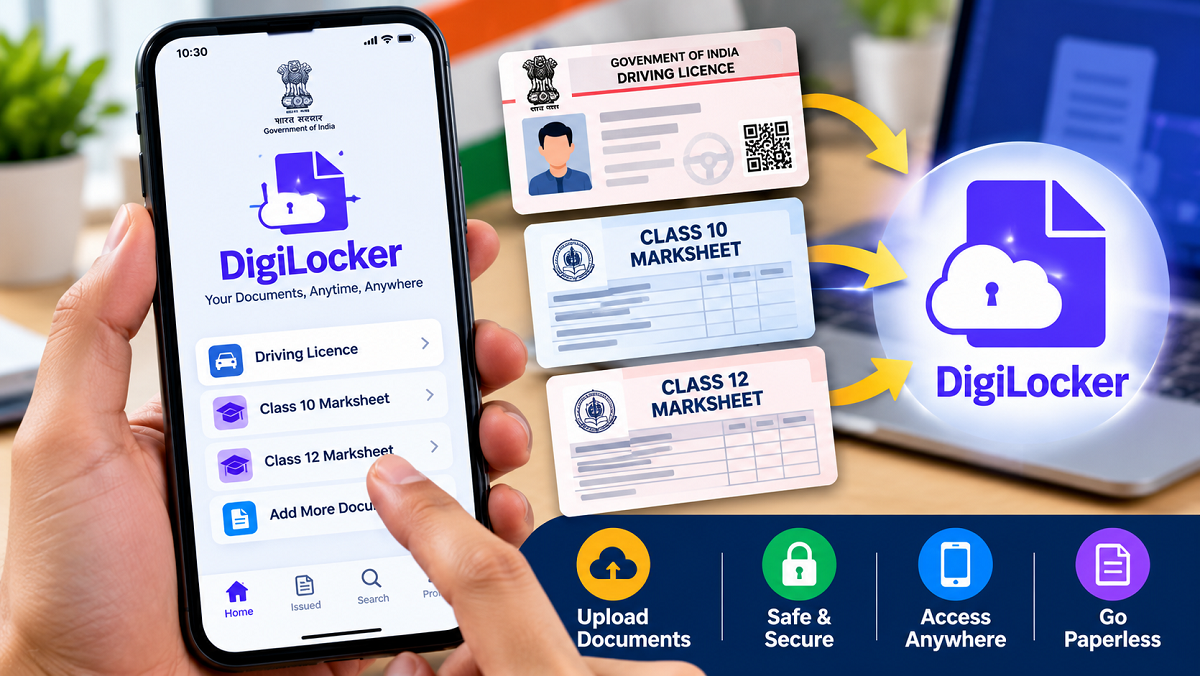
DigiLocker 2026: Managing important documents has become much easier with the availability of government-supported digital services. Instead of carrying physical copies of driving licences, educational certificates and vehicle registration documents everywhere, citizens can access many of these records through DigiLocker.
Developed under the Government of India's Digital India initiative, DigiLocker provides a convenient platform for storing, accessing and sharing digital documents. The service was launched in 2015 and has since become an important part of India's digital document infrastructure.
Users can access documents such as driving licences, vehicle registration certificates, Class 10 and Class 12 marksheets and several other official records, depending on their availability from the issuing authorities.
However, many people are still unsure how to create a DigiLocker account or add their documents correctly.
Here is a detailed guide explaining the registration process, how to retrieve official documents and the difference between uploaded files and digitally issued records.
What Is DigiLocker and How Does It Work?
DigiLocker is a government-backed digital document platform designed to reduce dependence on physical paperwork.
The service allows users to retrieve documents directly from participating government departments, educational boards and other authorised organisations.
These documents are stored in a dedicated section called Issued Documents, where users can access them when required.
DigiLocker also offers storage space for users to upload scanned copies of their personal documents.
The platform can be accessed through its official website or mobile application.
One important advantage is that digitally issued records can be shared electronically with organisations that support DigiLocker verification.
How to Create a DigiLocker Account Online
Before accessing digital records, users must register on the platform.
The registration process can be completed through a smartphone or computer.
Step 1: Visit the official DigiLocker website at https://www.digilocker.gov.in or download the DigiLocker application from the Google Play Store or Apple App Store.
Step 2: Open the website or application and select the registration option, generally displayed as "Sign Up."
Step 3: Enter the required personal information, which may include your name, date of birth, mobile number and other registration details.
Step 4: Verify your mobile number using the one-time password (OTP) sent to your registered number.
Step 5: Complete the account setup process by following the instructions displayed on the screen.
Step 6: Sign in to your DigiLocker account to access available services.
Depending on the document and issuing organisation, Aadhaar-based verification or additional identity details may be required.
Users should ensure that the information entered matches their official records to avoid document retrieval problems.
How to Add Your Driving Licence to DigiLocker
One of DigiLocker's most useful features is the ability to retrieve a digital driving licence from the relevant issuing authority.
Instead of manually uploading a photograph of the licence, users can search for the official record.
Follow these steps:
Step 1: Log in to the DigiLocker website or mobile application.
Step 2: Navigate to the document search or issuer section.
Step 3: Search for "Driving Licence" or locate the relevant transport department.
Step 4: Select the appropriate issuing authority from the available options.
Step 5: Enter your driving licence number and any additional information requested.
Step 6: Submit the details and select the option to retrieve the document.
If the licence information is available and matches the records maintained by the issuing authority, the document should appear in the Issued Documents section.
Users can then access the digital licence through their DigiLocker account.
The exact menu names and verification requirements may vary depending on the application version and issuing authority.
How to Get Class 10 and Class 12 Marksheets on DigiLocker
Students can also use DigiLocker to access academic records issued by participating educational boards.
The service can be particularly helpful when applying for college admissions, scholarships, recruitment examinations or other processes requiring educational documents.
To retrieve a marksheet, follow the steps below.
Step 1: Open DigiLocker and sign in to your account.
Step 2: Search for your educational board, such as the Central Board of Secondary Education (CBSE) or a participating state board.
Step 3: Choose the required academic document, such as a Class 10 marksheet or Class 12 marksheet.
Step 4: Enter the requested information, which may include your examination roll number, passing year and other identifying details.
Step 5: Submit the information to search the issuing authority's records.
Step 6: If the document is available, retrieve it and check the Issued Documents section.
Students should verify that their name, examination details and other information are correct.
Document availability depends on whether the relevant educational board has made the record accessible through DigiLocker.
What If Your Old Marksheet Is Not Available?
Some students may be unable to retrieve older educational records because their examination board has not made those documents available through DigiLocker.
In such situations, users may upload a scanned copy of the physical marksheet to their DigiLocker storage.
However, there is an important distinction.
A document uploaded by a user is not automatically equivalent to an officially issued digital document.
An uploaded marksheet is essentially a stored electronic copy of the original paper record.
By comparison, a document retrieved directly from an authorised issuing organisation is associated with that organisation's official digital records.
Therefore, students should check the document requirements of the college, employer or government department where they intend to submit their certificates.
If an official digital marksheet is unavailable, the issuing educational board may need to be contacted for an authorised copy.
How to Upload Scanned Documents to DigiLocker
Apart from retrieving government-issued records, users can also store copies of personal documents.
The general process involves signing in to DigiLocker, opening the available document storage section and selecting the upload option.
Users can then choose a document from their device and follow the instructions to save it.
Depending on the platform's current features, users may be able to organise their uploaded records for easier access.
Before uploading any document, ensure that the scanned file is readable and contains the required information.
It is also advisable to avoid uploading unnecessary sensitive information.
Are DigiLocker Documents Legally Valid?
DigiLocker supports the use of electronic documents issued by authorised organisations.
Under India's applicable electronic-record framework, documents issued and accessed through DigiLocker can have legal recognition when used in accordance with the relevant rules.
For example, electronic driving licences and vehicle registration certificates made available through authorised government systems are recognised for specified purposes under applicable transport regulations.
However, acceptance may depend on the type of document, the issuing authority and the requirements of the organisation requesting it.
Users should distinguish between officially issued DigiLocker documents and self-uploaded scans, as they may not receive the same treatment.
Major Benefits of Using DigiLocker
DigiLocker offers several practical advantages for people who frequently need access to important records.
Easy document access: Users can retrieve supported documents through their smartphones or computers without carrying multiple paper copies.
Reduced paperwork: Digital document access can simplify administrative processes and reduce dependence on printed certificates.
Convenient sharing: Officially issued documents can be shared electronically with supported organisations when required.
Better organisation: Driving licences, academic records and other available documents can be accessed through one account.
Reduced risk of physical damage: Digital access helps users avoid repeatedly handling important paper documents that could be lost or damaged.
Important Safety Tips for DigiLocker Users
Since DigiLocker may contain sensitive personal information, users should take basic precautions while accessing the service.
Always use the official DigiLocker website or application.
Avoid sharing your login credentials, security PIN or OTP with anyone.
Be cautious of suspicious links claiming to offer instant document verification or account updates.
Users should also review document details carefully before sharing them with third parties.
If a document cannot be retrieved, verify the information entered and consult the relevant issuing authority rather than using unofficial websites.
Conclusion
DigiLocker provides a practical way for Indian citizens to access and manage important documents digitally.
Driving licences, Class 10 and Class 12 marksheets, vehicle registration certificates and several other records can be retrieved through the platform when the issuing authorities support the service.
The registration process is straightforward, and users can search for their documents by entering the required identification details.
However, it is important to understand that an officially issued digital record is different from a scanned document uploaded manually.
By using the official DigiLocker platform and following basic security practices, citizens can simplify document management and reduce their dependence on physical paperwork.
Official Website: https://www.digilocker.gov.in
Disclaimer: The availability of documents, registration requirements and application interface may vary by issuing authority and platform updates. Users should refer to DigiLocker's official instructions for the latest procedures.