Bored with Siri's voice? You can change Siri's voice on your iPhone in a few simple steps. Let's learn the complete process and how to set your preferred voice.
How to set up Siri's voice?
If you've been using your iPhone for a long time and are tired of hearing the same Siri voice, there's good news for you. Apple offers the option to change Siri's voice on your iPhone. Furthermore, you can also change Siri's voice and language based on the available options. This doesn't require any third-party apps. Let's find out how.
Changing Siri's voice is very easy.
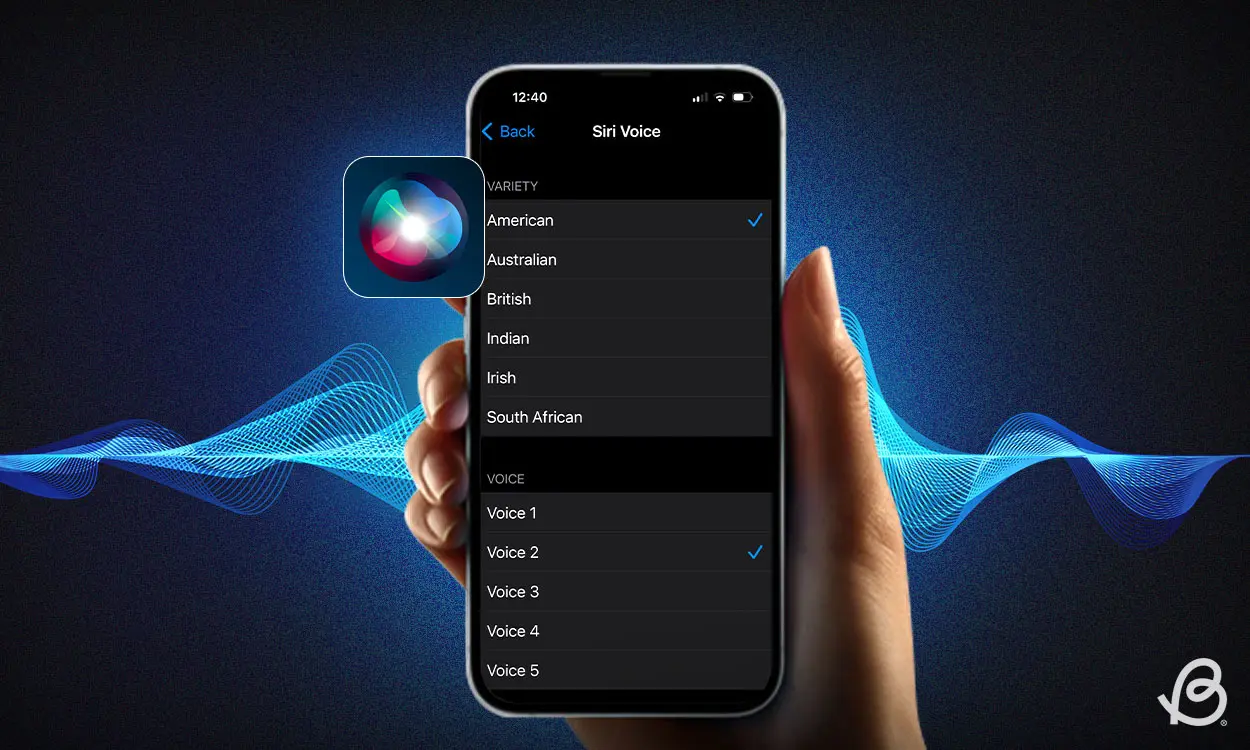
Changing Siri's voice is quite simple. First, open the Settings app on your iPhone. Scroll down to the "Siri" or "Apple Intelligence & Siri" option. The name of this setting may vary depending on your iOS version. You'll see several Siri-related settings. Find the "Voice" or "Siri Voice" option and tap it.
Choose a new voice in seconds.
Once you're inside Siri Voice, you'll see a list of different voice options available. You can select a voice by tapping on it. Some options also have different variations/accents.
After selecting a voice, your iPhone can download it. This requires an internet connection. Once the download is complete, Siri will respond in your chosen voice.
You can also change the language.
If you want to use Siri in a different language, you can find this option in the same settings section. Go to Settings > Siri/Apple Intelligence & Siri > Language and select your preferred language from the available languages.
What will change if you change Siri's voice?
For your information, changing the voice doesn't affect the rest of your iPhone's sounds. The changes are primarily limited to Siri's speaking style and voice. This means that music, ringtones, notifications, and other audio sounds remain the same.
This feature is especially beneficial for those who use Siri daily and want a little change in their iPhone experience.
What if the Voice option is not visible?
If you don't see the Siri Voice option on your iPhone, first check for an iOS update. Also, keep in mind that some Siri voices and languages aren't available in all countries or regions.