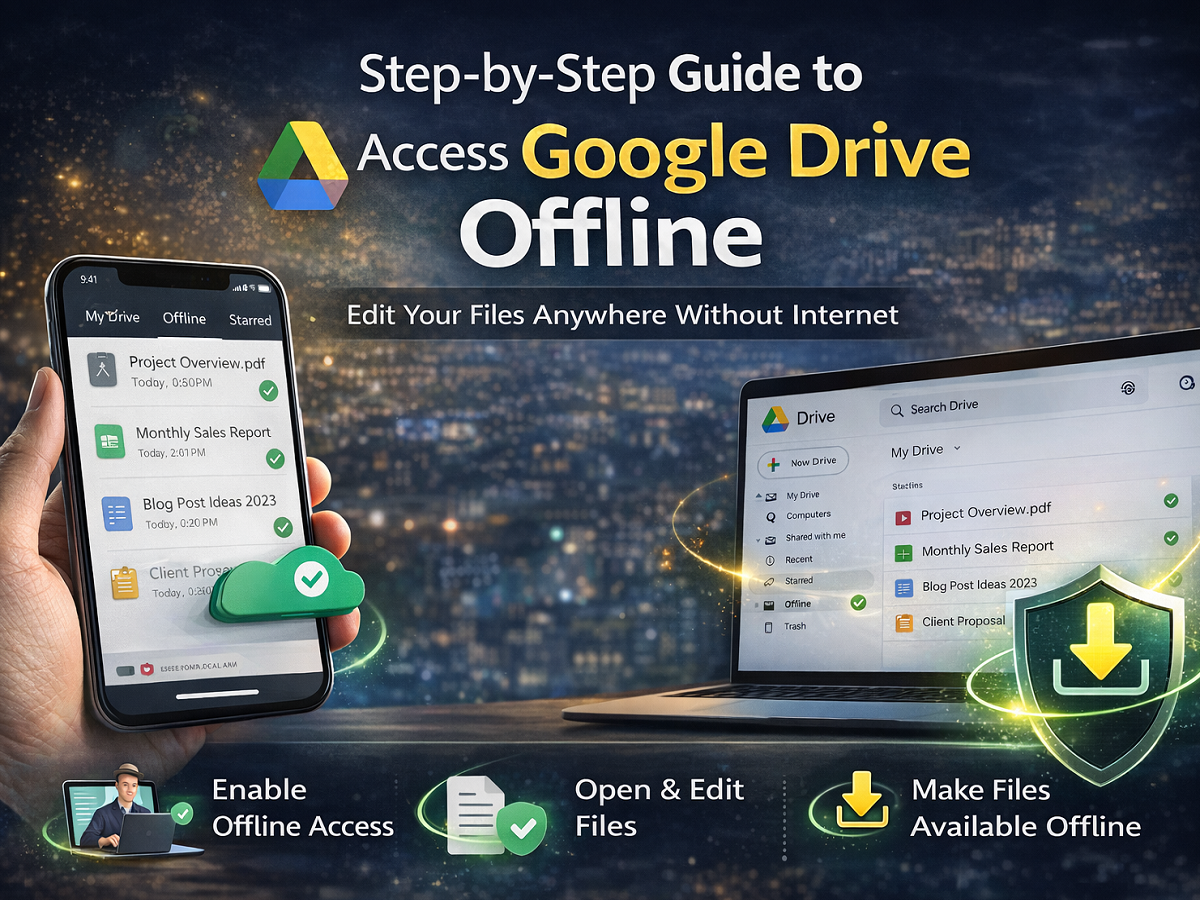
In today’s digital workspace, cloud storage platforms like Google Drive have become essential for students, professionals, and businesses. But what happens when you lose internet access during an important task? Fortunately, Google Drive offers a powerful offline mode that allows you to open, edit, and manage files even without an active internet connection.
This detailed guide explains how to enable and use offline access in Google Drive, ensuring uninterrupted productivity anytime, anywhere.
Why Use Google Drive Offline Mode?
While Google Drive is primarily cloud-based, offline functionality allows you to:
- Access recent documents without internet
- Edit files during travel or network issues
- Automatically sync updates once reconnected
- Maintain workflow continuity
Offline access works for files created in Google Docs, Google Sheets, and Google Slides.
How to Enable Google Drive Offline on a Computer
Follow these simple steps to activate offline mode on your desktop or laptop:
Step 1: Open Google Drive
Visit the official Google Drive website using your browser.
Step 2: Access Settings
Click the gear icon located in the top-right corner of the screen.
Step 3: Open Settings Menu
Select “Settings” from the dropdown menu.
Step 4: Enable Offline Access
Under the “Offline” section, check the box that says:
“Create, open, and edit your recent Google Docs, Sheets, and Slides files on this device while offline.”
Step 5: Save Changes
Click “Save Changes.”
Once enabled, your recently accessed files will automatically become available offline.
How to Enable Google Drive Offline on Mobile Devices
You can also use offline mode on Android and iPhone devices.
Step 1: Open the App
Launch the Google Drive app on your smartphone.
Step 2: Go to Settings
Tap the three-line menu (or three dots) in the top corner.
Step 3: Select Settings
Scroll and tap on “Settings.”
Step 4: Turn On Offline Access
Toggle the switch next to “Offline access.”
After activation, selected files can be viewed and edited without internet connectivity.
How to Open Files Offline
Once offline mode is enabled:
- Files available offline will show a gray checkmark icon.
- Simply tap or click on the document to open it.
- You can edit the file as usual.
All changes will be stored locally on your device and automatically synced once your internet connection is restored.
How to Make Specific Files Available Offline
If a file isn’t automatically available offline, you can manually download it:
- Locate the file in Google Drive.
- Click or tap the three dots beside the file name.
- Select “Make available offline.”
The file will now be stored locally and accessible without internet.
Important Things to Remember
- Only recently opened or manually selected files are accessible offline.
- You must enable offline mode before losing internet access.
- Changes made offline sync automatically once you reconnect.
- Ensure you’re signed into your Google account on the device.
Final Thoughts
Offline access in Google Drive is a powerful feature designed to keep your workflow uninterrupted. Whether you're traveling, facing unstable internet, or working remotely, enabling offline mode ensures that important documents remain within reach.
By following the steps outlined above, you can confidently manage, edit, and access your essential files without worrying about connectivity issues.
Stay productive — even offline.