NEWS
WhatsApp Photo Quality: Even after sending HD photos on WhatsApp, the quality decreases; is this normal
WhatsApp Photo Quality: Why does a photo lose its original brightness and detail even after sending it using the HD option on WhatsApp? Why are photos still not clear even with the HD feature?
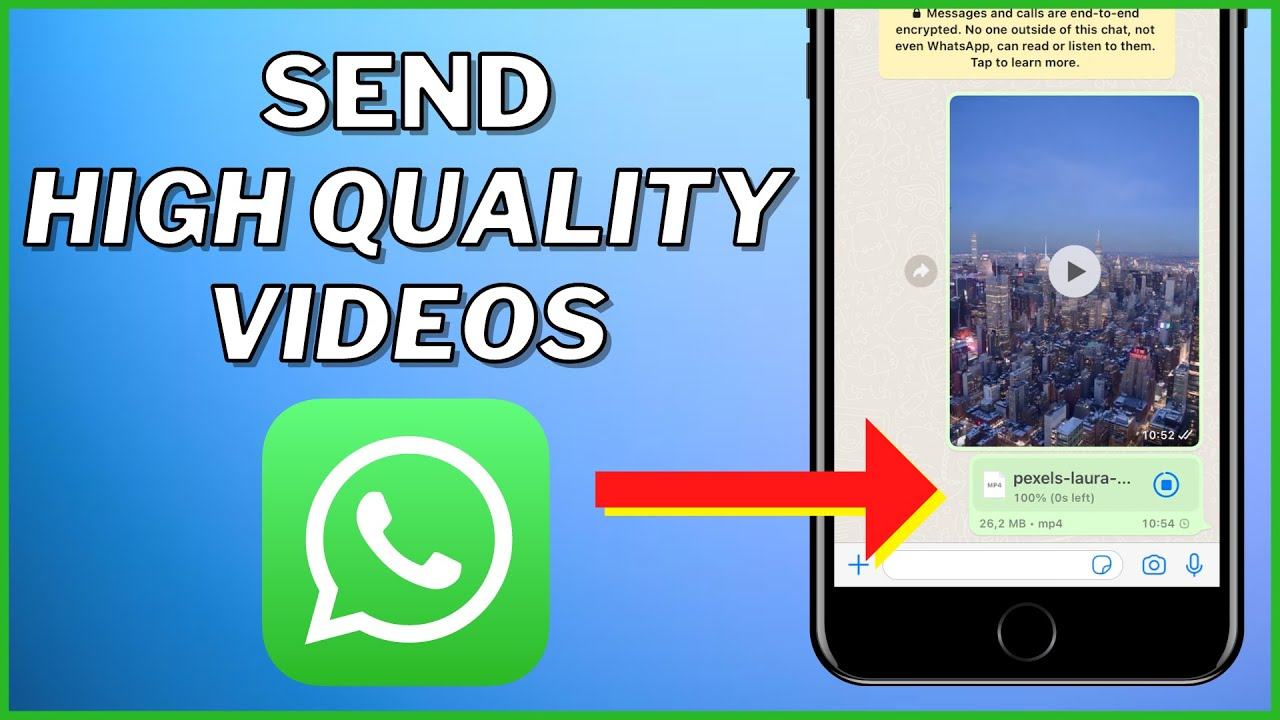
WhatsApp photo settings
WhatsApp Photo Quality: Nowadays, whether it's wedding photos or photos from a trip with friends, we all use WhatsApp as the first platform to share photos. Until recently, photos sent via WhatsApp would often be blurred, and even those taken with a high-end DSLR or expensive phone would appear blurry. To address this user complaint, the company launched the HD Photo feature.
People thought the worry of photo blur was over forever. But have you ever noticed that even after selecting the HD option on WhatsApp, the original brightness and detailing of the photo disappears? If you zoom in on the photo or get it printed, you'll clearly see that the quality has dropped significantly. Why does this happen despite HD? Find out the correct way to send photos without losing a single pixel.
Why does the photo get distorted even after choosing the HD option?
First, let's explain how WhatsApp's HD feature actually works. When you take a photo with your phone's 50- or 100-megapixel camera, its size is usually between 5 and 10 MB. Billions of photos are sent on WhatsApp every day. If the company were to send every photo in its original size, its servers would be overloaded and your mobile data would be quickly exhausted. To save this data, WhatsApp uses an image compression algorithm.
When you send a photo in normal mode, WhatsApp reduces its quality by approximately 70 to 80 percent. Even when you press the HD button, the photo doesn't return to its original quality. HD mode only maintains the photo's resolution slightly, but still compresses the file size. This is why an 8 MB photo, even when sent in HD, only weighs 1 or 1.5 MB.
It is best to make a document and send a photo.
If you want your photos to appear exactly as they appear in your phone's gallery, the Document feature is the oldest way to send photos or videos in their original quality on WhatsApp. To do this, when you open someone's chat, tap the pin or attachment icon near the message box at the bottom. Here, instead of selecting Gallery, click the Document option.
Then, go to Choose from gallery or Browse other docs and select the photo you want to send. When you send a photo as a document, WhatsApp's compression system doesn't work on it. WhatsApp treats it as an important file and delivers it directly to the recipient without any modifications. If your photo is 12 MB, the recipient will receive the full 12 MB file, without a single pixel being reduced.
Keep these things in mind when sending multiple photos at once.
While sending photos via Documents is the number one method in terms of quality, there are some minor caveats that are important to know. When you send a photo as a Document, a preview (thumbnail) isn't displayed in the chat; only the file name is visible. The other person must first download and open the photo to view it. Furthermore, if you want to send 50-60 photos from a wedding or trip at once, you might want to consider sending them in bulk.
So selecting photos one by one in Documents can seem a bit cumbersome. The correct way is to create a ZIP folder of all the photos in your phone's file manager and send the entire folder at once via WhatsApp Documents. You can easily send files up to 2GB as a document on WhatsApp. If you're an iPhone user, after selecting photos, save them to Files and then send them via WhatsApp Documents.