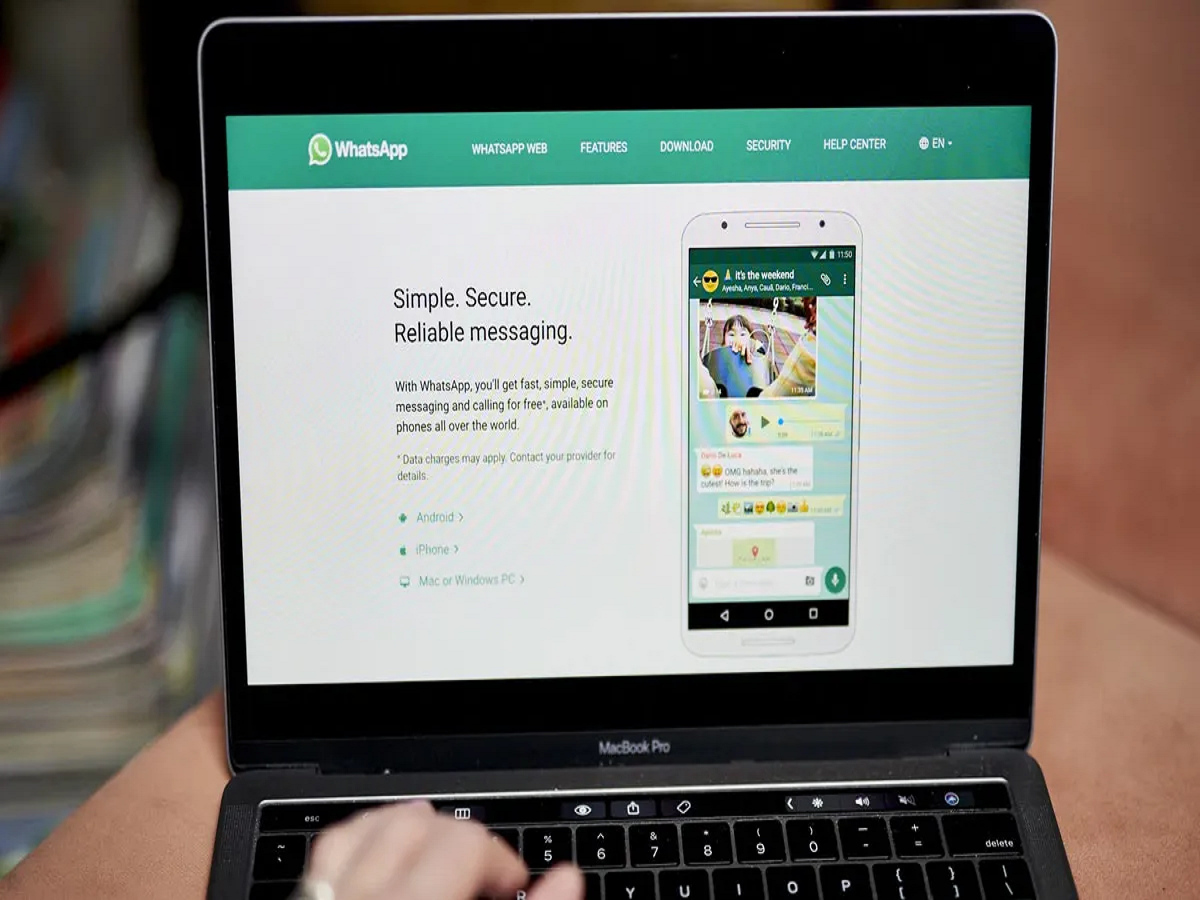
WhatsApp Web Problem Fix: If your WhatsApp is not working properly on your laptop—even after logging in—you’re not alone. Many users face issues where WhatsApp Web fails to load, gets stuck, or doesn’t sync messages.
This can be frustrating, especially when you rely on your laptop for work and don’t want to keep checking your phone. The good news is that most of these problems can be fixed easily with a few simple steps.
Why WhatsApp May Not Work on Your Laptop
Before jumping to solutions, it’s important to understand the common causes:
- Outdated browser
- Poor or unstable internet connection
- Cache and cookies issues
- Page glitches or sync errors
- Device connection problems
Now let’s look at the quickest ways to fix these issues.
1. Update or Switch Your Browser
One of the most common reasons behind WhatsApp Web not working is an outdated browser.
Make sure you are using the latest version of browsers like:
- Google Chrome
- Mozilla Firefox
- Microsoft Edge
If WhatsApp is not opening in one browser, try switching to another. This often resolves compatibility issues instantly.
2. Clear Cache and Cookies
Stored cache and cookies can sometimes cause login or loading problems.
What you should do:
- Clear browser cache and cookies
- Log out of WhatsApp Web
- Log in again by scanning the QR code
This refreshes the system and fixes most temporary glitches.
3. Check Your Internet Connection
A stable internet connection is essential for WhatsApp Web to function properly.
- Ensure both your phone and laptop are connected to the internet
- Switch between Wi-Fi and mobile data if needed
- Restart your router if the connection is slow
Sometimes, simply changing the network can solve the issue.
4. Refresh the WhatsApp Web Page
If the page is stuck or not loading, it might just need a quick refresh.
- Press Ctrl + R on your keyboard
- Close unnecessary tabs to improve performance
- Reload WhatsApp Web
This can fix minor bugs or page freezes.
5. Log Out and Reconnect Your Device
If nothing works, try reconnecting your WhatsApp account.
Steps:
- Open WhatsApp on your phone
- Go to Linked Devices
- Log out from all devices
- Scan the QR code again on your laptop
This resets the connection and usually resolves syncing issues.
Bonus Tips to Avoid Future Issues
- Keep your browser updated regularly
- Avoid using too many extensions
- Ensure your phone stays connected to the internet
- Use the official WhatsApp Web platform only
Conclusion
WhatsApp not working on your laptop can disrupt your workflow, but the problem is usually easy to fix. From updating your browser to clearing cache or reconnecting your device, these simple steps can quickly restore normal functioning.
Instead of getting frustrated, try these solutions one by one—you’ll likely have WhatsApp running smoothly again within minutes.