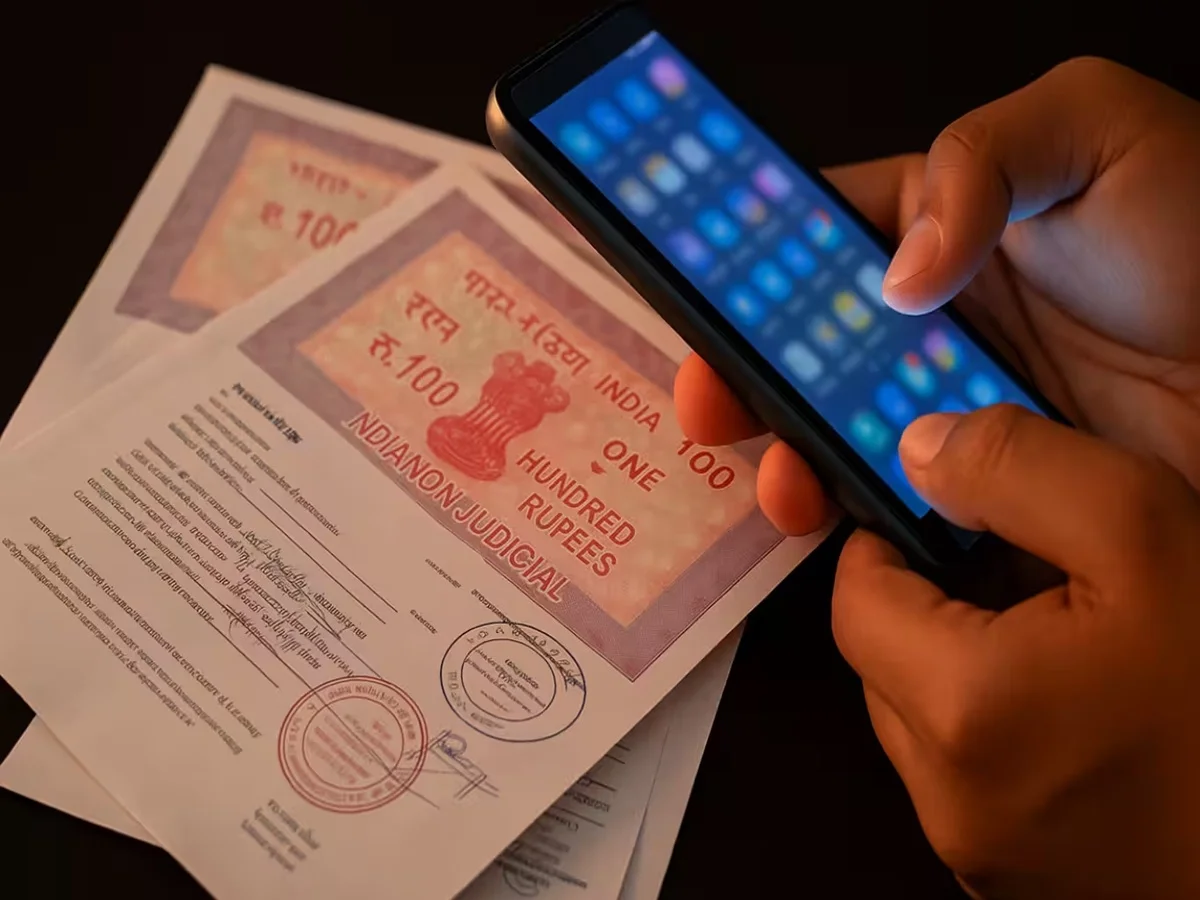
Need to turn an important paper into a digital file but don't have a scanner nearby? Your smartphone can handle the job. Whether it is a college form, government document, bill, receipt or another important paper, you can use built-in phone features to create a digital scan and save it as a PDF.
The best part is that you may not need to install a separate document-scanning application. Android and iPhone users both have convenient options for scanning paperwork directly from their devices.
A properly scanned document can be stored digitally, shared through email or messaging services, and accessed whenever it is needed. Here is how the process works on both major smartphone platforms.
How to Scan a Document on an Android Phone
Many Android users can scan documents through Google Drive, which is commonly available on Android devices.
To begin, open the Google Drive app on your phone. Look for the camera or document-scanning option available within the app. Depending on the device and app version, the location or appearance of the option may differ.
Place the document on a flat surface before taking the scan. Try to position the phone directly above the paper so that the entire page fits inside the camera view.
Once the document is properly positioned, capture the image.
Adjust the Scan Before Saving
After taking the picture, check the scanned document carefully. Google Drive can provide editing options that allow you to improve the captured page.
For example, you may be able to adjust the edges so that unwanted areas around the document are removed. If the page appears blurry, poorly framed or difficult to read, take another image instead of saving a low-quality scan.
Depending on the available options, you can also change the document's appearance or color settings to make the text easier to read.
Once you are satisfied with the result, save the scan. The document can then be stored as a PDF in Google Drive, making it easier to access later.
Why a Flat Surface and Good Lighting Matter
The quality of a smartphone scan depends heavily on how the original document is photographed.
Place the paper on a clean, level surface and make sure the area is adequately illuminated. Avoid strong shadows falling across the page, as they can make printed information difficult to read.
It is also worth cleaning your phone's camera lens before scanning. Fingerprints or dust on the lens can reduce image clarity.
Keep the phone steady while capturing the document and ensure that all four corners are visible whenever possible.
How to Scan Documents on an iPhone
iPhone users can also scan paperwork without installing a dedicated scanner application. Apple's built-in Notes app includes a document-scanning function.
Start by opening the Notes app and creating a new note. Tap the camera or attachment-related option and select Scan Documents.
Place the document in front of the iPhone's camera. The device can automatically detect the edges of the paper and capture the page when it identifies the document.
If automatic capture does not work as expected, you can generally take the scan manually.
Save the iPhone Scan as a PDF
Once the document has been captured, review the scan to make sure the text and important information are clearly visible.
You can make adjustments to the scanned pages if required and add additional pages when scanning a multi-page document.
After completing the scan, save it within the note. The scanned document can then be shared or exported in a suitable format, including PDF, depending on the sharing or export options available on your iPhone.
This makes it convenient to send paperwork electronically without first transferring photographs to another device.
You Can Scan More Than One Page
Smartphone scanning is not limited to single-page documents. If you have a multi-page form, agreement or set of papers, you can capture the pages one after another and combine them into a single digital document where the relevant scanning feature supports multi-page documents.
This can be particularly useful when submitting forms online or sending several pages through email.
Before sharing the final file, check every page to ensure that nothing has been cut off and that the text is readable.
Tips for Getting a Better Smartphone Scan
A few simple habits can significantly improve the final result:
- Use sufficient lighting: Make sure the entire page is evenly illuminated.
- Keep the paper flat: Wrinkles and curled corners can make edge detection harder.
- Clean the camera lens: A clean lens helps produce sharper text.
- Hold the phone steady: Avoid movement while capturing the page.
- Check all edges: Make sure important information near the margins has not been cropped.
- Review before sharing: Open the finished file and check every page for clarity.
No Dedicated Scanner Required
For everyday paperwork, a smartphone can be a convenient alternative to a traditional scanner. Android users can take advantage of document-scanning options available through Google Drive, while iPhone owners can use the scanning functionality built into the Notes app.
The exact menus and features may vary depending on the phone model, operating system and app version. Still, the basic process is straightforward: position the document correctly, capture a clear image, adjust the edges if necessary, and save or share the resulting digital file.
So, the next time you need to quickly digitize a form, receipt or important paper, check your phone's built-in tools before downloading another scanner application.