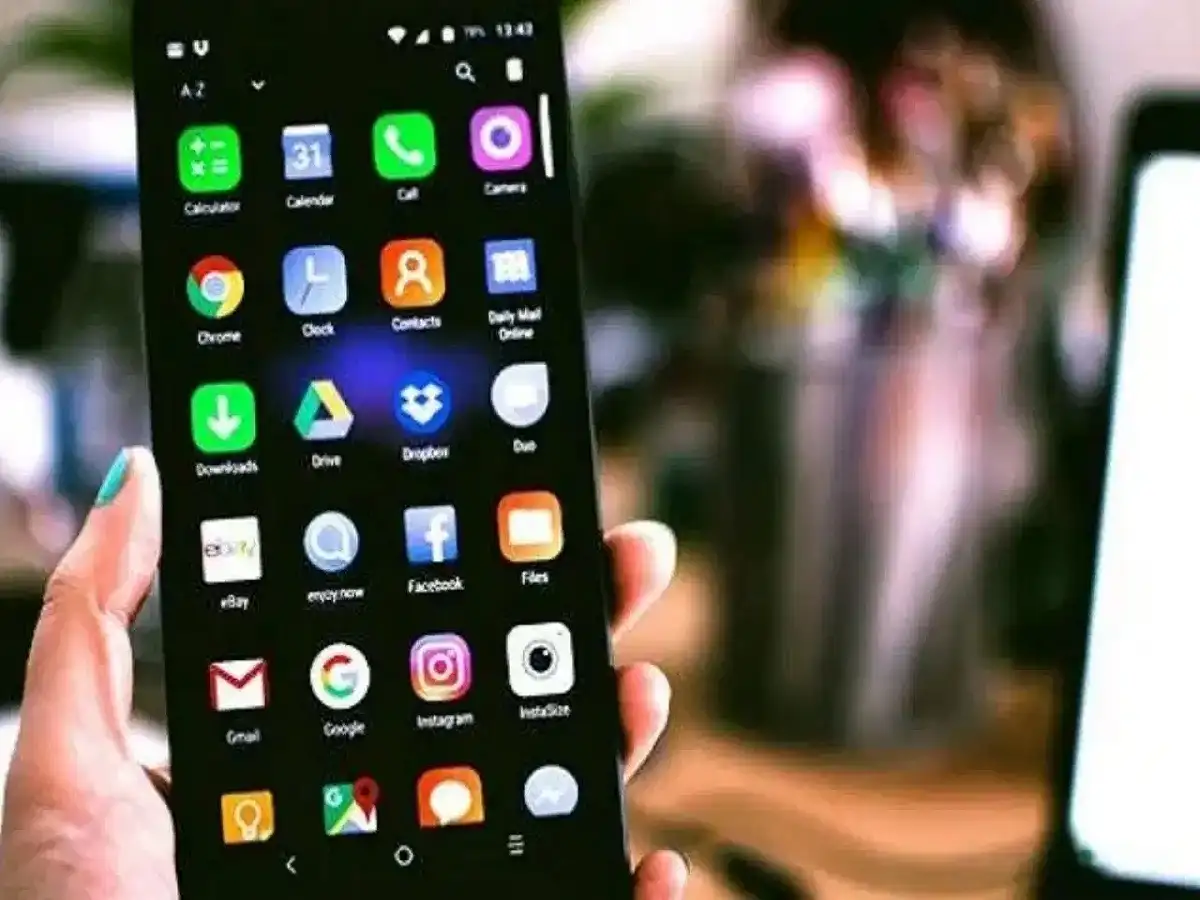

Smartphones have become an essential part of everyday life, but frequent battery drain and unexpectedly high mobile data consumption can be frustrating. In many cases, the problem may not be limited to screen usage or mobile browsing. Apps running quietly in the background can also consume both battery power and internet data.
Several applications automatically refresh their content even when you are not actively using them. While this feature can keep apps updated, it may also increase background activity and contribute to faster battery and data consumption.
The good news is that both iPhone and Android users can adjust certain settings to control this activity. Here are some simple ways to reduce unnecessary background usage.
How iPhone Users Can Reduce Battery and Data Consumption
Apple's iPhone includes a feature called Background App Refresh, which allows apps to check for new information while running in the background. If you have many apps enabled for this feature, they may continue using system resources even when you are not opening them.
You can review or disable this feature by following these steps:
- Open the Settings app on your iPhone.
- Tap General.
- Select Background App Refresh.
- Tap Background App Refresh once again.
- You can now choose to turn the feature Off completely.
If you do not want to disable Background App Refresh for every application, you can choose a more selective approach. Depending on the options available on your iPhone, you can choose Wi-Fi instead of allowing background refresh over mobile data.
You can also manage background refresh on an individual-app basis. This lets you prevent unnecessary applications from refreshing continuously while keeping the feature active for apps where it is genuinely useful.
Why This iPhone Setting Can Help
Social media, shopping, news and other frequently updated applications can perform background activity even when you are not actively using them. Restricting this activity can help reduce unnecessary mobile data consumption and may also reduce background battery usage.
However, disabling background refresh can mean that some apps may take a little longer to display the latest information when you open them.
Android Users Can Turn On Data Saver
Android smartphones offer a Data Saver feature that can help control mobile data consumption. When enabled, the system restricts how much mobile data apps can use while operating in the background.
The exact menu names can vary slightly depending on the Android version and phone manufacturer, but the basic process is generally similar.
Steps to Enable Data Saver
- Open Settings.
- Go to Network & Internet.
- Find and select Data Saver.
- Turn Data Saver on.
Once Data Saver is enabled, applications running in the background may have limited access to mobile data. As a result, certain photos, videos or other content may not automatically load until you open the relevant app or manually interact with it.
This can be particularly useful for people who have a limited monthly data allowance or frequently notice that their mobile data gets exhausted before the end of the billing cycle.
Don't Block Background Data for Every Important App
While restricting background activity can help save data, completely blocking background data for every application may not be practical.
Some apps need background connectivity to deliver important information. Messaging services, email applications and other communication tools may require background data to provide timely notifications or updates.
Instead of restricting every application, Android users can allow background data access for selected apps.
How to Allow Background Data for Specific Apps
Follow these steps:
- Open Settings.
- Go to Network & Internet.
- Select Mobile Network.
- Tap App Data Usage.
- Select the application that needs background data access.
- Turn on the Background Data option.
This approach gives users greater control over their data usage. Rather than allowing every application to consume mobile data in the background, you can decide which apps actually need this permission.
A Few Settings Can Make a Difference
Fast battery drain and excessive data usage are not always caused by heavy phone usage. Background applications can also contribute to the problem by repeatedly checking for updates, downloading content or synchronising information.
Reviewing background activity on an iPhone and using Data Saver on Android can help reduce unnecessary mobile data consumption. At the same time, keeping background access enabled for essential communication apps ensures that important notifications and updates continue to arrive.
If your phone's battery or mobile data seems to be disappearing unusually quickly, checking these settings is a simple first step. You can then monitor your usage and make further adjustments based on which apps consume the most resources.
Disclaimer: This article has been substantially edited and rewritten from the supplied source material for informational purposes. Settings and menu names may differ depending on the device model, operating system version and software interface. Users should check their phone's current settings before making changes.