NEWS
How to Protect Your Personal Data When Sharing Your Android Phone: A Simple Guide to Guest Mode
Smartphones today store a large portion of our personal lives — from private messages and photos to emails, contacts, and financial information. Because of this, many people feel uncomfortable handing over their phones to others, even for a quick look at a feature or app. If you’ve ever hesitated before giving someone your phone, you’re not alone.
Fortunately, Android smartphones come with a built-in feature that helps protect your personal data while still allowing someone else to use your device temporarily. Known as Guest Mode, this feature creates a separate space on your phone where others can use basic functions without accessing your private information.
In this guide, we explain how Android’s Guest Mode works, why it is useful, and how you can enable it to keep your personal data safe.
Why Phone Privacy Matters More Than Ever
Modern smartphones hold an enormous amount of sensitive information. From social media chats and personal photos to work emails and saved passwords, your phone often acts as a digital vault.
When someone asks to borrow your phone — even briefly — there is always a small concern about privacy. You may worry that the person might accidentally open a personal message, view private photos, or access apps that contain confidential information.
Even when you trust the person, handing over your device without any protection can still feel risky. This is where Android’s privacy protection tools, such as Guest Mode, become extremely useful.
What Is Android Guest Mode?
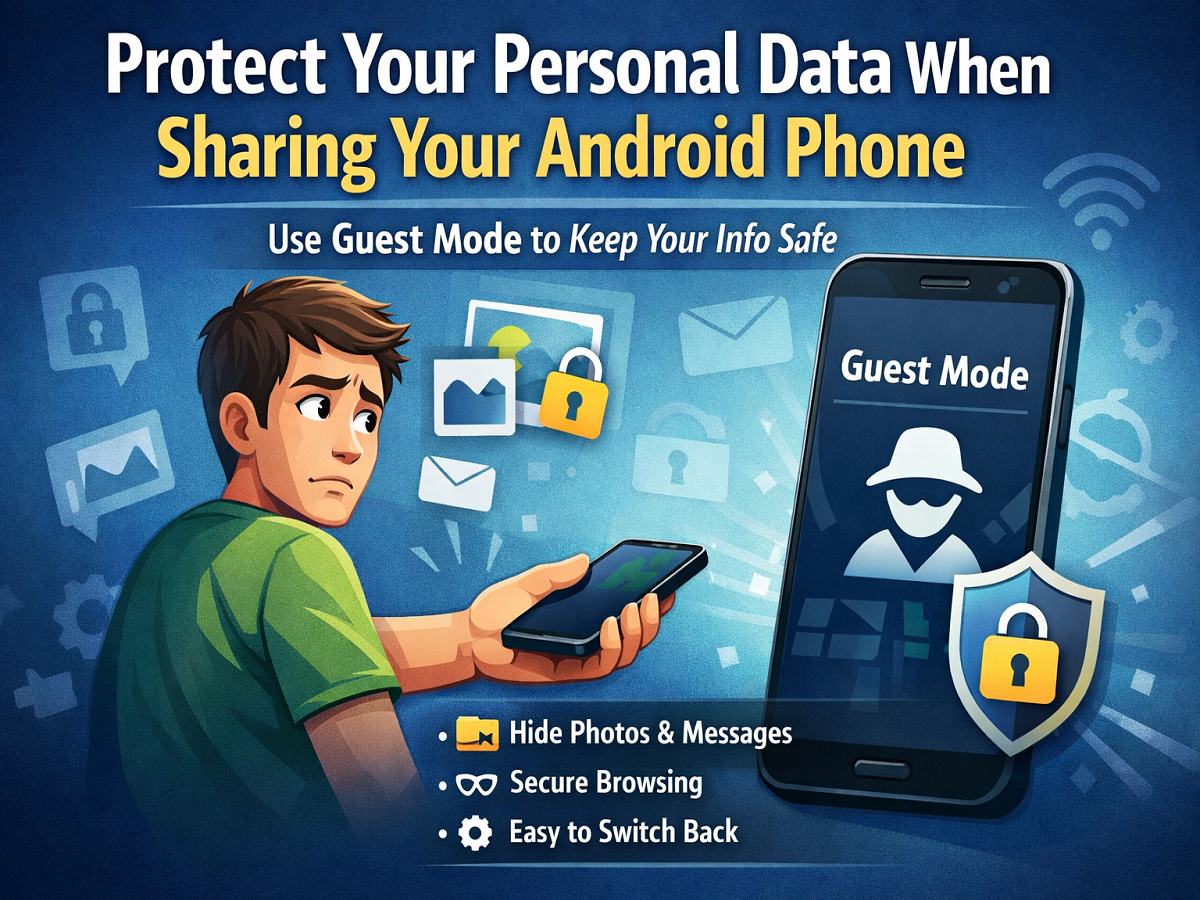
Android Guest Mode is a feature designed to allow temporary access to your smartphone without exposing your personal data. When activated, the phone creates a separate guest profile that works almost like a fresh device.
The person using your phone in Guest Mode will only see basic apps and default settings. Your personal data, files, messages, and media remain hidden and inaccessible.
This makes Guest Mode ideal when you want to show someone a feature on your phone, let them make a quick call, or allow them to browse the internet without giving them full access to your device.
What Data Remains Hidden in Guest Mode?
Once Guest Mode is enabled, Android automatically hides the main user’s personal information. This includes:
- Messages and chat history
- Emails and notifications
- Photos and videos stored in the gallery
- Music and media files
- Installed apps linked to your accounts
Essentially, the guest user sees a clean and limited version of the phone, similar to a brand-new device. Your private files remain protected in the main user profile.
This feature ensures that no one can accidentally or intentionally access your personal content.
Internet and Bluetooth Still Work
One of the most convenient aspects of Guest Mode is that essential connectivity features remain active. Even though personal data is hidden, the guest user can still use:
- Wi-Fi connections that were previously saved on the device
- Bluetooth devices connected to the phone
This means someone can still test internet-based features, stream content, or connect accessories while using the guest profile.
How to Enable Guest Mode on Android
Turning on Guest Mode is simple and takes only a few seconds. Follow these steps:
- Swipe down from the top of the screen using two fingers.
- This opens the Quick Settings panel.
- Look for the user profile icon.
- Tap the icon to see available user options.
- Select “Add Guest” or “Switch to Guest.”
Your phone will take a few moments to create a new guest session. After that, a fresh home screen will appear with only default apps available.
Alternative Way to Activate Guest Mode
If the Guest option does not appear in Quick Settings, you can enable it through the Settings menu.
Steps:
- Open Settings on your Android phone.
- Go to System.
- Tap Multiple Users or Users & Accounts (varies by device).
- Enable Guest Mode.
Once activated, you can easily switch to the guest profile whenever needed.
How to Exit Guest Mode
After the other person finishes using your phone, you can quickly return to your original profile.
Here’s how:
- Swipe down to open Quick Settings again.
- Tap the user icon.
- Select Remove Guest.
The device will ask you to confirm the action. Once confirmed, all data created during the guest session will be deleted.
To return to your main profile, simply unlock the phone using your PIN, password, or fingerprint.
A Simple Way to Protect Your Smartphone Privacy
Android Guest Mode is a practical privacy tool that many users overlook. It allows you to share your phone temporarily without worrying about exposing personal data.
Whether someone wants to try a feature, make a call, or browse the internet, Guest Mode ensures your private information remains secure.
By enabling this feature, you can confidently hand over your phone when needed while keeping your personal data fully protected.