Today, WhatsApp is much more than just a messaging app. For millions of users, it stores personal memories, important documents, work conversations, and years of chats with friends and family. Losing this data can be frustrating, especially if your phone suddenly stops working, gets reset, or is lost.
Many users only realize the importance of chat backups after their data disappears. Fortunately, WhatsApp provides a simple solution to protect your conversations. By enabling chat backups through your Google Drive account, you can store all your messages and media securely in the cloud and restore them whenever you log in on a new device.
Here’s everything you need to know about backing up your WhatsApp chats and ensuring your data remains safe.
Why Backing Up WhatsApp Chats Is Important
A WhatsApp backup acts as a digital safety net for your conversations and media files. Without a backup, messages, photos, videos, and documents can be permanently lost if something happens to your phone.
Imagine losing a photo sent by a close friend or an important instruction shared by a colleague in a chat. Such situations can be avoided simply by turning on the backup feature.
The biggest advantage of backing up your chats to Google Drive is convenience. When you sign in to WhatsApp on a new phone using the same number and Google account, your old chats and media files can be restored automatically.
In simple terms, backups help preserve your digital memories and important information.
How to Set Up WhatsApp Chat Backup
Setting up chat backup on WhatsApp is quick and easy. You don’t need any technical expertise—just follow these simple steps.
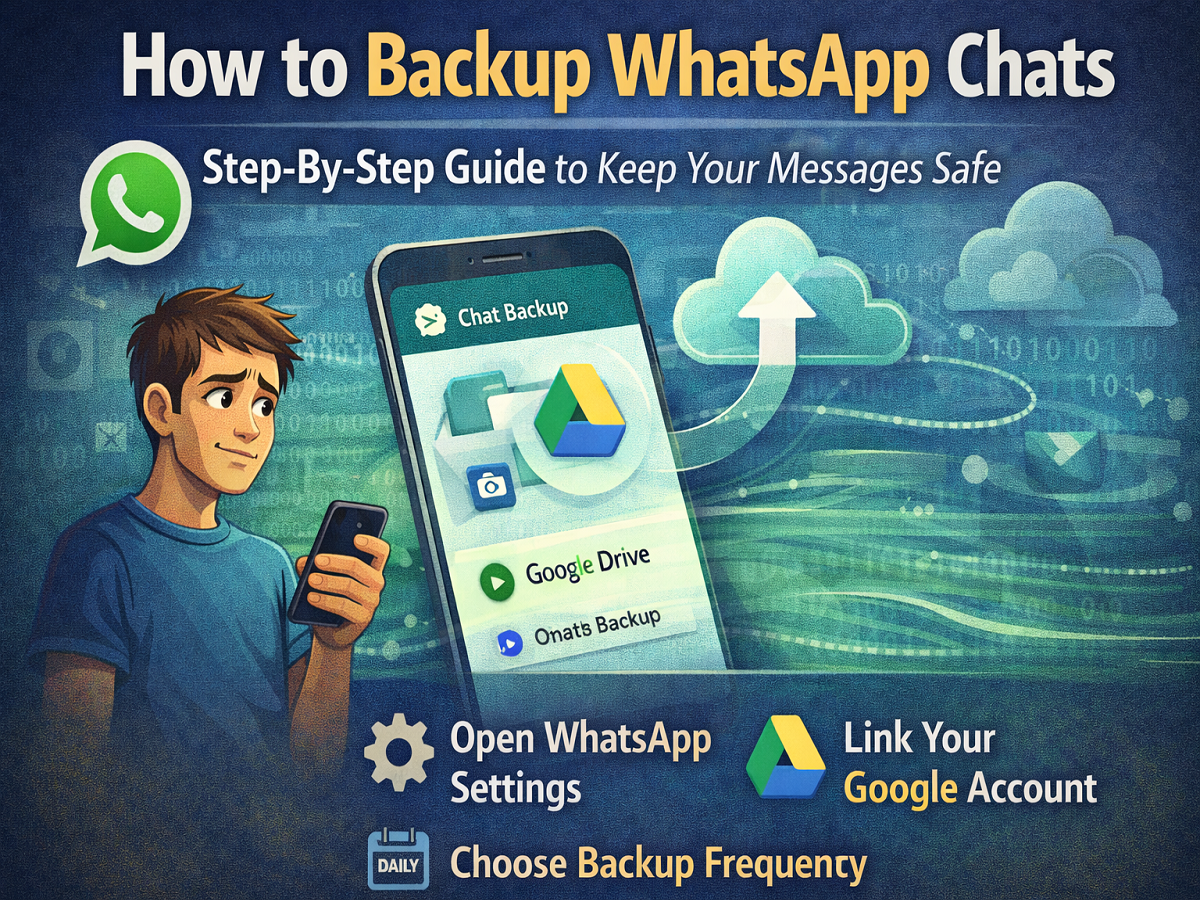
1. Open WhatsApp Settings
Start by opening WhatsApp on your smartphone. Tap the three-dot menu icon in the top-right corner and select Settings.
2. Go to the Chats Section
Inside Settings, tap on Chats. Here you will find several chat-related options.
3. Select Chat Backup
Scroll down and tap Chat Backup. This section allows you to manage how and when your messages are saved.
4. Link Your Google Account
Next, choose Google Account. If no account is connected yet, log in using your Gmail ID. This account will store your chat backups securely on Google Drive.
5. Choose Backup Frequency
WhatsApp allows you to decide how often your chats should be backed up. You can select options such as:
- Daily
- Weekly
- Monthly
For better protection, selecting Daily backup is usually recommended.
6. Include Videos (Optional)
If you want to save videos along with messages and photos, turn on the Include Videos option. Keep in mind that video files can increase the size of your backup.
Wi-Fi or Mobile Data: Which Should You Use?
When creating backups, especially if your chats contain many photos or videos, it is better to use a Wi-Fi connection. Backups with large media files can consume a significant amount of mobile data.
In the backup settings, you can choose whether backups occur:
- Only on Wi-Fi
- On Wi-Fi or mobile data
Using Wi-Fi helps prevent unnecessary data usage and ensures smoother backups.
Add Extra Security with Encrypted Backups
If privacy is your top priority, WhatsApp also offers end-to-end encrypted backups. This feature allows you to protect your cloud backup with a password or encryption key.
With encrypted backups:
- Only you can access the stored messages
- Neither WhatsApp nor Google can read the data
- Your chats remain fully protected
This adds an additional layer of security for sensitive conversations and files.
Restore Chats When Switching to a New Phone
One of the biggest advantages of enabling backups is the ability to restore your data easily when changing devices.
When you install WhatsApp on a new phone and log in with the same phone number and Google account, the app will automatically detect your previous backup. You simply need to tap Restore, and all your chats and media will reappear.
This process ensures that your conversations remain intact even after upgrading your device.
A Simple Habit That Protects Your Digital Memories
Backing up your WhatsApp chats is a small step that can prevent major problems in the future. Whether you switch phones, accidentally delete messages, or lose your device, having a backup ensures your important conversations remain safe.
Technology becomes truly useful when we know how to use it wisely. Turning on chat backup is a simple yet powerful way to safeguard your digital life.
So take a moment today, open your WhatsApp settings, and make sure your chat backup is enabled—because your memories deserve to stay protected.