
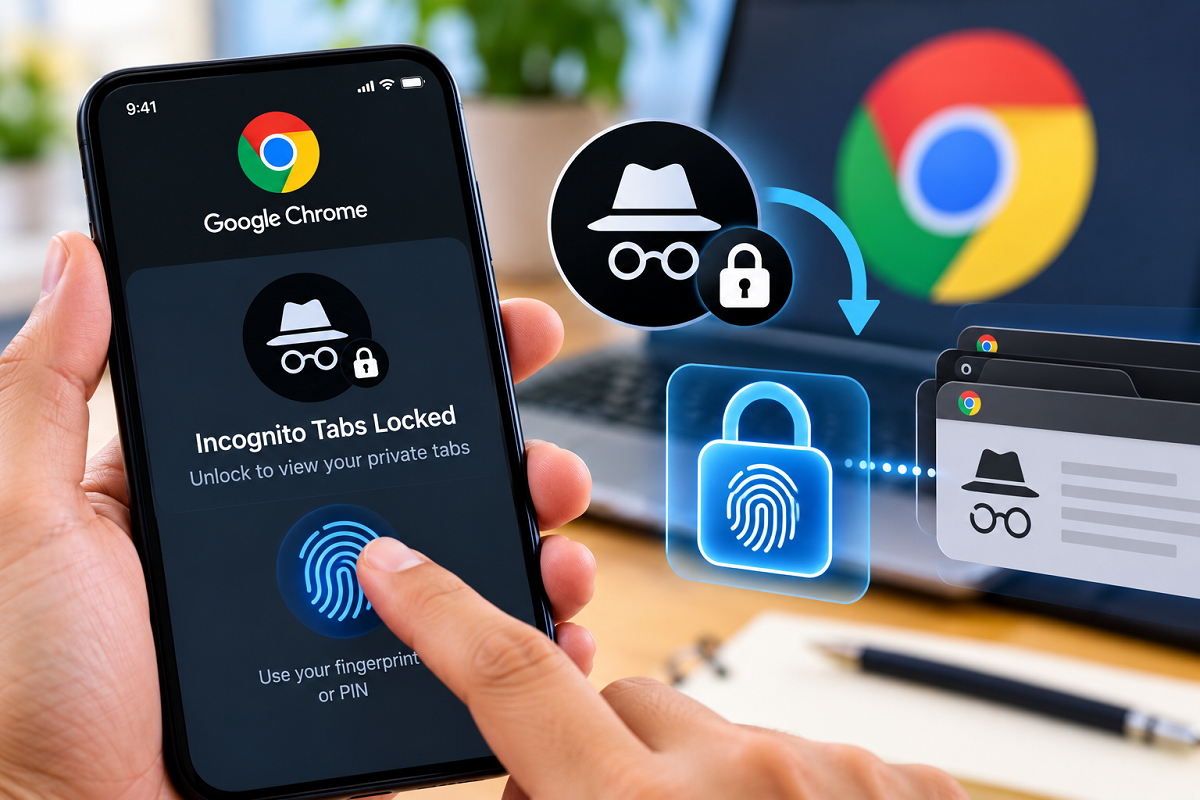
Google Chrome's Incognito Mode is commonly used when people want a more private browsing session on their smartphones. However, there is one situation that can still create an awkward privacy problem: leaving Incognito tabs open and then handing your unlocked phone to a friend, colleague or family member.
Google Chrome has a useful privacy feature designed to address this concern. Users can lock their Incognito tabs when they leave Chrome, requiring device authentication before those tabs can be viewed again.
Depending on the smartphone and its security settings, users may be able to unlock their private Chrome tabs using a fingerprint, face authentication, PIN or another supported device-screen lock method.
The feature adds another layer of protection to open Incognito tabs without requiring users to close their private browsing session every time they temporarily switch away from Chrome.
What Does Chrome's Incognito Tab Lock Do?
Incognito Mode prevents Chrome from saving certain browsing information to the device after an Incognito session ends. However, if an Incognito tab remains open, someone using your unlocked phone may potentially be able to see what is currently displayed in that tab.
The Incognito lock feature is intended to reduce this risk.
Once enabled, Chrome can require authentication when you return to open Incognito tabs after leaving the browser. This means another person using your phone cannot simply switch to Chrome and immediately view your private tabs.
To regain access, the device owner must authenticate using the security method supported by the phone.
How to Enable Incognito Tab Lock in Google Chrome
Setting up the feature is relatively straightforward. However, menu names and the exact location of individual options can vary slightly depending on your device, operating system and Chrome version.
Step 1: Update Google Chrome
Before changing the setting, make sure that the latest available version of Google Chrome is installed on your smartphone.
Android users can check for Chrome updates through the Google Play Store, while iPhone users can check the App Store.
Keeping the browser updated is also important for receiving the latest security fixes and privacy improvements.
Step 2: Open Chrome Settings
Launch Google Chrome on your smartphone.
On Android, tap the three-dot menu generally located near the top-right corner and select Settings. The interface may look somewhat different on an iPhone.
Step 3: Open Privacy and Security
Inside Chrome Settings, find and select Privacy and security.
This section contains several controls related to browsing data, security and privacy.
Step 4: Find the Incognito Lock Option
Look for an option similar to "Lock Incognito tabs when you leave Chrome."
If the feature is available on your device, enable the toggle next to it.
Step 5: Verify Your Identity
Chrome may then ask you to authenticate using the security method configured on your smartphone.
Depending on your device, this could include your fingerprint, face authentication, PIN, passcode or another supported screen-lock method.
After authentication is completed, the feature should be enabled.
What Happens After You Enable It?
Suppose you are browsing something in an Incognito tab and then leave Chrome to open another app. When you later return to your private tabs, Chrome can keep the Incognito session hidden until you authenticate.
This can be particularly helpful when you occasionally share your phone with family members or friends.
Instead of closing every Incognito tab before handing over the device, the authentication requirement adds a useful privacy barrier around the tabs you have left open.
Incognito Mode Does Not Make You Completely Anonymous
There is an important privacy distinction users should understand.
Incognito Mode mainly changes what Chrome stores locally after the private browsing session. It should not be interpreted as a tool that makes internet activity completely anonymous.
Websites you visit, organizations managing your network and internet service providers may still be able to observe activity depending on the circumstances.
Similarly, locking Incognito tabs does not erase browsing activity from external services or turn Chrome into an anonymous browsing service. Its main purpose is to stop someone with physical access to your phone from easily reopening private tabs left active in Chrome.
Can't Find the Incognito Lock Setting?
If the option is missing, first check whether Chrome has an update available. You should also make sure that a supported screen lock or biometric authentication method is configured on your smartphone.
Feature availability and interface placement may differ depending on the Chrome version, smartphone model and operating system.
For users who regularly keep private tabs open, enabling Incognito authentication is a simple but useful privacy measure. It takes only a few moments to configure and can prevent someone who temporarily has access to your unlocked phone from casually viewing an active private browsing session.