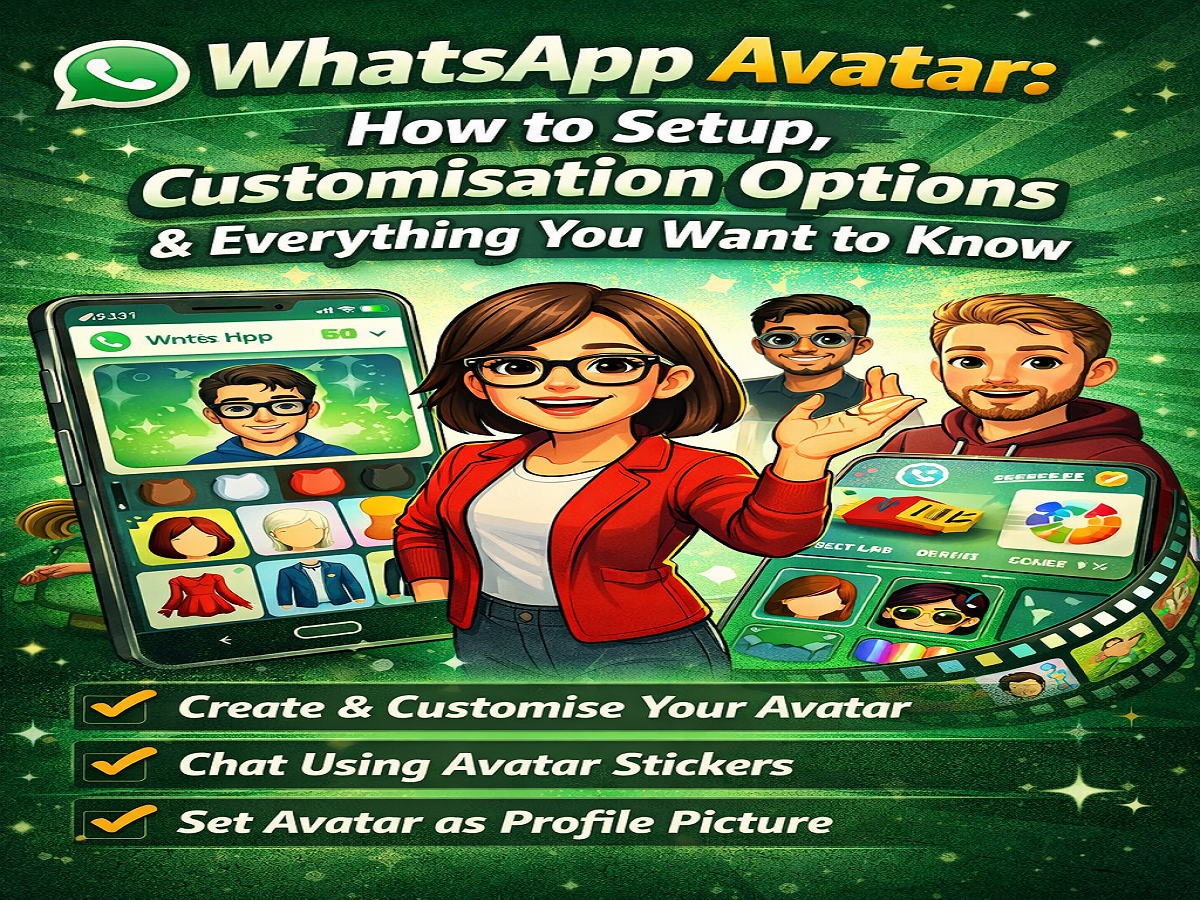
Personalisation has become a big part of digital communication, and now you can express yourself in a more fun and creative way using avatars. WhatsApp has introduced its own avatar feature, allowing users to design a digital version of themselves and use it across chats and profile pictures.
If you’re wondering how to create, edit, and use your avatar, here’s a complete guide covering everything you need to know.
What Is a WhatsApp Avatar?
A WhatsApp avatar is a personalised digital character that represents you. It works similarly to avatars on other platforms and lets you customise features like:
- Skin tone
- Hairstyle and hair colour
- Face shape and facial features
- Outfits and accessories
Once created, WhatsApp automatically generates multiple stickers based on your avatar, showing different emotions and actions.
Where Can You Use WhatsApp Avatars?
Your avatar isn’t just for display—it can be used in multiple ways:
- Send avatar-based stickers in chats
- Use it as your profile picture
- Express emotions through customised sticker sets
This makes conversations more engaging and visually expressive.
How to Create Your WhatsApp Avatar
Follow these simple steps:
- Open the WhatsApp app on your smartphone
- Go to any chat window
- Tap on the Sticker icon
- Look for the Avatar banner at the top
- Tap on Get Started
- Start customising:
- Skin tone
- Hair style and colour
- Facial features
- Outfit and accessories
- Once done, tap Done
After this, WhatsApp will automatically create a full set of avatar stickers for you.
How to Edit Your Avatar
Not happy with your avatar? You can easily make changes anytime.
Steps:
- Open WhatsApp
- Go to any chat
- Tap on the emoji icon
- Select the Avatar section
- Tap on Edit
- Make the changes you want
- Tap Done
How to Delete Your Avatar
If you want to remove your avatar completely:
- Open the Avatar editor
- Tap on the delete (trash icon)
- Confirm deletion
Your avatar and all related stickers will be removed.
How to Use Avatar Stickers
Once your avatar is created:
- Go to the stickers section
- Tap on the Avatar tab
- Select any sticker and send it in chat
You’ll find multiple expressions like happy, sad, excited, and more.
How to Set Avatar as Profile Picture
You can also use your avatar as your display photo:
- Open WhatsApp
- Tap on the three dots → Settings
- Tap your profile photo
- Tap the camera icon
- Choose Avatar
- Select your preferred style and background
- Tap the checkmark to save
Why You Should Use WhatsApp Avatars
Using avatars adds a personal and fun touch to your conversations. It helps you:
- Express emotions creatively
- Build a unique digital identity
- Make chats more interactive
Final Thoughts
WhatsApp avatars are a great way to personalise your messaging experience. With easy setup and a wide range of customisation options, you can create a digital version of yourself in minutes.
Pro Tip
Make your avatar look as close to you as possible—it makes your chats feel more personal and engaging! 😄