NEWS
Wi-Fi Router Tips: Should You Keep Your Router Near a Smart TV? Know How It Affects Internet Speed
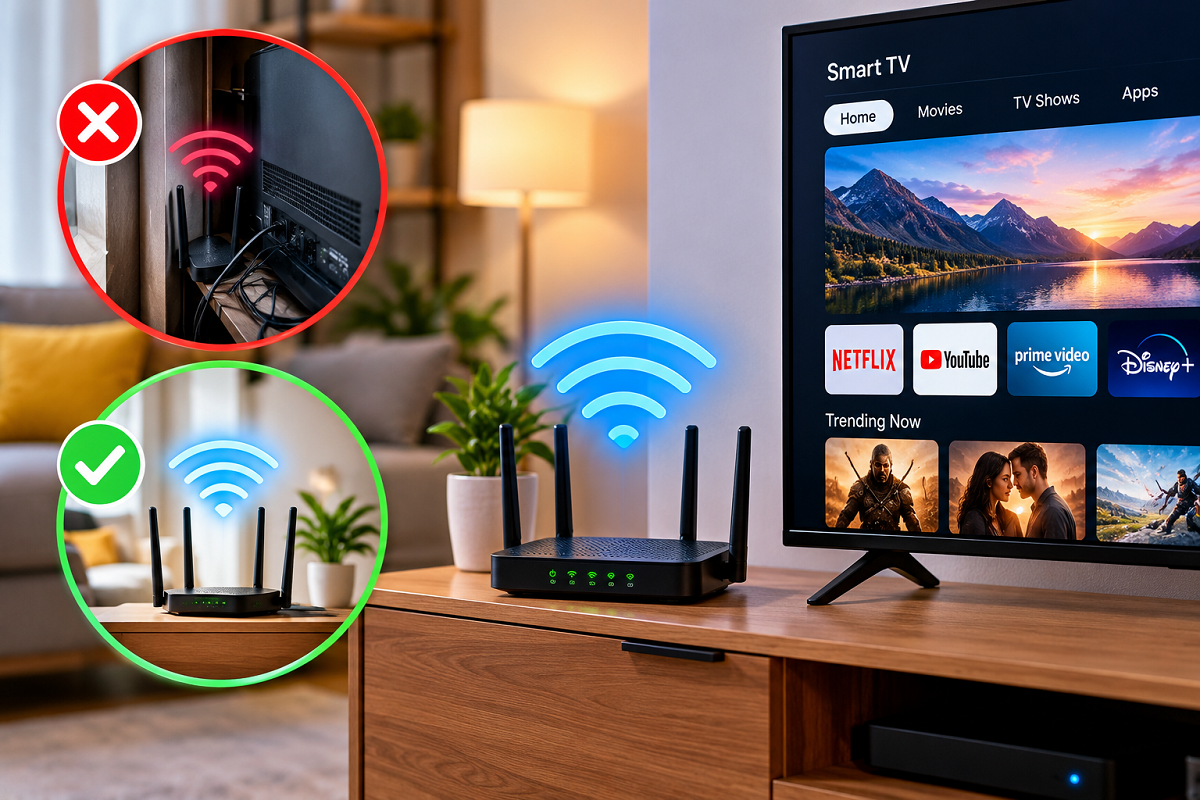
Wi-Fi Router Placement Tips: A fast and reliable internet connection has become essential for modern households. Whether you are watching movies on a smart TV, attending online meetings, playing games or using multiple smartphones, a stable Wi-Fi network can make everyday activities much easier.
However, many people complain about slow internet speeds, frequent buffering and weak Wi-Fi signals despite having a good broadband connection.
One commonly overlooked factor is the location of the Wi-Fi router.
Many households place their router next to a smart TV because power sockets and broadband cables are conveniently available there.
But is keeping a Wi-Fi router near a television a good idea? Can the television affect internet speed?
The answer depends on several factors, including the router's position, nearby electronic devices, physical obstacles and wireless interference.
Here is what you should know before deciding where to install your home Wi-Fi router.
Can Keeping a Wi-Fi Router Near a Smart TV Reduce Internet Speed?
Placing a Wi-Fi router near a television does not automatically reduce your broadband speed.
Modern routers are designed to operate in environments containing several electronic devices.
However, problems may arise when the router is positioned directly behind a large television, inside a closed cabinet or among multiple electronic devices.
Televisions contain electronic components and may include metal structures that can obstruct or reflect wireless signals.
The effect depends on the television's design, the router's position and the surrounding environment.
If the router is hidden behind the TV, signals may struggle to reach certain areas of the house.
This can result in weaker coverage, slower wireless connections or unstable performance in rooms farther away.
The issue is not necessarily the television itself, but the overall placement of the router.
Why Does Router Placement Matter?
Wi-Fi routers transmit data using radio waves.
These signals travel through the surrounding environment to connect smartphones, laptops, televisions and other compatible devices.
However, Wi-Fi signals can weaken when they encounter obstacles.
Thick walls, metal furniture, large appliances and certain building materials may reduce wireless coverage.
The distance between the router and connected devices also matters.
For example, a smartphone used in the same room as the router may receive a stronger signal than a laptop located behind several walls.
Poor signal strength can reduce the data rate of the wireless connection, even when the broadband plan itself offers higher speeds.
Therefore, selecting the right router location can improve coverage and overall network reliability.
1. Place Your Wi-Fi Router in a Central Location
One of the most useful ways to improve Wi-Fi coverage is to position the router near the centre of the area where internet access is needed.
If your router is installed in a far corner of the house, some rooms may receive weaker signals.
A central location can help distribute wireless coverage more evenly.
For example, in a medium-sized apartment, a router positioned in an open living area may provide better coverage than one installed inside a distant bedroom.
However, the ideal location depends on your home's layout, wall materials and where connected devices are used most frequently.
For larger homes, a single router may not be enough to provide strong coverage everywhere.
2. Avoid Keeping the Router Inside a TV Cabinet
Many people prefer hiding their router inside a television cabinet to keep the room looking organised.
Although this arrangement may appear attractive, it can reduce Wi-Fi performance.
Closed cabinets, particularly those containing metal components, may weaken wireless signals.
They can also restrict airflow around the router.
Routers generate heat during normal operation and require appropriate ventilation.
Keeping the device in a cramped, poorly ventilated space may contribute to overheating or unstable operation.
Better option: Place the router on an open shelf or table where its ventilation openings remain unobstructed.
Follow the manufacturer's instructions regarding clearance and operating conditions.
3. Keep the Router Slightly Above Floor Level
Installing a router directly on the floor is not always the best choice.
Furniture, household objects and other obstacles may interfere with signal distribution.
Placing the router on a stable shelf or table can help reduce some of these obstructions.
For many homes, a moderately elevated position works well.
However, placing the router as high as possible is not automatically better.
The most effective position depends on the building's layout, the router's antenna design and the areas requiring coverage.
If your router has adjustable external antennas, follow the manufacturer's recommendations for their positioning.
4. Keep Some Distance From Other Electronic Devices
Electronic equipment located near a router can sometimes affect wireless performance.
For example, a television entertainment unit may contain a set-top box, gaming console, wireless speakers and other connected devices.
Some equipment may generate radio-frequency interference, while large objects and metal components can obstruct signals.
This does not mean every electronic device will interfere with your router.
However, separating the router from crowded electronic setups may improve its performance in certain situations.
Avoid positioning the router directly behind a television or tightly between multiple devices.
An open location with sufficient space is generally preferable.
5. Keep Your Router Away From Microwave Ovens
Microwave ovens can sometimes interfere with Wi-Fi networks operating on the 2.4 GHz frequency band.
This happens because microwave ovens use energy in a nearby frequency range.
Although microwave ovens are designed to contain this energy, some interference may still occur during operation.
Users may notice temporary connection problems when a microwave is running, particularly if the router or connected device is nearby.
What should you do?
Avoid placing the router immediately next to a microwave oven.
If your router and devices support 5 GHz or 6 GHz Wi-Fi, those bands may help avoid interference associated with the 2.4 GHz band.
However, higher-frequency Wi-Fi signals generally have a shorter effective range and may be more affected by walls.
6. Avoid Thick Walls and Large Metal Objects
Physical barriers are among the most common reasons for weak Wi-Fi signals.
Concrete walls, metal cupboards and certain construction materials can reduce wireless coverage.
The more obstacles a signal must pass through, the weaker it may become.
For example, a router installed inside a metal cabinet may provide poorer coverage than the same router placed openly nearby.
Large mirrors and other reflective surfaces can also affect radio-wave propagation in some environments.
If your Wi-Fi signal is weak in a particular room, try changing the router's location before purchasing additional equipment.
Even a relatively small adjustment can sometimes make a noticeable difference.
What Should You Do if Wi-Fi Is Still Slow?
Changing the router's location can improve coverage, but it cannot solve every internet problem.
Several other factors may affect your connection.
Check your broadband plan: Your internet service provider determines the maximum speed available under your subscription, subject to network conditions.
Restart the router: A restart may resolve certain temporary software or connection problems.
Check connected devices: Multiple devices streaming high-resolution videos or downloading large files can compete for available bandwidth.
Update router firmware: Manufacturer updates may improve stability, security and performance.
Choose an appropriate Wi-Fi band: The 2.4 GHz band generally offers wider coverage, while 5 GHz and 6 GHz can provide higher performance under suitable conditions.
Test your connection: Compare speeds near the router and in distant rooms to identify possible coverage problems.
Consider a mesh system: Larger homes or properties with several floors may benefit from additional wireless access points or a properly configured mesh Wi-Fi network.
Should You Connect Your Smart TV Using an Ethernet Cable?
If your smart TV is located close to the router, a wired Ethernet connection may be worth considering.
An Ethernet cable provides a direct network connection and avoids many problems associated with wireless interference.
This can be useful for high-resolution video streaming and other activities requiring consistent connectivity.
However, the actual speed depends on the television's Ethernet hardware, the router and the broadband connection.
A wired connection does not automatically make a slow internet plan faster.
If your television supports Ethernet and the cable can be installed conveniently, it may provide a more stable alternative to Wi-Fi.
How to Find the Best Router Location in Your Home
There is no single router position that works perfectly in every house.
A practical approach is to test different locations.
Start by placing the router in an open, central area.
Check the Wi-Fi signal and internet performance in rooms where you frequently use connected devices.
If the signal is weak, adjust the router's position and test again.
Try to avoid closed cabinets, thick walls and crowded entertainment units.
If your router supports a companion application, it may provide information about connected devices and network conditions.
For persistent problems, contact your broadband provider or a qualified network technician.
Final Words
Keeping a Wi-Fi router near a smart TV is not necessarily harmful, and it does not automatically reduce internet speed.
However, positioning the router directly behind the television, inside a closed cabinet or among multiple electronic devices may weaken wireless coverage.
For better Wi-Fi performance, place your router in an open, well-ventilated and reasonably central location, away from major obstructions and potential sources of interference.
If slow internet continues despite good router placement, check your broadband plan, network congestion, connected devices and router capabilities.
A few simple changes to your home network setup may help improve Wi-Fi coverage and make streaming, gaming and everyday internet use more reliable.