Twitter has gradually expanded beyond text-based updates, giving users new ways to express themselves. One such feature is Voice Tweets, which allow users to share short audio messages instead of traditional written tweets. To make these audio posts more accessible and user-friendly, Twitter also introduced automated captions for voice tweets.
This feature is especially useful for users who prefer reading over listening, are in a noisy environment, or have hearing difficulties. Automatic captions ensure that voice content can be understood by a wider audience without sound.
What Are Voice Tweets on Twitter?
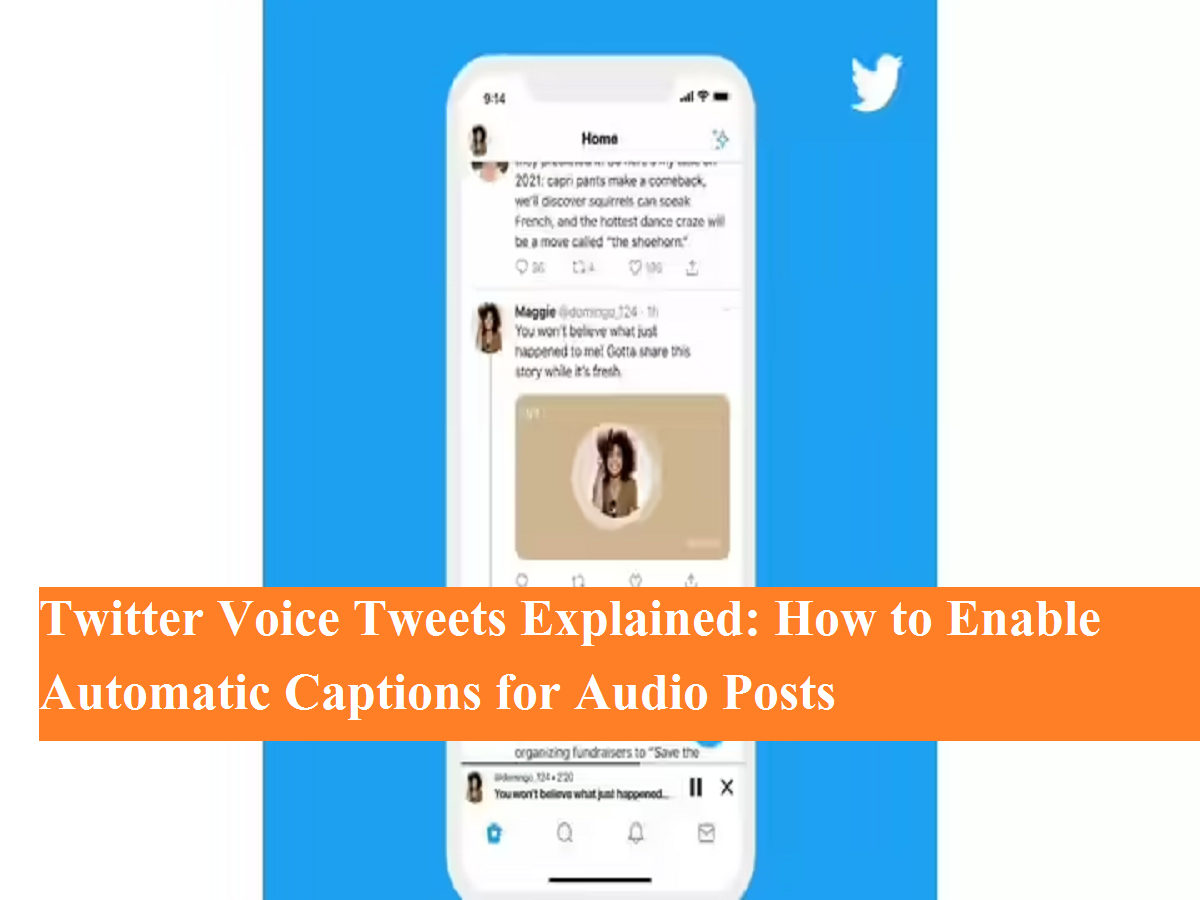
Voice Tweets are audio-based posts available on Twitter for iOS. Instead of typing a message, users can record their voice and publish it as a tweet. Each voice tweet appears with a static image of the user’s current profile picture, which remains unchanged even if the profile photo is updated later.
To improve usability, Twitter allows voice tweets to continue playing while users scroll through their timeline. Once playback begins, the audio minimizes into a small audio dock at the bottom of the screen, making multitasking easier.
Why Automated Captions Matter
Automated captions add a layer of accessibility and convenience to voice tweets. With captions enabled, users can:
- Read the content without turning on sound
- Understand audio tweets in quiet or noisy places
- Access content more easily if they are hearing-impaired
- Follow along while multitasking
This makes voice tweets more inclusive and engaging for a global audience.
How to Use Automated Captions for Voice Tweets on Twitter
If you’re using Twitter on an iPhone, enabling captions for voice tweets is simple. Follow these steps:
Step-by-Step Guide
- Open Twitter and navigate to the voice tweet you want to view.
- Tap on the voice tweet thumbnail to play or pause the audio.
- When a voice tweet is recorded, captions are generated automatically by Twitter.
- Look for the “CC” (Closed Captions) button at the top-right corner of the voice tweet player.
- Tap the CC icon to view captions online.
- The voice tweet thumbnail will also display a text transcript of the audio.
Once enabled, captions appear in real time, allowing users to read along as the audio plays.
Who Can Use Voice Tweets and Captions?
Currently, the voice tweet creation feature is limited to iOS users only. Android and web users cannot record voice tweets yet. However, there’s good news—all users, regardless of device, can view and read captions on voice tweets posted by iOS users.
This means accessibility benefits are shared across platforms, even if the recording feature is restricted.
Supported Languages for Automatic Captions
Twitter’s automated caption system supports multiple languages, making it useful for users worldwide. As of now, captions are generated automatically for the following languages:
- English
- Hindi
- Japanese
- Spanish
- Portuguese
- Turkish
- Arabic
- French
- Indonesian
- Korean
- Italian
Support for additional languages is expected in future updates.
Final Takeaway
Automated captions for Twitter voice tweets make audio content more accessible, inclusive, and practical. While the feature is currently exclusive to iOS for recording, captions ensure that voice tweets can be understood by everyone across platforms.
If you enjoy sharing your thoughts through voice, enabling captions is a smart way to reach more people—without saying a word.