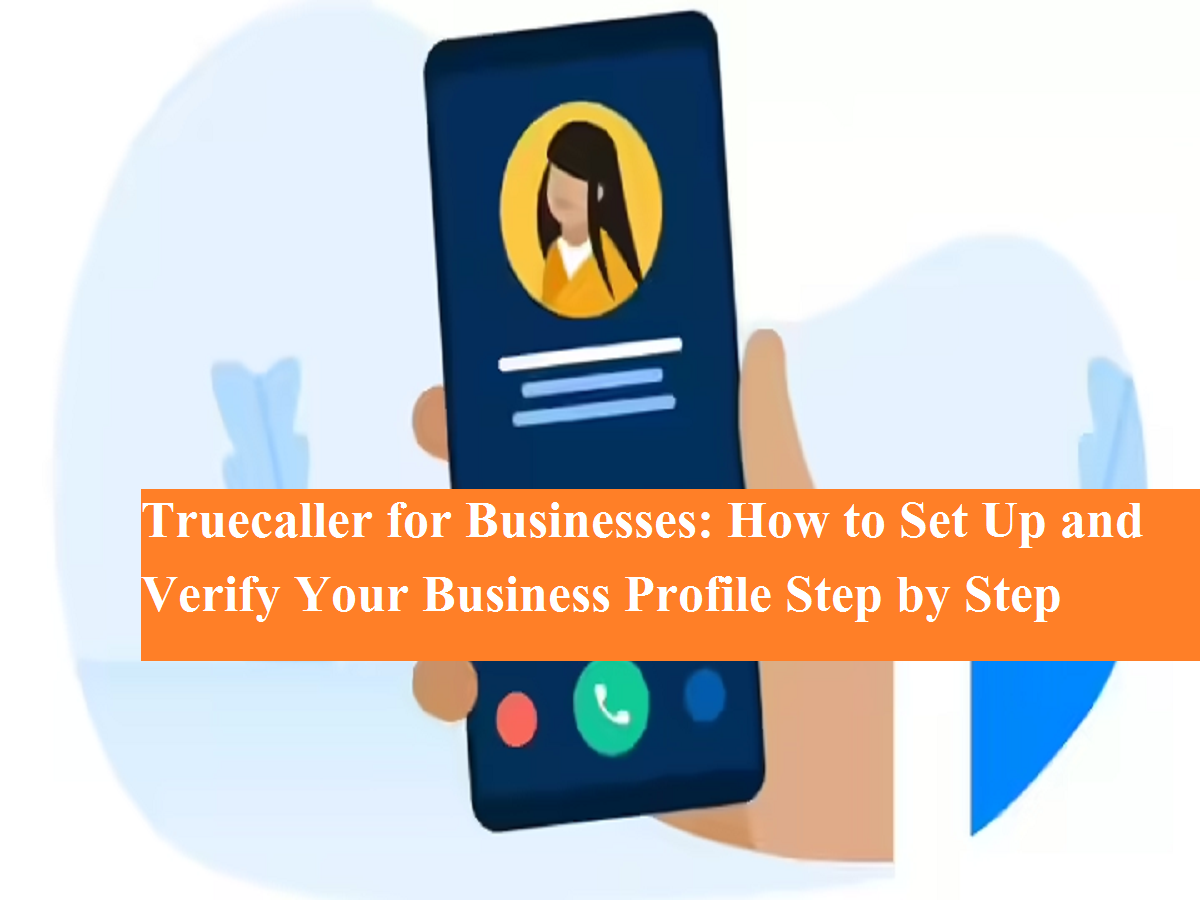
Truecaller is widely known as a caller identification and spam-blocking app, but beyond personal use, it also offers powerful tools for businesses. With a Truecaller Business Profile, companies can build trust, improve call response rates, and reach a wider customer base by displaying verified information during outgoing calls.
Whether you are a small local shop or a growing enterprise, creating a business profile on Truecaller can help customers instantly recognize your brand and understand the purpose of your call. The platform allows both free business profiles and paid verified business accounts, depending on your needs.
What Is a Truecaller Business Profile?
A Truecaller Business Profile lets businesses display important details such as their name, category, location, logo, and working hours when calling customers. This increases credibility and reduces the chances of calls being ignored or marked as spam.
Truecaller is available on both Android and iOS, making it accessible to a large user base. Businesses can either create a new business profile from scratch or convert an existing personal profile into a business profile at no cost.
Free vs Verified Business Profiles on Truecaller
Truecaller offers two options for businesses:
1. Free Business Profile
- Create and manage a business identity
- Add business name, category, and address
- Display brand details on outgoing calls
2. Verified Business Account (Paid)
- Verified business badge
- Brand logo visible on caller ID
- Custom labels and call reasons
- Performance analytics and call insights
- Bulk number management
- Early access to new business features
How to Convert Your Existing Truecaller Profile into a Business Profile
If you already use Truecaller, switching to a business profile is quick and simple.
Step-by-Step Guide
- Open the Truecaller app on your smartphone.
- Tap on the three-line menu icon located at the top-left corner.
- Select the pen (edit) icon next to your profile name and mobile number.
- Scroll down and tap on “Create a business profile.”
- Review the business terms and privacy policy, then tap Continue.
- Enter your business name.
- Choose your business category or sector.
- Add your business address, including PIN code. You can also pin the location on the map.
- Once all details are filled in, tap Finish.
Your business profile will now be live on Truecaller.
Enhancing Your Business Profile for Better Visibility
To make your business stand out, Truecaller allows you to:
- Upload your business logo
- Choose a brand color theme
- Set opening and closing hours
- Add additional contact details
These features help your business appear more professional and recognizable across India.
How to Create a Verified Business Account on Truecaller
For businesses looking to boost credibility, Truecaller offers a Verified Business subscription.
Steps to Register
- Visit the Truecaller for Business website.
- Register your business using official details.
- Choose a suitable paid plan.
- Complete verification to receive a verified badge.
This badge assures customers that the call is genuine and improves call pickup rates significantly.
Why Businesses Should Use Truecaller
A Truecaller business profile helps companies:
- Build trust with customers
- Reduce call rejection rates
- Improve brand recognition
- Communicate call intent clearly
For customer-focused businesses, this tool can be a game-changer.