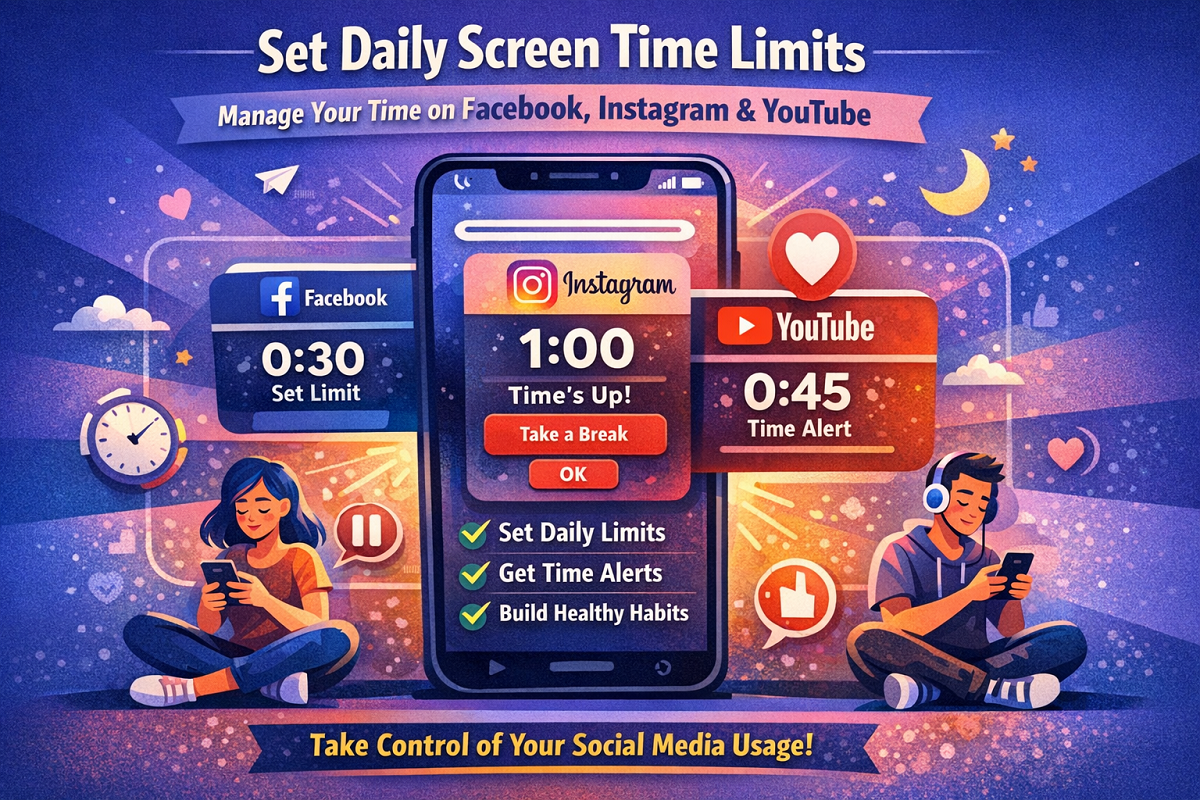
With social media becoming a major part of daily life, it’s easy to spend more time online than intended. Whether it’s endless scrolling, watching videos, or staying connected with friends, overuse of apps can impact productivity and mental well-being.
To help users manage their digital habits, popular platforms like Facebook, Instagram, and YouTube offer built-in tools that allow you to track usage and set daily time limits.
Here’s a complete step-by-step guide to help you reduce screen time effectively.
Why Setting Screen Time Limits Matters
Spending excessive time on social media can lead to:
- Reduced productivity
- Sleep disruption
- Increased screen fatigue
- Difficulty focusing on important tasks
By setting daily reminders or limits, you can create healthier digital habits and maintain better balance.
How to Set Screen Time Limit on Facebook
Facebook provides a feature called “Your Time on Facebook” that helps you monitor and control usage.
Steps:
- Open the Facebook app on your phone
- Tap the three-line menu (top right corner)
- Go to Settings & Privacy
- Select Your Time on Facebook
- Tap on Manage Your Time
- Choose Set Daily Time Reminder
- Select your preferred time limit
- Tap Set Reminder
This feature will notify you once you reach your daily usage limit.
How to Set Screen Time Limit on Instagram
Instagram offers a similar feature under Your Activity.
Steps:
- Open the Instagram app
- Go to your Profile
- Tap the three-line menu
- Select Your Activity
- Tap on Time Spent
- Under Manage Your Time, select Set Daily Time Limit
- Choose your desired time
- Tap Done
This helps you track and limit your daily usage effectively.
How to Set Screen Time Limit on YouTube
YouTube allows users to set reminders to take breaks during long viewing sessions.
Steps:
- Open the YouTube app
- Tap your profile picture
- Go to Settings
- Select General
- Tap on Remind me to take a break
- Set your preferred time interval (from 5 minutes to 23 hours 55 minutes)
- Tap OK
You’ll receive notifications reminding you to pause and take a break.
Tips to Reduce Screen Time Effectively
Setting limits is just the first step. Here are a few additional tips:
- Turn off unnecessary notifications
- Schedule “no-phone” hours during the day
- Replace scrolling time with productive activities
- Use app timers or digital wellbeing tools
Final Thoughts
Managing screen time is essential in today’s digital world. With built-in tools available on major platforms, reducing excessive usage has become easier than ever.
By setting daily limits on apps like Facebook, Instagram, and YouTube, you can take control of your time and build healthier habits.
Quick Tip
Start with small limits and gradually reduce your screen time—you’ll notice a big difference in focus and productivity! 📱✨