LIFESTYLE
Switching from iPhone to Android? Here's How to Transfer Photos, Contacts and Chats in Minutes
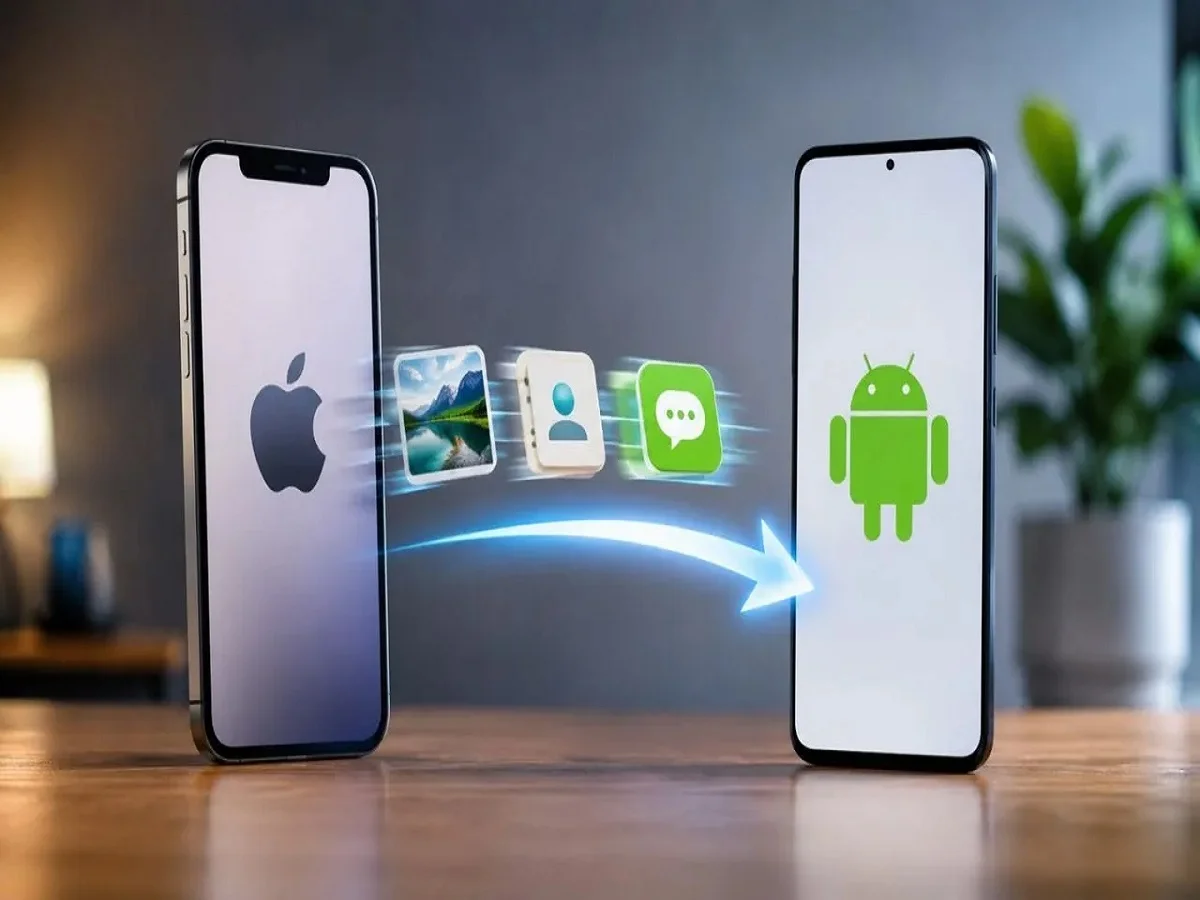
iPhone to Android Transfer Guide: Apple has introduced a new data migration feature with iOS 26.3, making it easier than ever for users to move their important files, contacts, messages, and other data to an Android smartphone without complicated steps.
Changing smartphones can often feel overwhelming, especially when you're worried about losing valuable photos, contacts, chat history, and important files. For years, moving data from an iPhone to an Android device required multiple apps and manual transfers. However, Apple has now simplified the process with a new feature introduced in the latest iOS 26.3 update.
The newly added "Transfer to Android" option is designed to help users securely migrate essential data from an iPhone to a compatible Android smartphone. The feature aims to reduce setup time while ensuring that important information is transferred safely.
If you're planning to switch from Apple's ecosystem to Android, here's everything you need to know about using this new migration tool.
Prepare Both Devices Before Starting
Before initiating the transfer, make sure both smartphones are properly prepared. This helps avoid interruptions and reduces the risk of incomplete data migration.
Follow these steps before beginning:
- Update your iPhone to iOS 26.3.
- Ensure your Android phone is running Android 16 or the latest available version supported by your device.
- Charge both phones to at least 80%, or keep them connected to a charger during the transfer.
- Connect both devices to the same Wi-Fi network.
- Turn on Bluetooth on both smartphones.
- Create a backup of your iPhone using iCloud or a computer as an extra precaution before transferring your data.
Taking these steps beforehand can help ensure a smoother migration experience.
How to Transfer Data from iPhone to Android
Once both devices are ready, follow these instructions:
- Open the Settings app on your iPhone.
- Tap General.
- Select Transfer or Reset iPhone.
- Choose the new Transfer to Android option.
- Turn on your Android phone and begin the initial setup process.
- During setup, select the option indicating that you're transferring data from an iPhone or iPad.
- Use your iPhone to scan the QR code displayed on the Android device.
- In some cases, you may also need to verify the connection using a Session ID and Pairing Code.
- Choose the categories of data you wish to transfer.
- Confirm the transfer and wait for the process to complete.
Depending on the amount of data, the transfer may take anywhere from a few minutes to longer for larger photo and video libraries.
What Data Can Be Transferred?
The new migration feature supports a wide range of personal data, allowing users to continue using their new Android phone with minimal disruption.
Supported data includes:
- SMS messages and iMessages
- Photos and videos
- Live Photos (with motion information preserved where supported)
- Contacts
- Important files and documents
- Passwords stored in iCloud Keychain, which can be securely exported to Google Password Manager or another compatible password management service
This broad compatibility helps users retain much of their digital information while moving between platforms.
eSIM Transfer Is Also Supported
Apple has also expanded support for eSIM migration through selected mobile carriers.
Eligible users can transfer their existing eSIM profile directly to a compatible Android smartphone without needing to request a new physical SIM card. Availability of this feature depends on your carrier and regional support, so users should check with their mobile network provider before starting the process.
Some Settings May Still Require Manual Setup
Although the new migration tool handles most essential data automatically, certain items may still need to be configured manually after the transfer.
These may include:
- App-specific settings
- Login credentials for some applications
- Banking and authentication apps
- Device personalization settings
- Certain widgets and home screen layouts
- Subscription-based services that require fresh sign-in
Users should also verify that all important data has been transferred successfully before resetting or erasing their old iPhone.
A Simpler Way to Change Smartphones
The introduction of the Transfer to Android feature in iOS 26.3 marks another step toward making cross-platform switching easier for smartphone users. Instead of relying on third-party applications or complicated manual methods, users can now transfer photos, contacts, messages, files, and passwords through a more streamlined process.
If you're planning to move from an iPhone to an Android device, ensuring both phones are updated, connected properly, and backed up beforehand can help make the transition quick, secure, and hassle-free.