NEWS
New Laptop Setup Tips: Do These 8 Things Immediately After Buying a Laptop for Better Speed and Battery Life
Buying a new laptop feels exciting for most users. A fresh Windows system, fast performance, empty storage, and smooth multitasking create the perfect start for work, studies, gaming, or entertainment. However, simply turning on a new laptop is not enough to get the best long-term experience.
Many new laptops come with unnecessary apps, default settings, background services, and incomplete configurations that can slowly affect performance, battery life, privacy, and overall security. Tech experts say that making a few important changes immediately after purchasing a laptop can significantly improve speed, battery backup, and system safety.
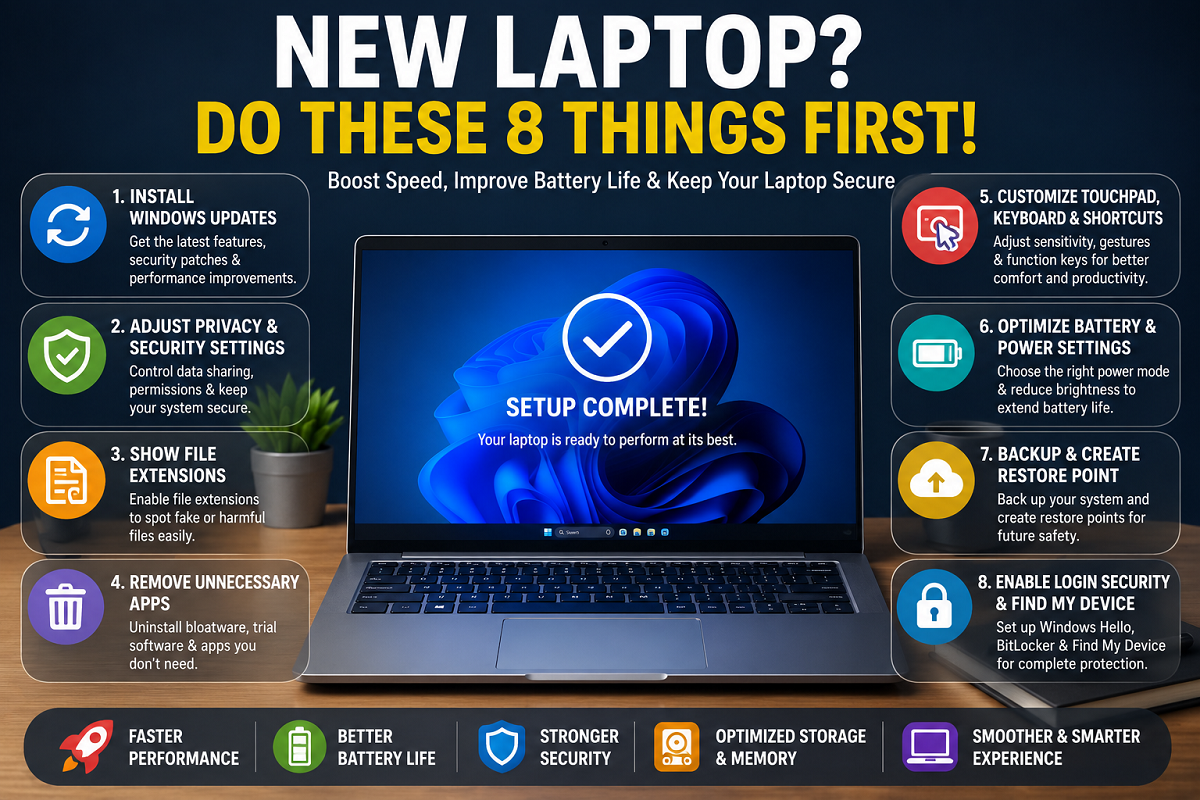
Here are the most important things users should do after buying a new Windows laptop.
Install All Windows Updates First
One of the first and most important steps is updating the operating system completely.
Many laptops remain stored in warehouses for months before reaching customers. During this period, important:
- Security patches
- Driver updates
- Performance improvements
- Bug fixes
may already have been released by Microsoft.
Users should immediately:
- Open Settings
- Go to Windows Update
- Click “Check for Updates”
- Download and install all available updates
- Restart the system if required
Experts recommend repeating the process multiple times until no pending updates remain.
Change Important Privacy and Security Settings
Windows 11 includes several smart features, but default privacy settings may not suit every user.
To improve security and reduce unnecessary data sharing:
- Open Privacy & Security settings
- Disable unwanted ad tracking
- Turn off unnecessary location access
- Limit data-sharing permissions
- Review app permissions carefully
Users should also check whether real-time protection in Windows Security is active.
Turn On File Extension Visibility
Cybersecurity experts strongly recommend enabling file name extensions in File Explorer.
This helps users identify suspicious files more easily because complete file names become visible.
For example:
- document.pdf.exe
- image.jpg.scr
can often appear misleading when extensions are hidden.
Showing full file names helps reduce the risk of accidentally opening harmful files or malware.
Remove Unnecessary Apps and Trial Software
Most new laptops come preloaded with:
- Trial antivirus software
- Promotional apps
- Unwanted games
- Brand utility tools
These programs often consume:
- RAM
- Storage
- Battery
- Background processing power
Users should open:
Settings → Apps → Installed Apps
and uninstall applications they do not need. This can noticeably improve laptop speed and battery performance.
Customize Touchpad and Keyboard Settings
Incorrect touchpad sensitivity or function key behavior can make daily usage frustrating.
Users can improve comfort by:
- Adjusting cursor speed
- Customizing gestures
- Configuring Fn key shortcuts
- Changing typing preferences
These options are available under:
Bluetooth & Devices → Touchpad
Custom settings help improve productivity and reduce accidental inputs.
Optimize Battery and Power Settings
Battery performance is one of the biggest concerns for laptop users.
Experts recommend adjusting power settings immediately after setup.
Users can choose between:
- Best Energy Efficiency
- Balanced Mode
- Best Performance
through:
Settings → System → Power & Battery
Reducing screen brightness alone can sometimes increase battery backup by 30–60 minutes.
Enable Backup and System Restore
Creating backups early can save users from major future problems such as:
- System crashes
- Data corruption
- Malware attacks
- Accidental file deletion
Users should create:
- System restore points
- Full system backups
- External drive backups
Windows already provides built-in backup options under:
System & Security → Backup & Restore
Experts say regular backups are essential for both professional and personal users.
Strengthen Login Security
Modern laptops often support advanced security options through Windows Hello.
Users should activate:
- PIN login
- Fingerprint authentication
- Face recognition
if available.
Additionally, enabling:
- BitLocker
- Device encryption
can protect sensitive files even if the laptop is lost or stolen.
Turn On “Find My Device”
The “Find My Device” feature can help users locate or remotely lock a lost laptop.
To activate it:
- Open Settings
- Go to Privacy & Security
- Enable “Find My Device”
A Microsoft account login is usually required for this feature to work properly.
Improve Overall System Performance
Users can further optimize laptop speed by:
- Turning on Storage Sense or memory optimization
- Cleaning temporary files regularly
- Reducing startup apps
- Adjusting visual effects for performance
These small changes can improve long-term responsiveness and reduce unnecessary system load.
Why Initial Laptop Setup Matters
Tech experts say the first few hours after buying a laptop are extremely important because many long-term issues originate from poor initial setup.
Without proper optimization:
- Battery drains faster
- Storage fills quickly
- Background apps slow performance
- Security risks increase
A properly configured system not only performs better but also remains secure and reliable for years.
For users investing significant money in a new laptop, spending a little time on setup and optimization can make a huge difference in overall performance, battery life, and digital safety.