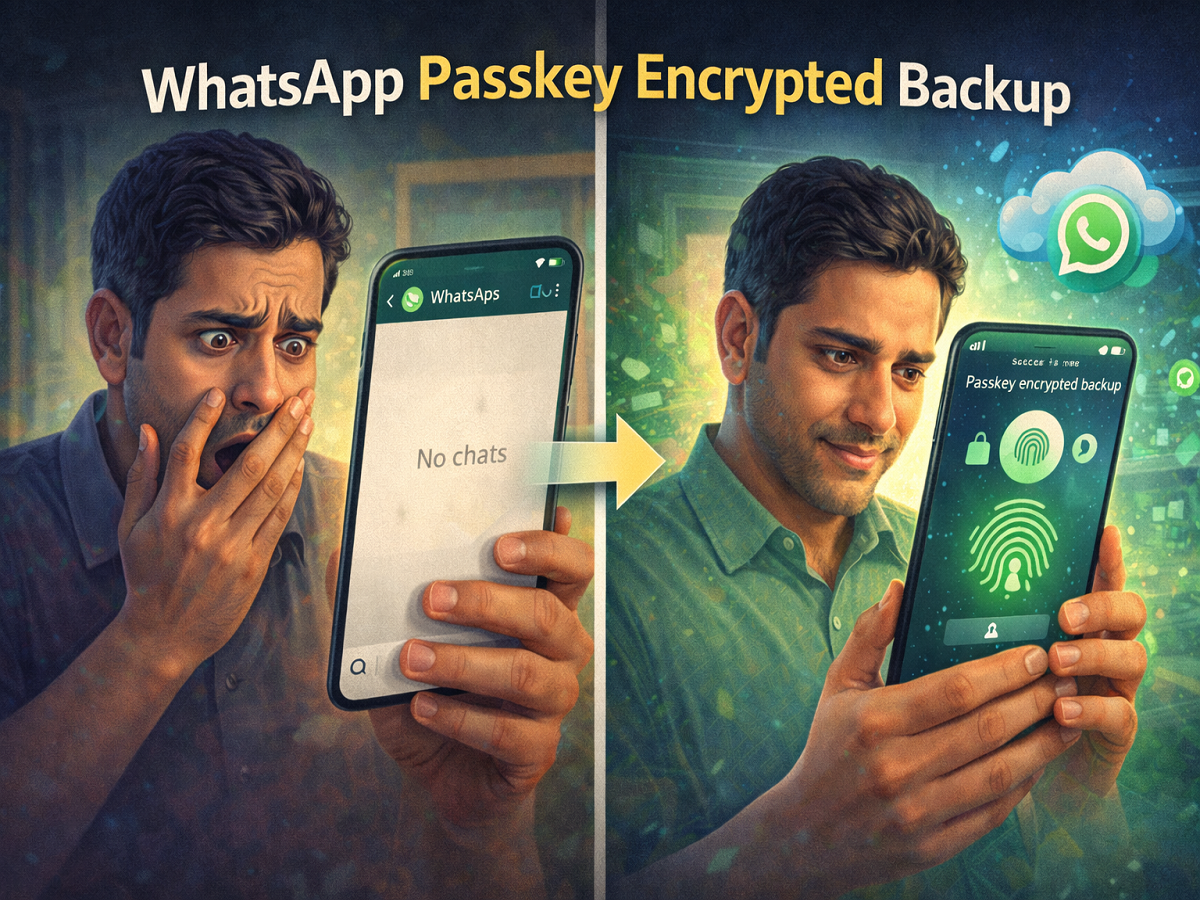
Losing years of chats, photos, and voice notes on WhatsApp can feel devastating. I learned this the hard way—one wrong tap, and everything was gone. No backup, no recovery, just empty chats where memories once lived.
That experience pushed me to find a better, safer way to protect my data. The solution? Passkey-encrypted backups—a smarter, more secure method that doesn’t require remembering complicated passwords.
Here’s how I fixed my mistake and how you can protect your WhatsApp chats from ever being lost again.
Why WhatsApp Backup Matters More Than You Think
WhatsApp is more than just a messaging app—it holds personal conversations, media files, work details, and memories. Without a proper backup system, losing your phone or data can mean losing everything permanently.
That’s why securing your backups is not just about convenience—it’s about protecting your digital life.
What Is a Passkey and Why It’s Better
A passkey is a modern authentication method that replaces traditional passwords. Instead of typing long or complex keys, you can simply use:
- Fingerprint
- Face unlock
- Device PIN
Passkeys are securely stored in systems like Google Password Manager, ensuring that only you can access your encrypted backups.
👉 The biggest advantage: No need to remember long passwords or 64-digit encryption keys.
Requirements to Use Passkey Backup
Before setting it up, make sure your device meets these conditions:
- Android 9 or above
- Updated Google Mobile Services
- Screen lock enabled (PIN, pattern, or password)
Step-by-Step: How to Enable Passkey-Encrypted Backup
Follow these simple steps to secure your WhatsApp chats:
- Open WhatsApp Settings
- Tap on Chats
- Select Chat Backup
- Go to End-to-End Encrypted Backup
- Tap Turn On
- Choose Passkey option
- Follow on-screen instructions to set it up
Once enabled, your backup is stored securely in the cloud—and only accessible using your passkey.
Switching from Password to Passkey
If you’re currently using a password or encryption key:
- First, turn off end-to-end encrypted backup
- Then re-enable it using the passkey option
This ensures your backup is updated with the new, more secure method.
How to Turn Off Encrypted Backup (If Needed)
If you ever want to disable encryption:
- Go to Chats → Chat Backup
- Tap End-to-End Encrypted Backup
- Select Turn Off
- Confirm the action
Important Safety Tips You Must Know
- If you lose your passkey, password, or encryption key, your backup cannot be recovered
- WhatsApp cannot reset or retrieve your encryption credentials
- Always keep your device secure and updated
Why Passkey Backup Is a Game-Changer
After my experience, switching to passkey encryption gave me peace of mind. It combines:
- Strong security
- Easy access
- No password stress
It’s a simple upgrade that can save you from losing years of important data.
Final Takeaway
One small mistake can wipe out your entire chat history—but with the right backup system, you can avoid that risk completely. Passkey-encrypted backups offer a smarter and safer way to protect your WhatsApp data.
If you haven’t enabled it yet, now is the time.