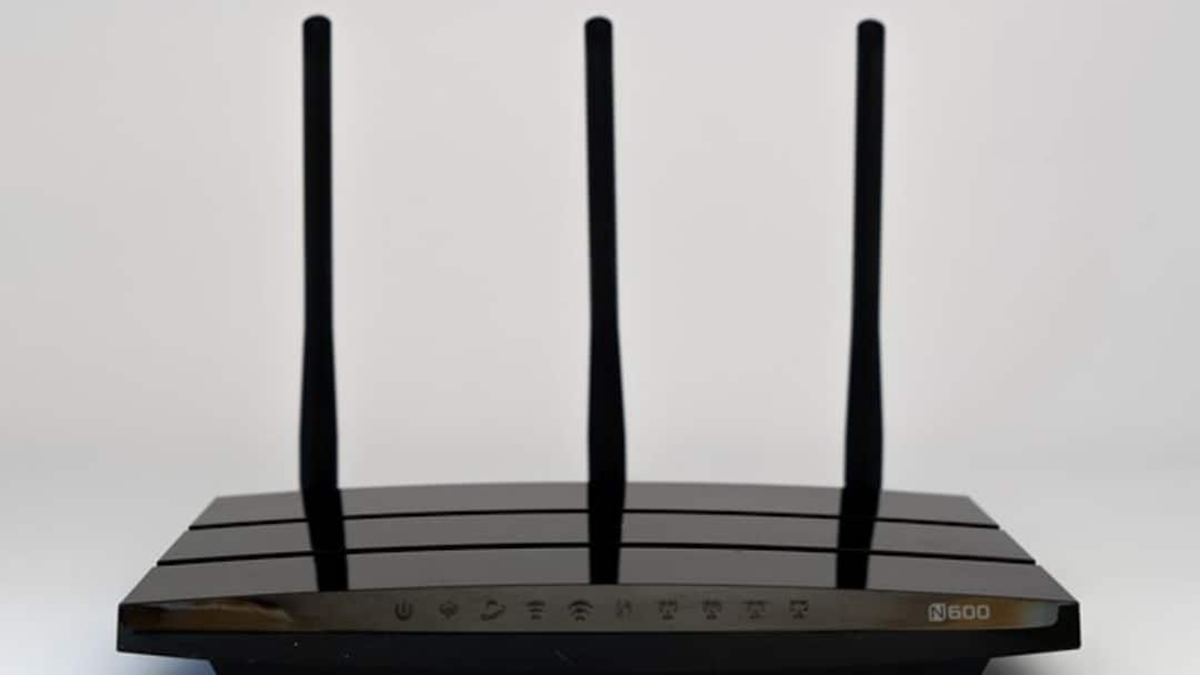
A strong password isn't enough to secure your Wi-Fi router. Learn which essential settings you can change in 10 minutes to protect your network from hacking and unknown devices.
How to secure your Wi-Fi router in 10 minutes
Nowadays, your home router isn't just an internet access device; it's also the main way to connect your smartphone, laptop, smart TV, camera, and other connected devices. Therefore, if your router's security is weak, other connected devices could also be at risk. Fortunately, by changing a few key settings, you can strengthen your home network's security in about 10 minutes.
To change security settings, you'll need to access your router's admin panel. This can usually be accessed by entering 192.168.1.1 or 192.168.0.1 in your browser. If this doesn't work, open a Command Prompt in Windows and run the ipconfig command, then check the address listed under Default Gateway. On a Mac, you can view the router's address through the Wi-Fi icon. Keep in mind that the router's admin password and the password used to connect to Wi-Fi may be different.
Change the default password and Wi-Fi name.
If you haven't already changed your router's admin username and password, it's best to change them immediately. Do the same with your Wi-Fi name (SSID) and password. The router model name appearing in the SSID could provide potential attackers with information about your device.
Select the strongest Wi-Fi Security option available. Newer routers may offer WPA3-Personal. However, older devices may not support WPA3, so you can use the WPA2/WPA3 Mixed Mode option.
Use Guest Network
Instead of giving your main Wi-Fi password to guests, use a Guest Network. This can keep guest devices isolated from your main network. This network can also be used for smart bulbs, cameras, and other IoT devices.
The advantage of this is that if a problem occurs with a connected device, direct access to your main network and the sensitive devices within it can be limited.
Turn off WPS
WPS, or Wi-Fi Protected Setup, is designed to connect devices to Wi-Fi without having to type in a lengthy password, but its PIN system can be a security vulnerability. Therefore, if you don't need WPS, turn it off in your router's settings. Nowadays, phones also offer simpler options for sharing Wi-Fi, such as QR codes.
Keep Remote Management off
Many routers allow you to access the admin panel via the Internet even when you're away from home. This is convenient, but it can expose the router's management interface to the Internet. It's best to disable features like Remote Management, Web Access from WAN, Telnet, and SSH if you don't need them.
Don't forget to update the firmware.
Finally, check for updates in the router's Firmware Update section. If the Auto Firmware Update option is available, enable it. Security updates play an important role in protecting against outdated and security threats. If the router manufacturer no longer provides updates and the device has reached end-of-life, getting a new router is considered a safer option.