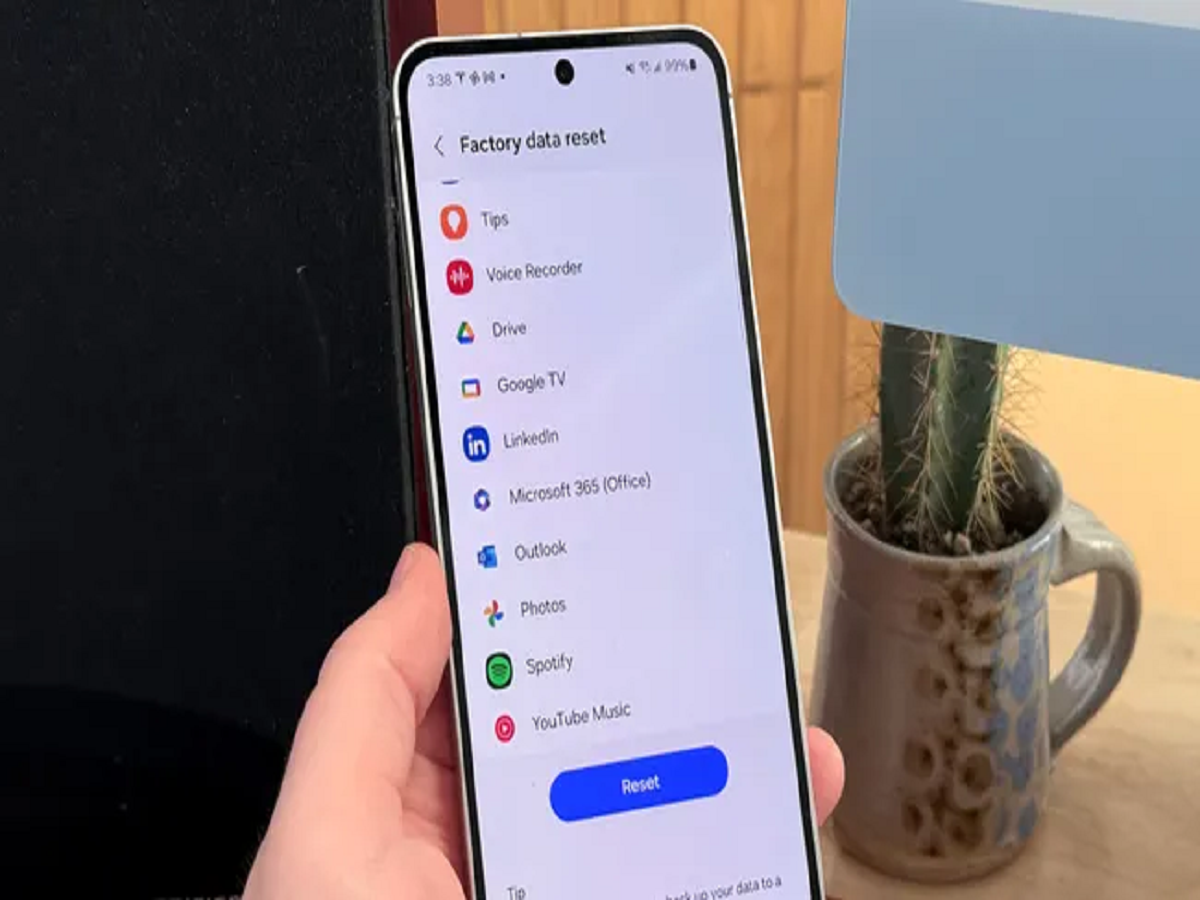
Over time, even the most powerful smartphones begin to slow down. Apps pile up, storage fills, software glitches appear, and performance takes a hit. If your Android phone no longer feels as smooth as it did on day one, a factory reset could be the simplest and most effective solution.
A factory reset restores your device to its original settings, just like it was when you first turned it on. This process removes unnecessary data, clears bugs, and gives your phone a clean slate. Whether you’re fixing persistent issues or preparing your device for resale, here’s everything you need to know.
Why a Factory Reset Can Be Important
A factory reset is more than just a fresh start. It can help:
- Remove malware or suspicious apps
- Fix software crashes and freezing issues
- Free up internal storage
- Improve overall performance
- Protect personal data before selling or gifting the phone
Since Android phones are closely integrated with your Google account, resetting also ensures your private information doesn’t fall into the wrong hands.
Things to Do Before Resetting Your Phone
Before proceeding, make sure you:
- Back up photos, videos, contacts, and files
- Sync important data with your Google account
- Ensure at least 50% battery or keep the phone plugged in
- Remember your Google account login (needed after reset)
Skipping these steps could result in permanent data loss.
How to Factory Reset an Android Phone Using Settings
This is the easiest and most common method when your phone is working properly.
- Open the Settings app on your phone
- Scroll down and tap System (or “General Management” on some phones)
- Select Reset options
- Tap Erase all data (factory reset)
- Enter your PIN, pattern, or password if asked
- Confirm the action and wait for the reset to complete
Your phone will automatically restart and begin the reset process, which usually takes a few minutes.
How to Factory Reset Using Recovery Mode
If your phone is frozen, stuck on the logo, or won’t open settings, Recovery Mode is the solution.
- Power off your Android phone completely
- Press and hold the Power + Volume Down buttons together
(button combinations may vary by brand) - When Recovery Mode appears, use volume buttons to navigate
- Select Wipe data/factory reset using the power button
- Confirm by choosing Yes or Format data
- Once completed, select Reboot system now
This method is especially useful for fixing boot loops or serious software errors.
What Happens After the Reset?
Once the reset is complete:
- Your phone returns to default settings
- All apps and personal data are erased
- You’ll need to sign in with your Google account again
- The device feels faster and more responsive
This security step, known as Factory Reset Protection, is managed by Google to prevent unauthorized use.
Final Takeaway
A factory reset is one of the most powerful tools available to Android users. It can revive a sluggish phone, fix stubborn software problems, and ensure your data stays secure. Just remember to back up your files and follow the steps carefully to enjoy a smooth reset experience.