NEWS
Worried WhatsApp Might Be Listening? Here’s How to Check If the App Uses Your Microphone in the Background
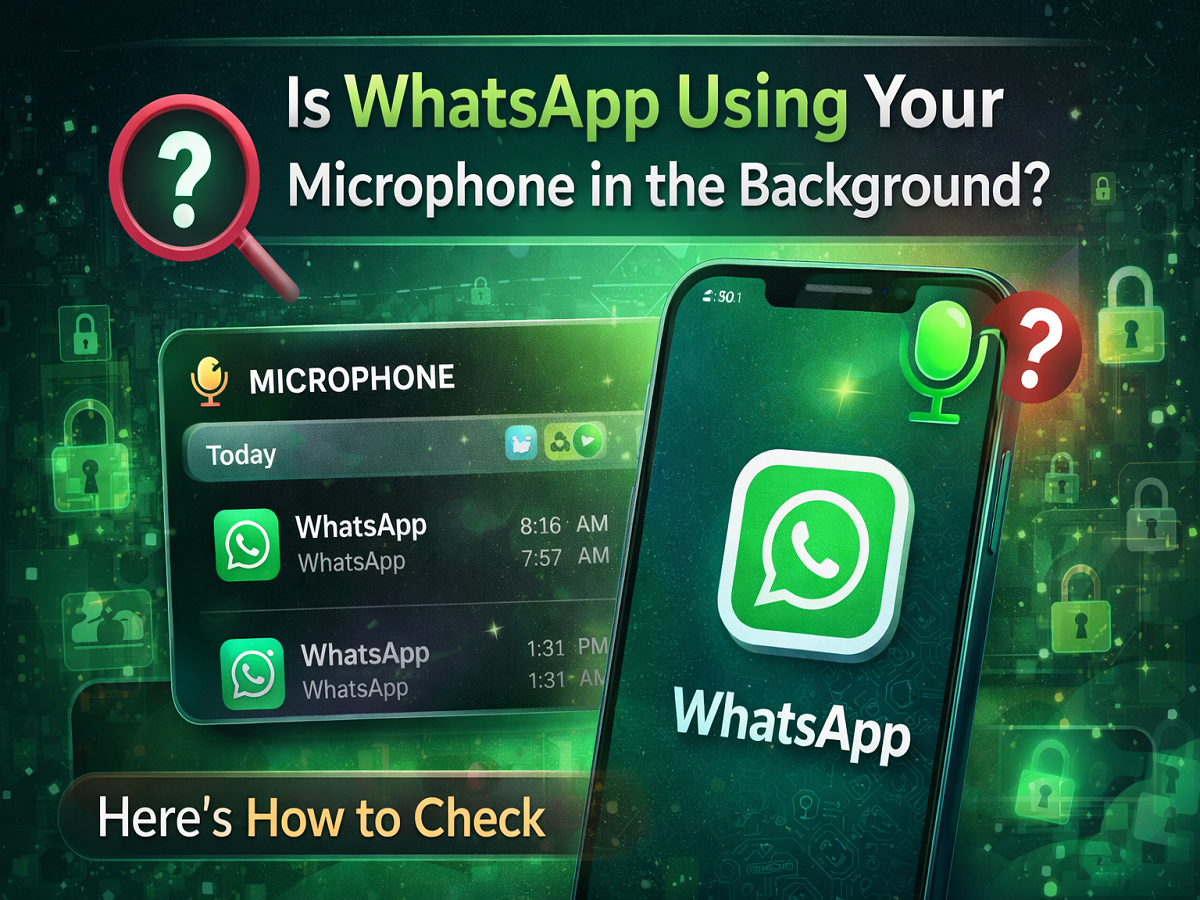
Concerns about smartphone privacy often arise when users notice unusual app activity or unexpected permission alerts. Recently, many users began questioning whether WhatsApp might be accessing their phone’s microphone in the background without their knowledge. The discussion gained traction online after a software engineer shared screenshots suggesting that WhatsApp appeared to be using his phone’s microphone while he was asleep.
The issue quickly caught attention across social media platforms, especially after tech figures commented on the situation. However, both Google and Meta later clarified that the problem was related to a bug in Android’s privacy dashboard, which was incorrectly showing microphone activity even when apps were not actually using it.
Even though the issue was reportedly caused by a system bug, users who want to be certain about their privacy can easily check microphone usage on their devices. Android provides built-in tools that allow users to monitor which apps access sensitive permissions like the camera and microphone.
Below is a step-by-step guide to help you verify whether WhatsApp has used your phone’s microphone in the background.
Requirements Before Checking Microphone Usage
Before proceeding, ensure the following conditions are met:
- You are using an Android smartphone running Android 12 or newer
- WhatsApp is installed and active on your device
- The app currently has microphone permission enabled
Android 12 introduced advanced privacy tools that allow users to monitor app permissions in greater detail.
Understanding the Android Privacy Dashboard
With Android 12, Google introduced a Privacy Dashboard, a feature that helps users track how apps access sensitive data such as the camera, location, and microphone.
The dashboard provides a timeline showing exactly when an app accessed the microphone, including the date and time. This makes it easier for users to identify suspicious activity or verify whether an app used a permission unexpectedly.
Watch for the Green Indicator on Your Screen
Before checking detailed logs, pay attention to the green privacy indicator on your smartphone.
On Android devices running Android 12 or later, a small green dot appears in the top-right corner of the screen whenever an app is actively using the microphone or camera.
If you see this indicator appearing randomly without opening an app that requires the microphone, it could be a sign that an app is accessing your device’s audio input.
Steps to Check If WhatsApp Used the Microphone in the Background
Follow these steps to review microphone usage:
- Open the Settings app on your Android smartphone.
- Scroll down and tap on Privacy or Privacy & Security.
- Select Privacy Dashboard.
- Tap on the Microphone option.
- Review the timeline showing which apps accessed the microphone and at what time.
Look carefully at the timeline to determine whether WhatsApp accessed the microphone when you were not actively using the app.
For example, if you had not made a WhatsApp call, recorded a voice message, or created a voice status update during that time, the activity might require further investigation.
What to Do If WhatsApp Is Accessing the Microphone Unexpectedly
If you find that WhatsApp has accessed the microphone when you were not actively using the app, you can take immediate action to protect your privacy.
Here are the steps to disable microphone access:
- Open Settings on your Android phone.
- Tap Apps and find WhatsApp in the list.
- Select Permissions.
- Tap Microphone.
- Choose Deny to prevent the app from accessing your microphone.
Keep in mind that disabling this permission will prevent WhatsApp from recording voice notes or making voice calls until the permission is enabled again.
Why Monitoring App Permissions Matters
Modern smartphones store a large amount of personal information, making privacy controls extremely important. Monitoring permissions ensures that apps are only accessing features when necessary.
Tools like Android’s Privacy Dashboard give users more control over how their data is used and help maintain transparency regarding app activity.
Final Thoughts
Although the viral reports about WhatsApp accessing microphones were eventually linked to a bug in Android’s privacy system, it still highlights the importance of checking app permissions regularly.
By using Android’s built-in privacy tools, users can quickly verify whether apps like WhatsApp are accessing the microphone or camera. If anything appears unusual, permissions can easily be modified to maintain control over device privacy.