NEWS
WhatsApp Screen Sharing Feature Explained: Step-by-Step Guide to Share Your Screen on Android, iPhone, and Windows
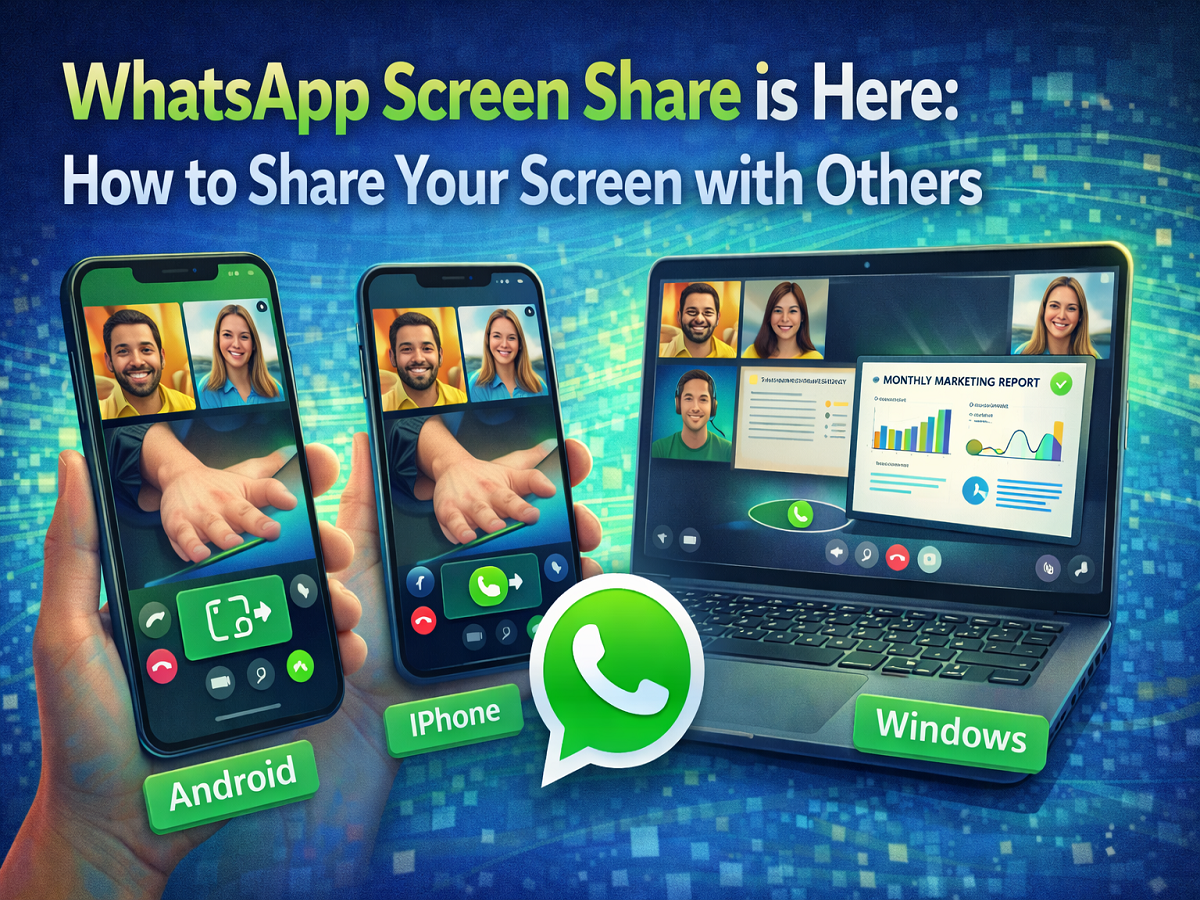
WhatsApp continues to expand its communication features, making the platform more useful for both personal and professional conversations. One of the latest additions is the screen sharing feature, which allows users to share their device screen with others during a video call.
With this feature, users can display their smartphone or computer screen in real time while on a WhatsApp video call. This makes it easier to demonstrate apps, present documents, show photos, guide someone through settings, or troubleshoot technical issues.
The screen sharing tool works on Android smartphones, iPhones, and Windows computers, making it accessible across multiple devices. Whether you are helping a friend solve a problem on their phone or presenting something during a group call, this feature adds a new level of convenience to WhatsApp communication.
If you want to start using this feature, here’s a detailed guide explaining how to share your screen on WhatsApp.
What Is WhatsApp Screen Sharing?
WhatsApp’s screen sharing feature allows users to broadcast their device display to other participants during a video call. Instead of describing something verbally, you can simply show it on your screen.
This feature can be useful for many purposes, including:
- Explaining how to use an app
- Sharing presentations or documents
- Showing photos or videos during calls
- Helping friends or family troubleshoot device issues
Screen sharing works during both one-on-one video calls and group video calls.
Important Things to Know Before Using Screen Sharing
Before using the screen sharing feature, there are a few important points to keep in mind.
- Make sure you are using the latest version of WhatsApp on your device.
- Screen sharing can only be used during an active video call.
- The feature is available for both individual and group calls.
- Participants may still take screenshots, so avoid sharing sensitive information.
Although WhatsApp includes privacy protections, users should remain cautious while sharing their screens.
How to Share Screen on WhatsApp Using Android or iPhone
If you are using WhatsApp on a smartphone, follow these steps to share your screen.
Step 1: Update WhatsApp
Ensure that you have installed the latest version of the WhatsApp app from the Google Play Store or Apple App Store.
Step 2: Start a Video Call
Open WhatsApp and select the contact or group you want to call.
Then start a video call.
Step 3: Locate the Screen Share Button
During the video call, look at the bottom menu bar.
You will see a screen share icon, usually represented by a phone display with an arrow.
Step 4: Tap the Screen Share Option
Tap the screen share button and confirm the action.
Once confirmed, WhatsApp will begin sharing your phone’s screen with other participants in the call.
How to Share Screen on WhatsApp From a Windows PC
WhatsApp also allows screen sharing from its desktop application on Windows computers.
Follow these steps:
Step 1: Update WhatsApp Desktop
Open the Microsoft Store and update the WhatsApp desktop application to the latest version.
Step 2: Start a Video Call
Launch the WhatsApp app on your computer and initiate a video call with a contact or group.
Step 3: Click the Screen Share Icon
During the call, click the screen share button.
Step 4: Choose What to Share
You will have the option to share:
- A specific application window (such as a browser or file manager)
- Your entire screen
Step 5: Start Sharing
After selecting your preferred option, click Share to begin broadcasting your screen.
Security Tips While Using Screen Sharing
While screen sharing is useful, users should take a few precautions to protect their privacy.
- Avoid sharing sensitive information such as passwords or bank details.
- Close unnecessary apps or notifications before sharing your screen.
- Only share your screen with people you trust.
These steps can help prevent accidental exposure of personal information.
The introduction of screen sharing brings WhatsApp closer to other video conferencing platforms by adding an important collaboration feature. With the ability to share screens on Android, iPhone, and Windows devices, users can now communicate more effectively during video calls.
Whether you are explaining something to a friend or presenting content during a group call, WhatsApp’s screen sharing feature makes interactions more visual and convenient.