NEWS
Switching Phones? Here’s How to Move Your WhatsApp Chats from iPhone to Android Without Losing Data
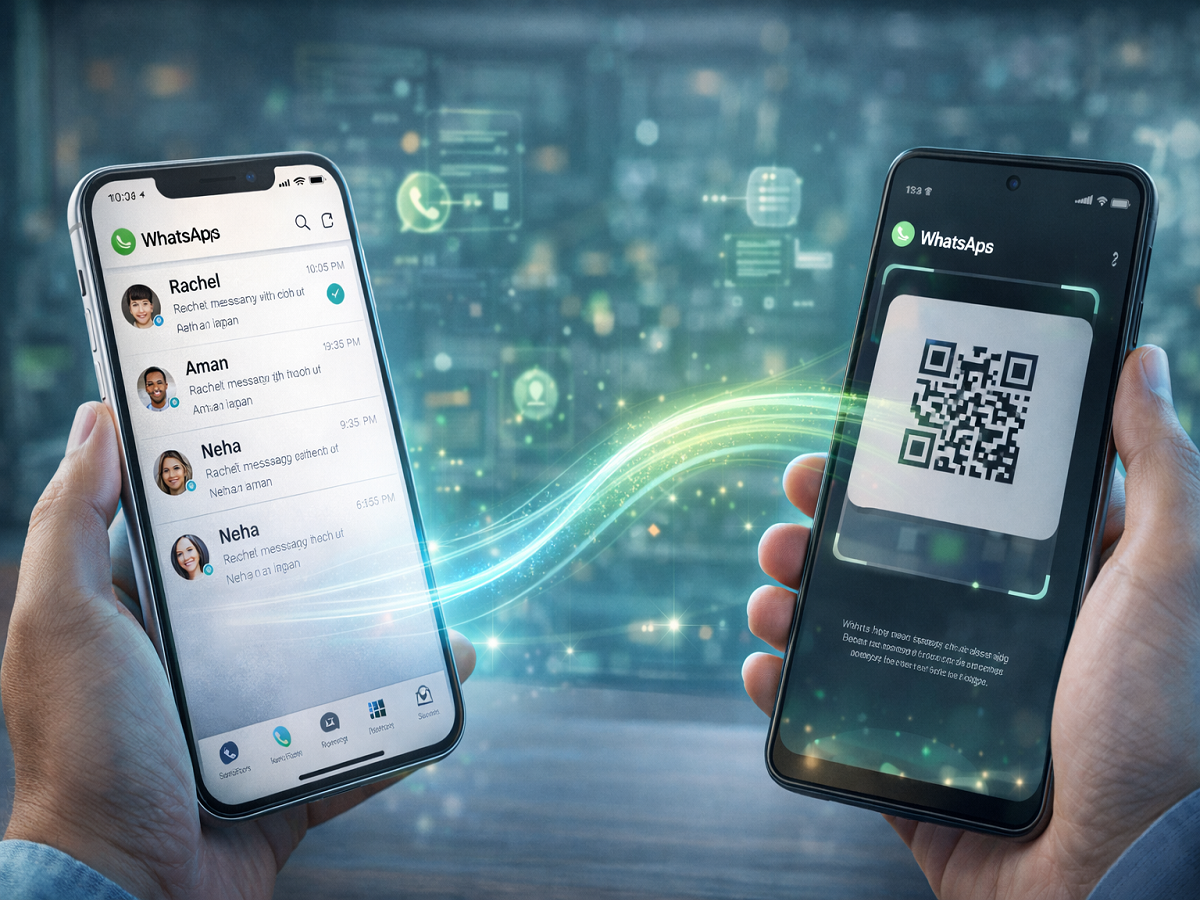
Changing smartphones—especially from iPhone to Android—can feel complicated, mainly when it comes to transferring your chat history. Fortunately, WhatsApp now offers a built-in feature that allows users to move chats, media, and important data seamlessly between devices.
If you're planning to switch ecosystems, here’s a fully rephrased and easy-to-follow guide to help you transfer your WhatsApp data without losing conversations.
What Does WhatsApp Chat Transfer Include?
With the latest update, WhatsApp allows users to transfer a wide range of data, including:
- Chat history
- Photos and videos
- Voice messages
- Documents
- Group chats, Channels, and Communities
This ensures that your conversations remain intact even after switching devices.
How the Transfer Process Works
The migration happens directly between your iPhone and Android device using:
- A QR code connection
- Local Wi-Fi or cable transfer
This means your data does not pass through cloud servers, enhancing privacy and security during the process.
Important Things to Know Before You Start
Before beginning the transfer, keep these points in mind:
- Transfer must be done before setting up WhatsApp on the new Android phone
- If already set up, you’ll need to reinstall WhatsApp
- You cannot merge old chats with new chats
- Same phone number must be used
- Some data is not supported, including:
- WhatsApp Business chats
- Payment messages
- Status updates
Step-by-Step: Transfer WhatsApp Chats from iPhone to Android
Follow these steps carefully:
1️⃣ Start on Your iPhone
- Open WhatsApp
- Go to Settings → Chats → Transfer Chat History → Transfer to Android
- Tap Continue
2️⃣ Allow Permissions
- Grant camera access if prompted
- Keep your iPhone unlocked during the process
3️⃣ Set Up Android Device
- Install and open WhatsApp on your Android phone
- Verify using the same mobile number
4️⃣ Connect Both Devices
- Tap Allow on Android
- Scan the QR code shown using your iPhone
5️⃣ Begin Transfer
- Tap Join to connect devices
- Data transfer will begin automatically
6️⃣ Complete the Process
- Once finished, tap Next on Android
- Your chats will appear, ready to use
How Long Does It Take?
The transfer time depends on the size of your data. Larger chat histories with media files may take longer, so ensure both devices remain connected throughout the process.
What Happens to Your Old Data?
After the transfer:
- Your chats will still remain on your iPhone
- You can manually delete them if needed
- Cloud backups (like iCloud) remain separate unless removed
Final Takeaway
Switching from iPhone to Android no longer means losing your chat history. With the official transfer feature from WhatsApp, you can move your entire conversation history securely and efficiently.
Just follow the steps carefully, ensure both devices are ready, and enjoy a smooth transition without starting your chats from scratch.