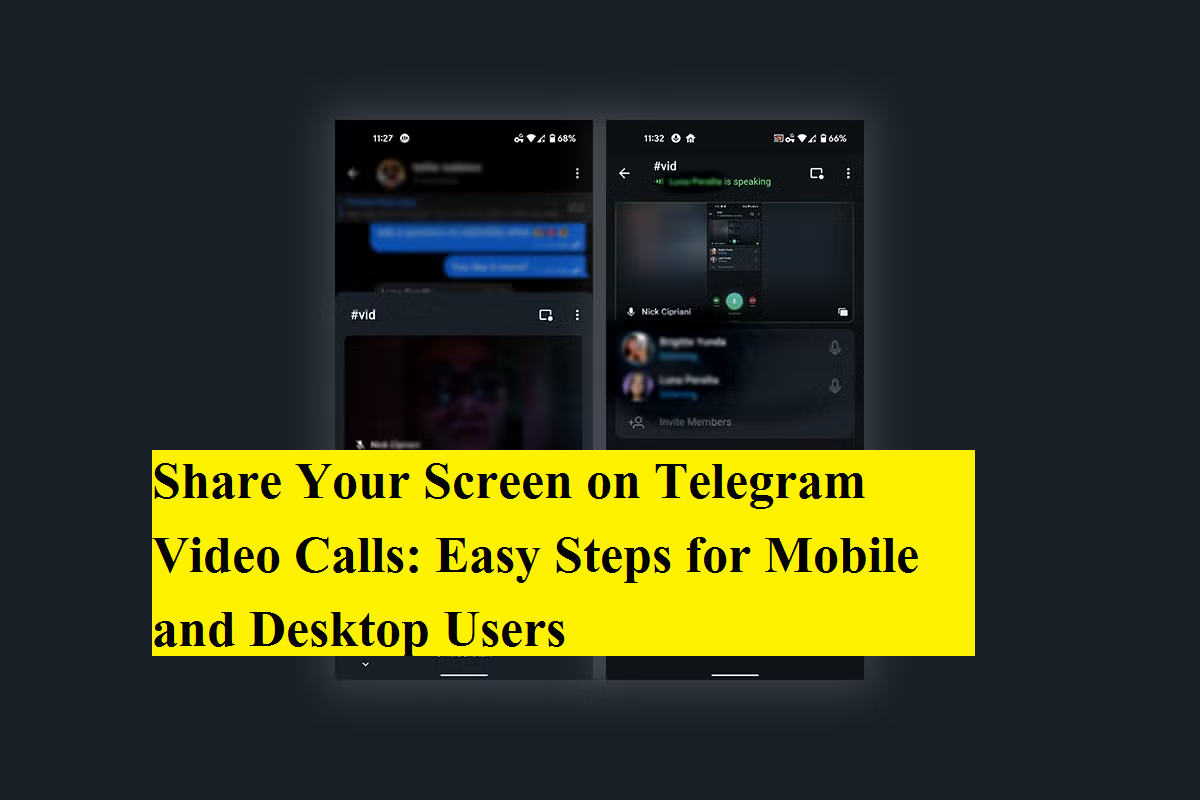
Screen sharing has become an essential feature for online meetings, remote help, virtual classes, and even casual conversations. Whether you want to explain something visually, show a document, or guide someone through an app, screen sharing makes communication clearer and faster. If you use Telegram, you’ll be glad to know that the platform offers a simple and reliable screen-sharing option during video calls on both smartphones and computers.
In this detailed guide, we explain how to share your screen during a Telegram video call, covering mobile phones as well as desktops and laptops. We’ll also share a few practical tips to ensure a smooth and distraction-free experience.
Why Use Screen Sharing on Telegram?
Telegram’s screen-sharing feature is useful for many everyday scenarios. You can walk a friend through phone settings, present slides to colleagues, assist family members with tech issues, or review files together in real time. The feature works seamlessly without requiring any extra apps or complicated setup.
Best of all, screen sharing on Telegram is available across platforms, making it flexible and convenient for most users.
How to Share Your Screen on Telegram Using a Smartphone
Telegram allows screen sharing during video calls on Android devices (and supported platforms). The process is quick and intuitive.
Step-by-Step Guide for Mobile Users
- Start a video call
Open the Telegram app and initiate a video call with the contact or group you want to talk to. - Access call options
Once the video call is active, look for the three vertical dots usually placed in the top-right corner of the screen. - Choose the screen-sharing option
Tap the three dots and select “Share Screen” from the menu. - Select what you want to display
Depending on your device and Android version, you may see different options:- Share entire screen: Everything visible on your phone will be broadcast.
- Share a specific app or window: Useful if you want to show only one app, such as a document or presentation.
- Confirm and start sharing
Tap “Start Broadcast” or “Start Now” to begin screen sharing. - Stop screen sharing when done
To end screen sharing, tap the red “Stop Broadcast” button at the top of your screen.
How to Share Your Screen on Telegram Using a Desktop or Laptop
Telegram’s desktop app and web version also support screen sharing, making it ideal for work meetings and detailed presentations.
Step-by-Step Guide for Desktop Users
- Begin a video call
Open Telegram on your desktop or laptop and start a video call with a contact. - Locate the camera icon
In the video call window, move your cursor over the camera icon in the bottom-left corner. - Select the screencast option
From the menu that appears, click on “Screencast.” - Choose the screen or window
A pop-up window will show all available screens and open applications. Click on the one you want to share. - Start sharing your screen
Confirm by clicking “Share Screen.” Your selected screen will now be visible to other participants. - End the screencast
When finished, click the red “Stop Screencast” button in the call window.
Important Tips for Smooth Screen Sharing
To make your Telegram screen-sharing experience more effective, keep these points in mind:
- Silence notifications: If you share your entire phone screen, incoming notifications will be visible and audible. Turning on Do Not Disturb mode can help avoid interruptions.
- Check your internet connection: A stable and fast connection ensures smooth video and screen transmission without lag.
- Close unnecessary apps: This reduces distractions and improves performance during screen sharing.
- Privacy awareness: Always double-check what’s visible on your screen before sharing, especially during professional calls.
Telegram’s built-in screen-sharing feature is a powerful tool that enhances video calls without adding complexity. Whether you’re using a smartphone or a computer, the steps are straightforward and user-friendly. With proper preparation and a stable connection, you can easily turn a regular video call into a productive and interactive session.
By following this guide, you’ll be able to share your screen confidently on Telegram—making conversations clearer, collaborations smoother, and explanations more effective.