NEWS
Share Files Instantly Without Internet: A Complete Guide to Using Android’s Nearby Share Feature
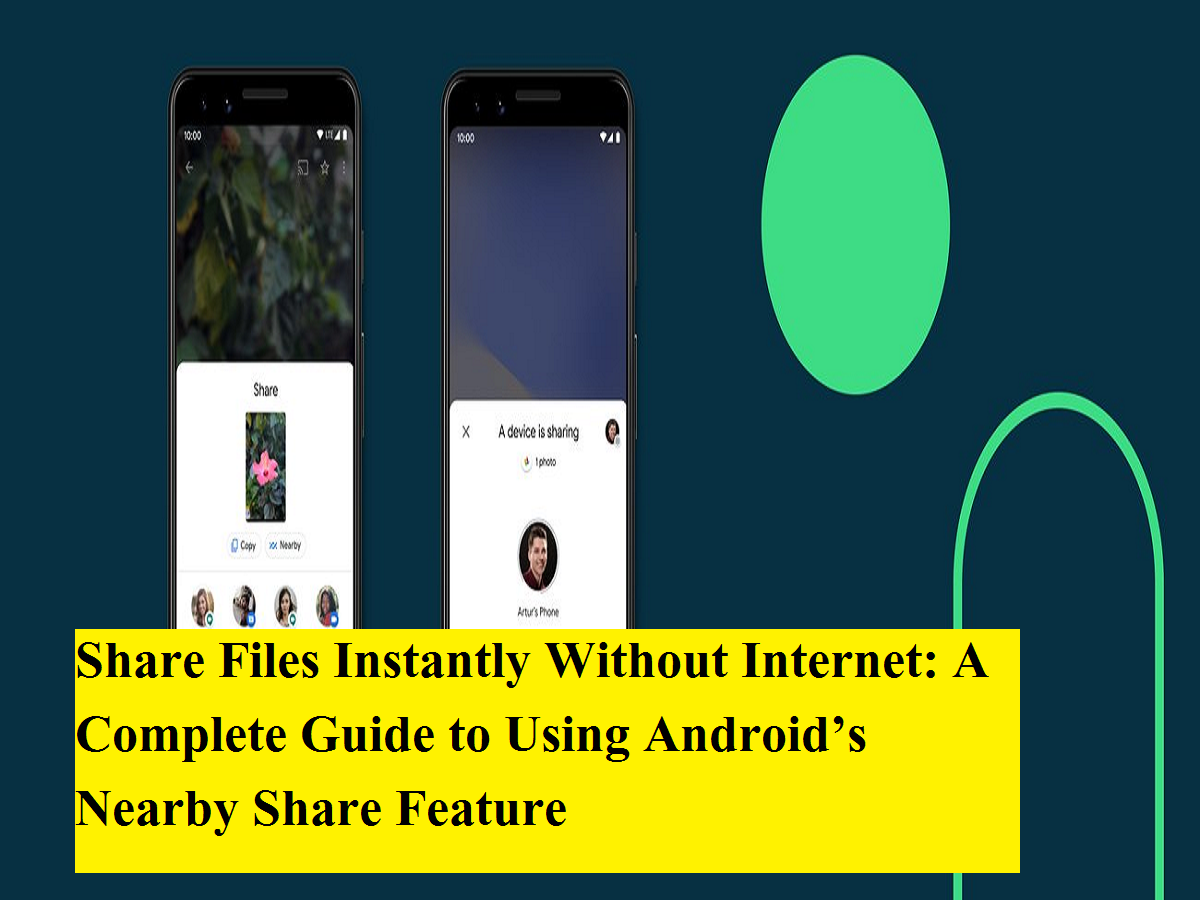
Transferring files between smartphones no longer needs cables, apps, or slow Bluetooth connections. If you use an Android phone, there’s a fast, built-in way to send photos, videos, documents, and links to nearby devices within seconds. This is made possible through Android’s smart sharing tool called Nearby Share.
Nearby Share is designed to simplify file transfers between devices that are physically close to each other. Whether you want to send vacation photos to a friend, share a document with a colleague, or move files between your own devices, this feature offers a smooth and secure experience. Below is a detailed, easy-to-understand guide explaining what Nearby Share is, how it works, and how you can use it efficiently.
What Is Nearby Share and How Does It Work?
Nearby Share is a wireless file-sharing feature available on:
- Android devices running Android 6.0 or later
- Chromebooks (Chrome OS version 91 and above)
- Select Windows PCs running 64-bit Windows 10 or newer
The feature uses a combination of Bluetooth, Wi-Fi, and peer-to-peer connections to transfer files quickly. Importantly, it does not require mobile data or an active internet connection, making it ideal for offline sharing.
Once enabled, Nearby Share automatically detects compatible devices nearby and allows users to send content with just a few taps.
Why Use Nearby Share Instead of Bluetooth or Apps?
Nearby Share offers several advantages:
- Faster transfer speeds than traditional Bluetooth
- No need to install third-party apps
- Works offline
- Supports large files
- Built-in security and user approval
It’s especially useful when sharing files frequently or when internet connectivity is limited.
Things to Check Before Using Nearby Share
Before sending or receiving files, make sure both devices are ready.
Enable Nearby Share
- Open Settings on your Android phone
- Go to Connected devices
- Tap Connection preferences
- Select Nearby Share
- Turn the feature on
Turn On Required Services
Ensure the following are enabled on both devices:
- Bluetooth
- Location services
- Wi-Fi (even if not connected to a network)
These services help Nearby Share find nearby devices and establish a fast connection.
How to Share Files Using Nearby Share on Android
Sharing files with Nearby Share is simple and intuitive.
Step-by-Step File Sharing Guide
- Open the file you want to share
- This could be a photo from Gallery, a video, a document, or even a web link
- Tap the Share button
- This icon usually looks like three connected dots or arrows
- Select Nearby Share from the sharing options
- Wait for nearby devices to appear
- The name of the receiving device will show up on your screen
- Tap the device name to start sharing
- Accept the transfer on the receiving device
- A notification will appear asking for permission
- Tap Accept to begin the transfer
Once accepted, the file is sent securely and usually completes within seconds.
Managing Device Visibility and Privacy
Nearby Share gives you full control over who can see and send files to your device.
Device Visibility Options
You can choose:
- Everyone – Any nearby device can see you
- Contacts – Only people in your contact list
- Your devices – Only your own signed-in devices
- Hidden – No one can discover your device
These settings can be adjusted from the Nearby Share menu at any time, ensuring privacy and security.
Sharing with Non-Contacts
Even if the receiving person is not saved in your contacts, you can still share files. Just ensure both devices are set to visible and kept unlocked during the transfer. This makes Nearby Share flexible for quick, one-time sharing situations.
Transfer Speed and Performance
Transfer speeds depend on:
- File size
- Distance between devices
- Wi-Fi and Bluetooth signal quality
Smaller files like photos or PDFs transfer almost instantly, while larger videos may take slightly longer—but still much faster than Bluetooth.
Common Issues and Tips
- Keep devices close for best performance
- Ensure screens are unlocked during transfer
- Restart Nearby Share if devices don’t appear
- Update your device software for best compatibility
Nearby Share is one of Android’s most practical and underrated features. It replaces the hassle of cables, apps, and slow transfers with a seamless, built-in solution that works offline and respects user privacy.
If you regularly share files with people around you—or move content between your own devices—learning to use Nearby Share can save time and make everyday sharing effortless. Once you start using it, it’s hard to go back to older methods.