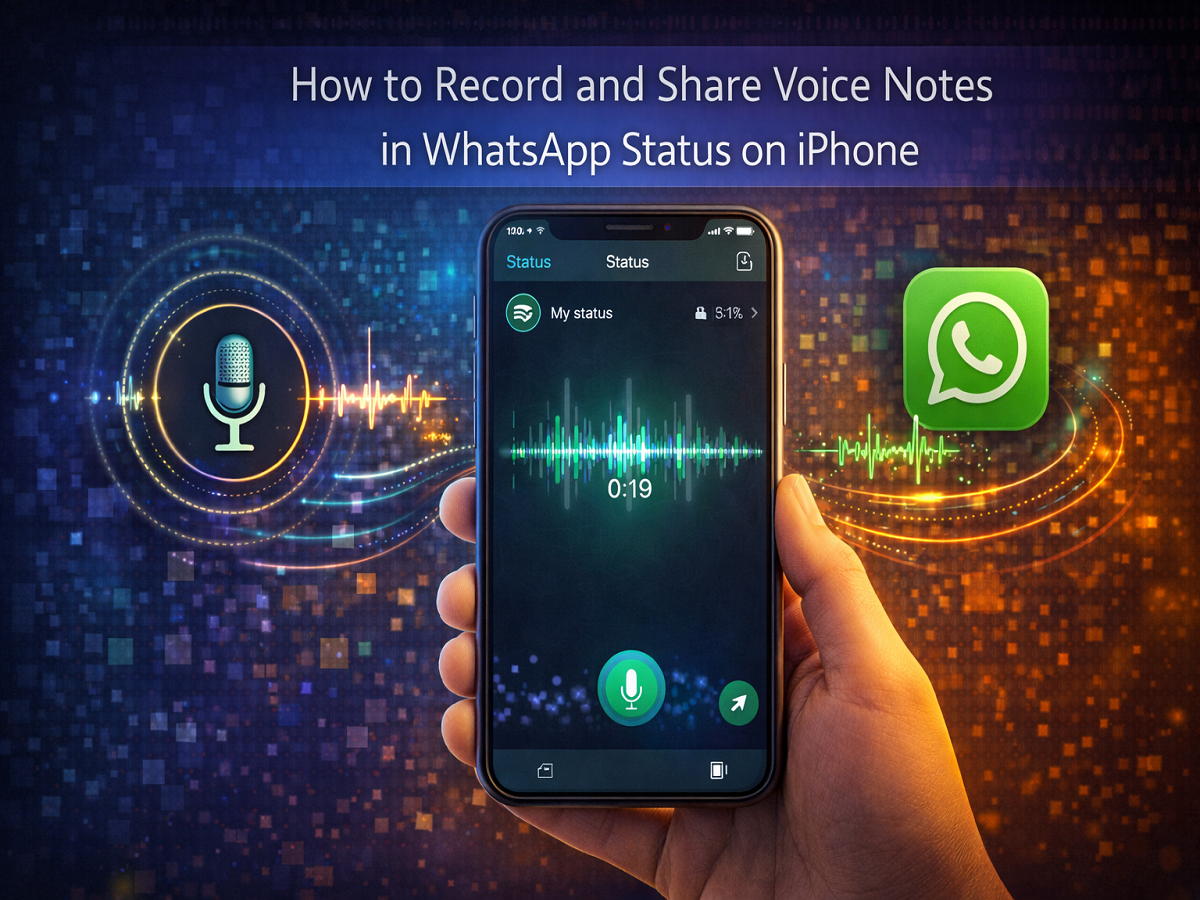
Instant messaging platforms are continuously introducing new features to make communication more interactive. One such update from WhatsApp allows iPhone users to record and share voice notes directly as Status updates. This feature gives users another way to express thoughts, announcements, or quick updates without typing a message.
With the voice status option, users can record short audio clips and post them to their WhatsApp Status just like photos or videos. These voice updates are visible only to contacts selected in the user’s privacy settings, ensuring greater control over who can listen to them.
Below is a complete guide explaining how the voice status feature works and how iPhone users can record and share voice notes in WhatsApp Status.
What Is WhatsApp Voice Status?
WhatsApp Voice Status is a feature that allows users to share short voice recordings as status updates. Instead of posting text, images, or videos, users can now upload a recorded audio clip.
Some key highlights of the feature include:
- Voice notes can be up to 30 seconds long
- They are protected with end-to-end encryption
- Only selected contacts can view or listen to the status
- Like other status updates, they automatically disappear after 24 hours
This feature is particularly useful for users who prefer speaking instead of typing, or for sharing quick audio messages with friends and family.
Privacy and Security of Voice Status
WhatsApp has designed the voice status feature with privacy in mind. Similar to other chats and media shared on the platform, voice status updates are protected with end-to-end encryption.
This means that only the people you allow through your status privacy settings will be able to access your voice update. No one else, including WhatsApp itself, can listen to the audio.
Users can also customize their audience using the status privacy settings to choose who can view or listen to their updates.
How to Record and Share Voice Notes in WhatsApp Status on iPhone
Follow these simple steps to record and post a voice status update on your iPhone.
Step 1: Open WhatsApp
Launch the WhatsApp app on your Apple iPhone.
Step 2: Go to the Status Tab
Tap on the Status tab located at the bottom of the screen.
Step 3: Tap the Pencil Icon
In the Status section, tap the floating pencil icon positioned at the bottom-right corner.
Step 4: Start Recording
Tap and hold the microphone icon to begin recording your voice note.
Step 5: Record Your Message
You can record an audio message of up to 30 seconds.
Step 6: Finish Recording
Release the microphone icon once you finish recording.
Step 7: Review the Voice Note
You can listen to your recorded message before posting it.
Step 8: Share the Status
Tap the send icon to upload the voice note as your WhatsApp Status.
Once posted, your voice status will be visible to selected contacts and will disappear automatically after 24 hours.
Upcoming WhatsApp Features
WhatsApp continues to expand its features to improve user experience. Reports suggest that the platform may soon introduce a status reporting option for iOS users. This feature is currently being tested in beta versions and may allow users to report inappropriate status updates directly from the app.
Final Thoughts
The voice status feature on WhatsApp offers a convenient way for users to share quick audio updates with their contacts. Instead of typing a message, users can simply record their voice and post it as a status.
With privacy protections like end-to-end encryption and customizable audience settings, this feature ensures that users can communicate securely while expressing themselves more naturally through voice updates.